
Sometimes it’s important to go see the user information for students who have dropped or withdrawn from the course.
Please note, the term “withdrawal” for D2L is any student who was once enrolled who is no longer enrolled. In short, at PPSC what we call a “Drop” (before Census), is also called a “Withdrawal” by D2L.
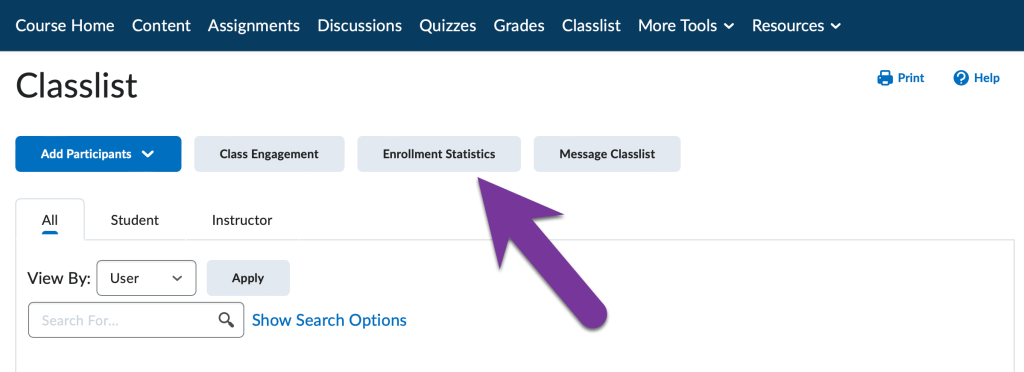
To see this information, navigate to your course’s Classlist, then click on Enrollment Statistics.
At the top of this page, you’ll see all the roles and how many Enrollments and Withdrawals have occurred. The key stuff is below, under the Withdrawals section. It will show you a list of names and S#’s of students who were once enrolled in the course and are no longer. It also shows you the Date they were pulled from the class and the date they last accessed the course.
Notice, if you click the down arrow next to a student’s name, you will be able to access the student’s grades and/or attendance as well.

View Grades #
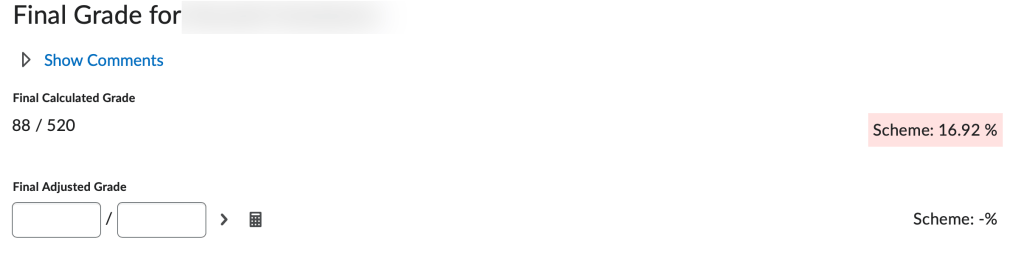
If you choose View Grades, you’ll see the student’s final calculated grade at the time they withdrew at the top of the screen.
Scrolling down, you can see every assignment and quiz for the course. If a student turned in an assignment, they’ll have a question mark icon under Submissions. Click the question mark icon to see their submission.
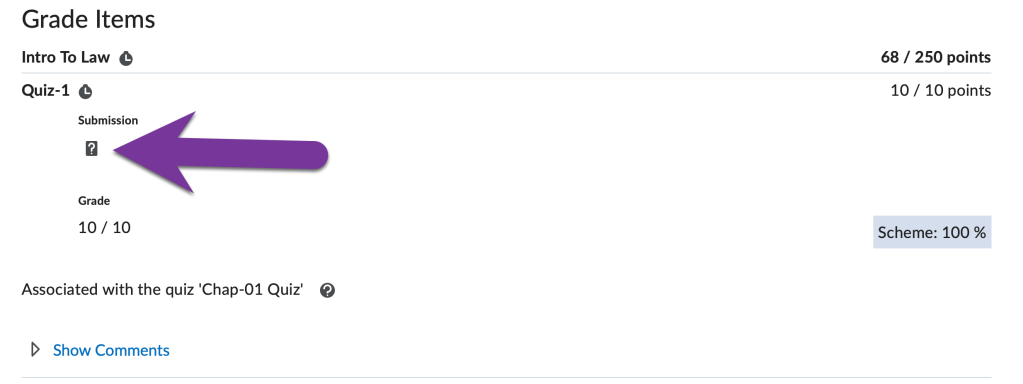
You’ll also see the grade they earned for each assignment. If you left feedback for a student, it will be located under “Show Comments”.
View Attendance #
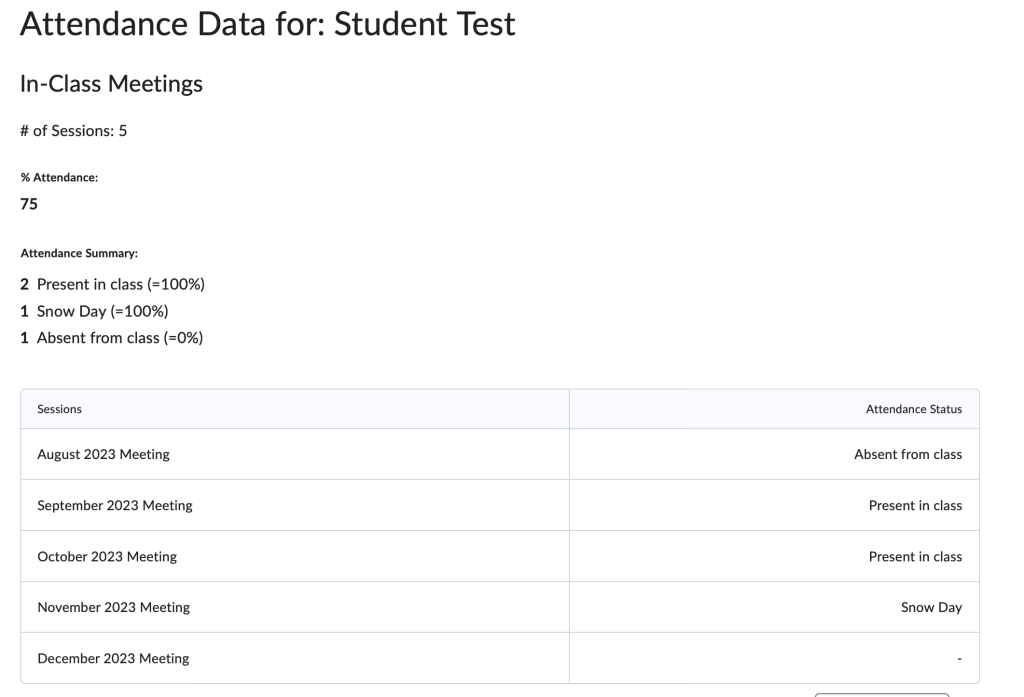
If you have created an attendance register in D2L and recorded attendance for the student, it will show if you click the “View Attendance” option.
The next screen will show you the number of total sessions that you have assigned to a certain attendance register, and the % of attendance the student was marked present. Click on the Register Name to see more details.

This will show you exactly what you entered for the student for each class session.


You must be logged in to post a comment.