
Clearing your web browser’s cache and cookies is often the best first steps for addressing any technical issues or bugs. In addition to protecting your privacy by reducing tracking, clearing your cache and cookies can enhance browser performance by eliminating extra data.
Google Chrome #
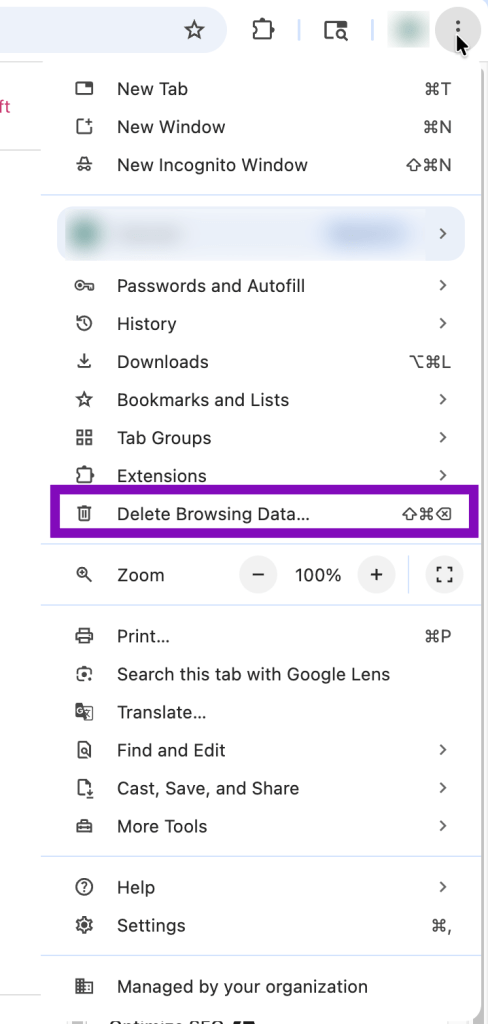
Click on the three dots in the upper right-hand corner to open the settings menu. Select “Delete Browsing Data”.
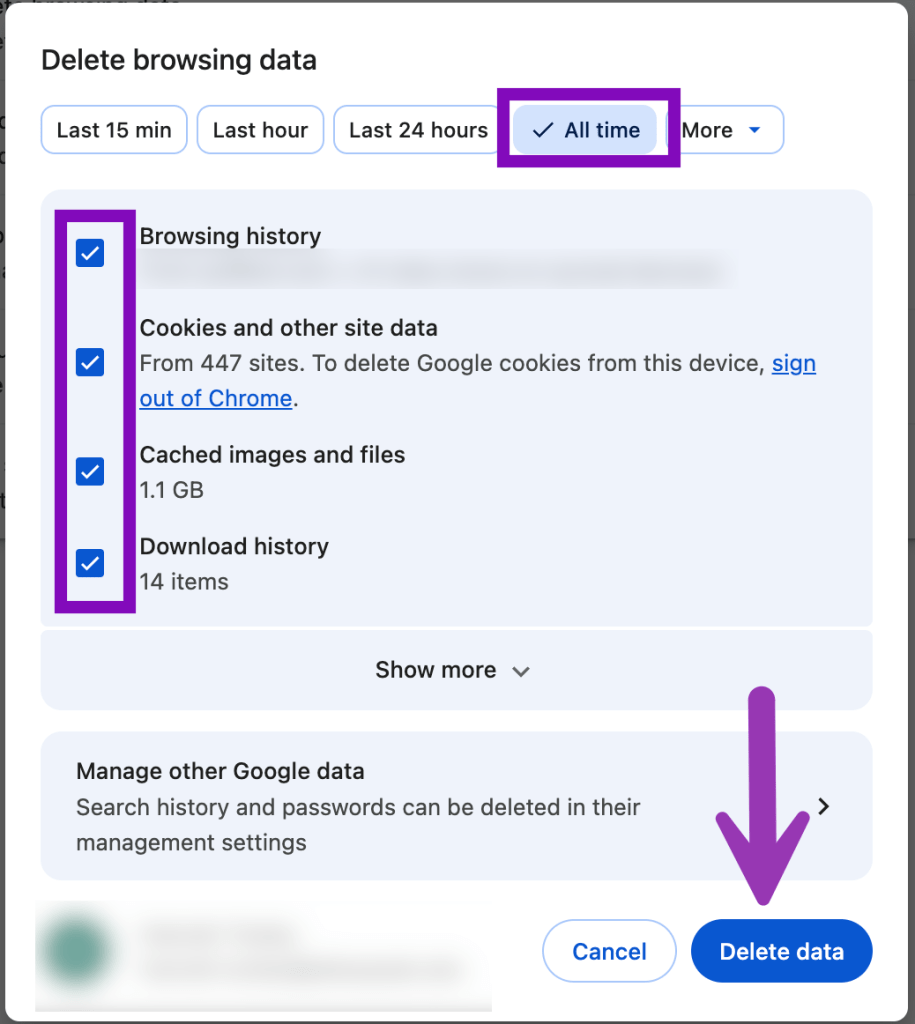
Then, make sure “All time” is selected and check the box for “Cookies and other site data”. We also recommend clearing your “Browsing History” and “Cached images and files”. Then, click the “Delete data” button.
See Google’s help article on Clearing Cache and Cookies for more information.
Microsoft Edge #
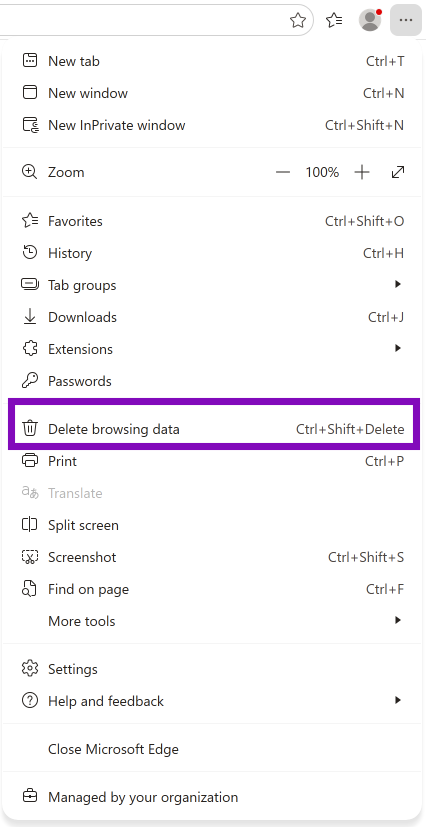
Click on the three dots near the upper-right corner of your window and select “Delete Browsing Data”.
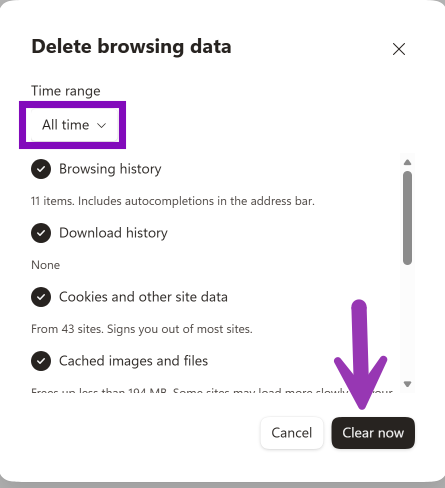
Change the time range to “All time” and make sure “Cookies and other site data” is selected. We also recommend clearing your “Browsing history” and “Cached images and files”. Click “Clear now”.
See Microsoft’s help article on Clearing Cache and Cookies for more information.
Safari #
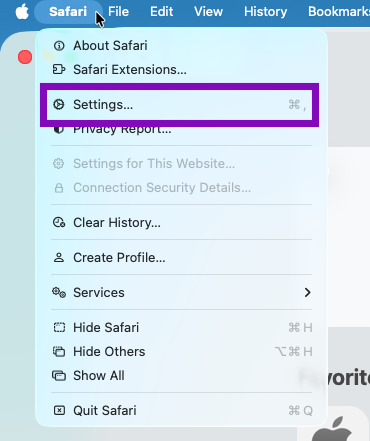
Click the “Safari” Menu and select “Settings”.
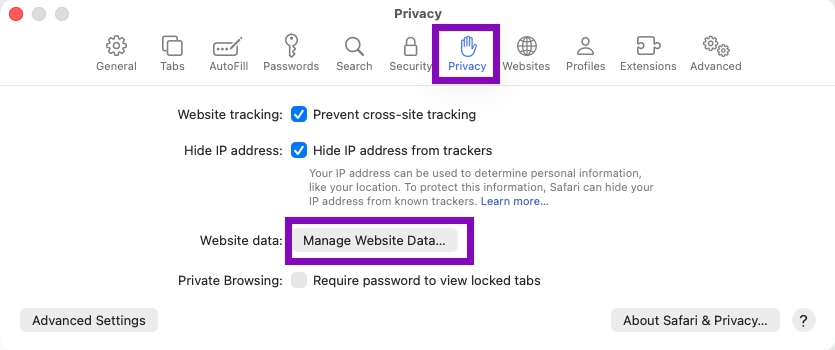
Then, navigate to the privacy options and select “Manage Website Data”.
Then, click “Remove All”.
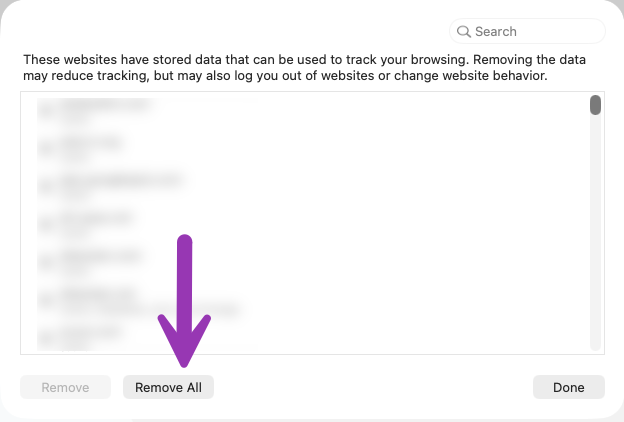
In the window that pops up, click “Remove Now”.

See Apple’s article on Clearing Cache and Cookies for more information.
Firefox #
Click the three line icon in the top right corner. Select “History”.
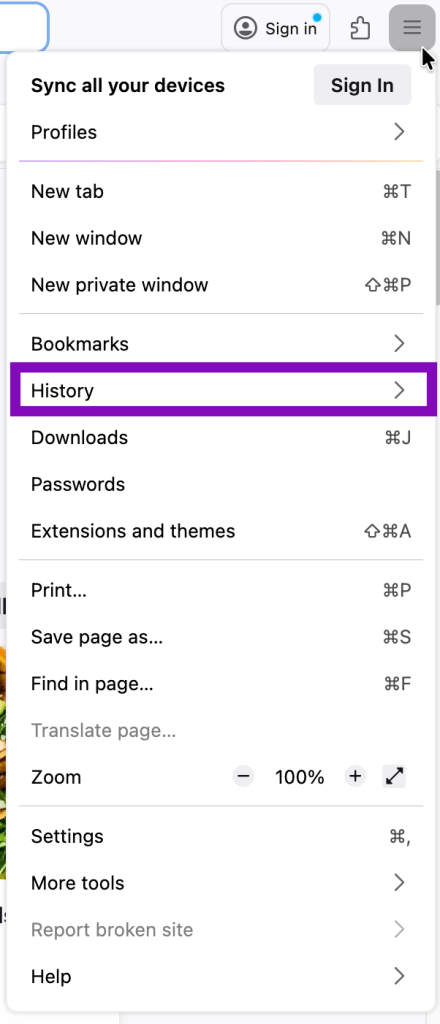
Then, click “Clear recent history”.

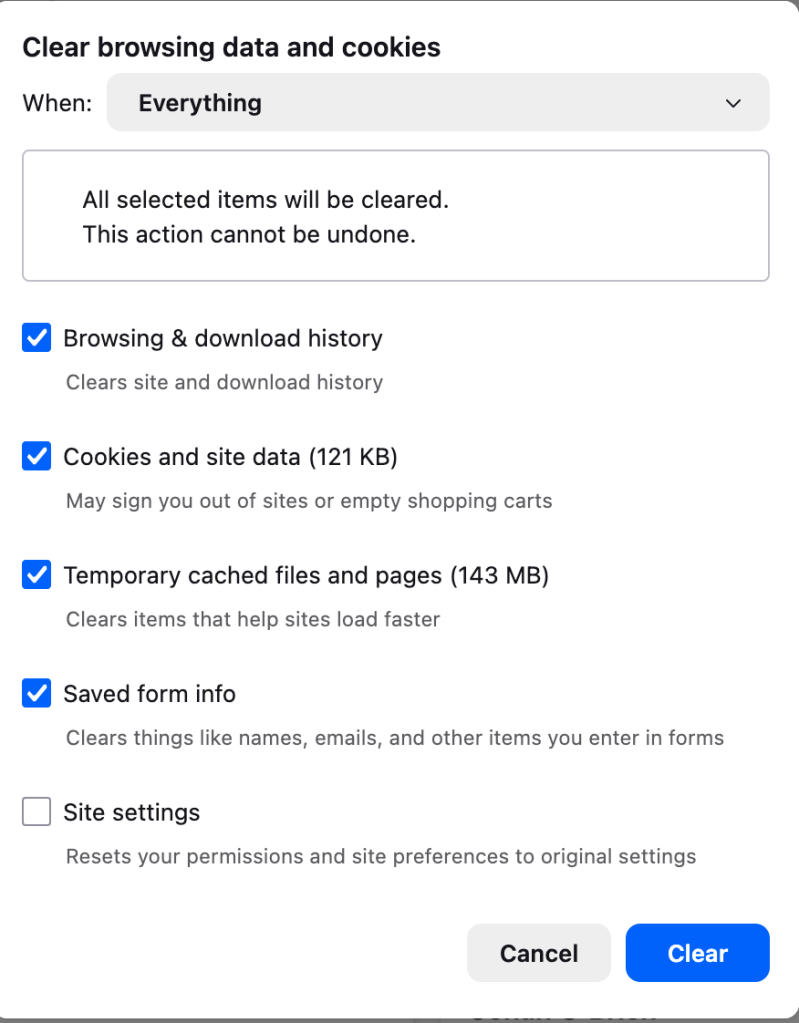
Then, make sure When is changed to “Everything”. Also ensure the “Cookies and site data option” is checked. We also recommend checking “Browsing & download history” and “Temporary cached files and pages”. Then, click “Clear”.
See Mozilla’s article on Clearing Cache and Cookies for more information.


You must be logged in to post a comment.