Skip to content
PPSC eLearning Knowledge Base & Support
  • Knowledge Base
  • News
  • Submit a Support Ticket
  • Training
  • PPSC Healthy Course Checklist
  • eLearning Glossary
  • Contact Us
  • Knowledge Base
  • News
  • Submit a Support Ticket
  • Training
  • PPSC Healthy Course Checklist
  • eLearning Glossary
  • Contact Us

Accessibility

  • Accessible Headings in Word
  • Accessible Images in Microsoft Office
  • Accessible Links in Microsoft Office
  • Accessible Tables in Word and PowerPoint
  • Creating Transcripts for Audio Files
  • Finding Captioned Videos on YouTube
  • Fixing the Top Accessibility Issues with Yuja Panorama
  • How to Caption Videos
  • How to give a student special access
  • How to Print Homework/Quizzes/Tests in MyLab Math
  • Microsoft Excel Accessibility
  • Microsoft Word Accessibility Overview
  • PowerPoint Accessibility Overview
  • Print a D2L Quiz
  • Reading Order in PowerPoint
  • Structuring Your PowerPoint for Accessibility
  • The Accessibility Checker (Microsoft Office)
  • Video Accessibility: Captions
  • Yuja Panorama – Getting Started

Colorado Online @

  • Adding an eText to a Course (Barnes and Noble)
  • CO Online Course Materials and Teaching Resource Shells Guide
  • CO Online Pooled Section Student Resources
  • Colorado Online @ Important Resources
  • Colorado Online Handbook
  • Common Course Framework
  • Create a Sandbox Course (CO Online Only)
  • Crosslisting Pooled Sections in D2L
  • Department Chair Course Readiness Checklist
  • Digital Integrations for Colorado Online @ Courses
  • How to Enroll in the Common Course Framework
  • Instructional Calendars for CO Online and PPSC
  • Instructor Publisher / Third-Party Vendor Integration Help
  • No-Show Process for Colorado Online
  • Share Course Materials with Other Instructors (CO Online Only)
  • Spring Breaks and Colorado Online
  • Submitting Grade Changes for CO Online Pooled Courses
  • Submitting Incompletes for CO Online Pooled Courses

D2L

  • Accreditation Requirements
    • Creating Measurable Module-Level Learning Objectives
    • What is Regular and Substantive Interaction (RSI)?
  • Announcements
    • Copy an Announcement to Other Courses
    • Create an Announcement
    • Dismissed Announcements: Why students are seeing deleted announcements
    • How to restore deleted assignments, discussions, quizzes, and more
    • Send an Announcement to Students’ Emails
  • Assignments
    • Adding HIPs Rubric to Assignment Folders
    • Assign (enroll) members to groups
    • Create an Assignment Submission Folder
    • Create an Extra Credit (Bonus) Grade Item
    • Create groups
    • Download All Assignment Submissions
    • Give a student special access to an Assignment submission folder
    • Give Students Feedback on their Assignment Submissions
    • Grading an Assignment submission folder with rubrics
    • How to give a student special access
    • How to restore deleted assignments, discussions, quizzes, and more
    • How to view grade item associations 
    • Link a rubric to an assignment submission folder
    • Link Grades to a Submission Folder in Assignments
    • Link Turnitin to Assignment Submission Folders
    • See the course from a student view (Impersonate Arnie Aardvark)
    • Turnitin Feedback Studio
  • Attendance
    • Attendance Overview
  • Calendar
    • Add an item to the calendar
  • Content
    • Add / Create a Module
    • Common Course Framework
    • Content Tools Overview
    • Create a new file in D2L (HTML Webpage)
    • Create an external link in your D2L course
    • Creating Transcripts for Audio Files
    • D2L Course Image Standards
    • Embed Video or Other Item with Code
    • Films on Demand
    • Finding and Uploading Videos To Use In Your Curriculum
    • Finding Captioned Videos on YouTube
    • Help! My files aren’t showing up normally in Content
    • Hide content from students
    • How to Caption Videos
    • How to restore deleted assignments, discussions, quizzes, and more
    • Import Course Materials into D2L
    • Link to other D2L content and activities
    • Move items in Content
    • Remove items or modules from the Content page
    • See the course from a student view (Impersonate Arnie Aardvark)
    • Upload a File to Content
  • Course Copy
    • Copy Course Components
    • Import Course Materials into D2L
  • Course Evaluations
    • Accessing Administrator (Department Chair) Course Evaluation Accounts
    • How to Access Course Evaluations
    • When do Course Evaluations open for Students?
  • Course Management
    • Add Quiz Special Access Accommodations and Time Limits
    • Backing Up Your Course in Preparation for LMS Outage
    • Copy an Announcement to Other Courses
    • Deleting and Restoring Student Discussion Posts
    • Department Chair Course Readiness Checklist
    • Enroll Others in a Course Shell
    • Enroll yourself in training courses
    • How to give a student special access
    • How to restore deleted assignments, discussions, quizzes, and more
    • How to see a Withdrawn Student’s D2L Activity
    • Spring Breaks and Colorado Online
    • Submit, Reopen, or Reset a Student’s Quiz Attempt
    • View Instructor Engagement in a Course
    • When are course shells made available?
    • When are Crosslist Requests made available?
  • Discussions
    • Add a new discussion forum
    • Add a new discussion topic
    • Assign (enroll) members to groups
    • Create an Extra Credit (Bonus) Grade Item
    • Create groups
    • Deleting and Restoring Student Discussion Posts
    • Discussion Settings
    • Grading a discussion submission using a rubric
    • How to give a student special access
    • How to restore deleted assignments, discussions, quizzes, and more
    • How to view grade item associations 
    • Link Grades to a Discussion Topic
    • Reply to a discussion post
    • See the course from a student view (Impersonate Arnie Aardvark)
  • Email
    • Forwarding Emails from MyCourses Email to Your PPSC Email
    • Send a D2L Email to your students
    • Send an Announcement to Students’ Emails
    • Sending students emails outside of D2L
  • eText
    • Adding an eText to a Course (Barnes and Noble)
  • External Learning Tools
    • Activate and Use WebEx Collaborate
    • Adding an eText to a Course (Barnes and Noble)
    • Embed Video or Other Item with Code
    • Films on Demand
    • Finding and Uploading Videos To Use In Your Curriculum
    • Finding Captioned Videos on YouTube
    • Import Course Materials into D2L
    • Import Quiz Questions via a Test Bank File
    • Instructor Publisher / Third-Party Vendor Integration Help
    • Link Turnitin to Assignment Submission Folders
    • Respondus LockDown Browser and Monitor – Getting Started
    • Using Yuja Verity with MyOpenMath Exams
    • WebEx – Getting Started
    • WebEx – Sharing and Recording
    • Zoom in MyCourses – Getting Started
  • Grades
    • Adjust What My Students and I Can See Regarding Points, Percentages and Colors in Grades
    • Apply a Grade Scheme to a Grade Item
    • Bulk Edit Grade Items
    • Calculating Blank or Ungraded Items
    • Create a Custom Grade Scheme
    • Create an Extra Credit (Bonus) Grade Item
    • Create Grade Columns / Items
    • Delete a Grade Column / Item
    • Drop the Lowest Grade for a Student
    • Exclude Grade from Final Grade Calculation
    • Export Grades
    • Give Students Feedback on their Assignment Submissions
    • Grade Essay or Written Response Questions
    • Grading a discussion submission using a rubric
    • Grading an Assignment submission folder with rubrics
    • Hide Grade Items from Students
    • How to Enter Grades
    • How to restore deleted assignments, discussions, quizzes, and more
    • How to see a Withdrawn Student’s D2L Activity
    • How to view grade item associations 
    • Link Grades to a Discussion Topic
    • Link Grades to a Quiz
    • Link Grades to a Submission Folder in Assignments
    • Make Sure My Students Can See Their Final Grade
    • Put Grade Columns Into Categories
    • Reorder the Grade Columns
    • Restrictions on Grades
    • See a dropped or withdrawn student’s grades
    • See a student’s progress
    • See the course from a student view (Impersonate Arnie Aardvark)
  • Groups
    • Assign (enroll) members to groups
    • Create groups
  • Important Dates
    • Instructional Calendars for CO Online and PPSC
    • When are course shells made available?
    • When are Crosslist Requests made available?
    • When do Course Evaluations open for Students?
  • Locker
    • D2L Locker Tool Overview
  • Navigation
    • Course Homepages
    • D2L MyCourses Home Page
    • Daylight Overview
    • How to find Courses in MyCourses
    • MyCourses Homepage Showing a Different College
    • MyCourses references, information, and step-by-step help
    • Navigating D2L (MyCourses Home)
    • See the course from a student view (Impersonate Arnie Aardvark)
  • Quizzes
    • Add a Time Limit to a Quiz
    • Add Questions from the Question Library into a Quiz
    • Add Quiz Questions to the Question Library
    • Add Quiz Special Access Accommodations and Time Limits
    • Allow students to see the answers when they are done with a quiz
    • Converting Word Tests to D2L Quizzes
    • Create a quiz
    • Create a Randomized Question Pool
    • Create Quiz Questions
    • Find missing or “In-Progress” quizzes
    • Grade Essay or Written Response Questions
    • How Students can See Feedback for Quizzes in D2L
    • How to give a student special access
    • How to Print Homework/Quizzes/Tests in MyLab Math
    • How to restore deleted assignments, discussions, quizzes, and more
    • How to view grade item associations 
    • Import Quiz Questions via a Test Bank File
    • Link Grades to a Quiz
    • Make Quiz Question a Bonus Question
    • Print a D2L Quiz
    • Remove or Edit a Question after Students have Submitted Attempts
    • Respondus LockDown Browser and Monitor – Getting Started
    • See the course from a student view (Impersonate Arnie Aardvark)
    • Submit, Reopen, or Reset a Student’s Quiz Attempt
  • Rubrics
    • Adding HIPs Rubric to Assignment Folders
    • Create a Rubric
    • Grading a discussion submission using a rubric
    • Grading an Assignment submission folder with rubrics
    • Link a rubric to an assignment submission folder
  • Turnitin
    • Link Turnitin to Assignment Submission Folders
    • Turnitin Feedback Studio
  • Widgets
    • Edit the Instructor Information Widget

Department Chair Support

  • Accessing Administrator (Department Chair) Course Evaluation Accounts
  • Department Chair Course Readiness Checklist
  • Simple Syllabus: Guide for Department Chairs

Honorlock

  • Adding the Honorlock Link on the Content Page
  • Honorlock – Getting Started (Instructor)
  • Honorlock – Getting Started (Students)
  • Honorlock FAQ

Microsoft Office

  • Accessible Headings in Word
  • Accessible Images in Microsoft Office
  • Accessible Links in Microsoft Office
  • Accessible Tables in Word and PowerPoint
  • Converting Word Tests to D2L Quizzes
  • Create a Shareable OneDrive Link
  • Microsoft Excel Accessibility
  • Microsoft Word Accessibility Overview
  • PowerPoint Accessibility Overview
  • Reading Order in PowerPoint
  • Structuring Your PowerPoint for Accessibility
  • The Accessibility Checker (Microsoft Office)

OERs

  • Films on Demand
  • Overview on Open Educational Resources

Respondus

  • Respondus FAQs
  • Respondus LockDown Browser and Monitor – Getting Started

Simple Syllabus

  • Add A New Component to Your Simple Syllabus
  • Add link to Simple Syllabus in Your D2L Course
  • Change the Access (Privacy) Settings on your Simple Syllabus
  • Copy a Simple Syllabus
  • Introduction to Simple Syllabus
  • Making a Simple Syllabus Component Public/Private and Visible/Invisible: 
  • Print a Simple Syllabus (Submit to Division Shell)
  • See Which Students Read Your Simple Syllabus
  • Sending students emails outside of D2L
  • Sharing Your Simple Syllabus
  • Simple Syllabus FAQ
  • Simple Syllabus Training Recordings
  • Simple Syllabus: Guide for Department Chairs
  • Walkthrough of Editing / Publishing a Simple Syllabus

Student Resources

  • Clear Cache and Cookies for All Browsers
  • D2L Locker Tool Overview
  • Dismissed Announcements: Where Did My Announcements Go?
  • Enroll yourself in training courses
  • Forwarding Emails from MyCourses Email to Your PPSC Email
  • Getting Started with Yuja Verity (Students)
  • How Students can See Feedback for Quizzes in D2L
  • Reply to a discussion post
  • Student Publisher / Third-Party Vendor Help
  • Upload or Submit a Video to an Assignment, Discussion, or Quiz using Yuja Video

WebEx

  • Activate and Use WebEx Collaborate
  • WebEx – Getting Started
  • WebEx – Sharing and Recording

Yuja Panorama

  • Changes coming to Yuja Panorama Scoring Rubric (May 2026)
  • Fixing the Top Accessibility Issues with Yuja Panorama
  • Yuja Panorama – Getting Started

Yuja Verity

  • Getting Started with Yuja Verity (Instructors)
  • Getting Started with Yuja Verity (Students)
  • Using Yuja Verity with MyOpenMath Exams
  • Yuja Verity Training

Yuja Video Platform

  • Add a Yuja Video to Your Course
  • Getting Started with the Yuja Video Platform
  • How to Create a Video Quiz with Yuja Video
  • Recording and Creating Videos with Yuja Video
  • Upload or Submit a Video to an Assignment, Discussion, or Quiz using Yuja Video
  • Yuja Video Training Resources

Zoom

  • Zoom in MyCourses – Getting Started
View Categories
  • Home
  • Docs
  • D2L
  • Course Management
  • Backing Up Your Course in Preparation for LMS Outage

Backing Up Your Course in Preparation for LMS Outage

This guide helps instructors maintain teaching and learning if Brightspace (D2L) is unavailable due to an outage or degradation for a long period of time. This guide provides step-by-step instructions for backing up critical course assets, operating during an outage, and reconciling data once systems are restored.

Roster #

It is recommended to download your class list at the beginning of the semester in case you need to send an email to students outside of D2L. Follow the instructions in the following article to access your class list from the Pikes Peak Portal: Sending students emails outside of D2L.

Grades #

Exporting Your Grade Book #

After you have finalized your Grade book in D2L, it’s a good idea to download an offline grade book that mirrors the same weights and categories. You can save an offline version of your grade book by Exporting your Grades.

Make sure that “Org Defined ID” is selected from the Key Fields menu. We also recommend checking the box next to “Grade item” to ensure all grade items are selected. When ready to download, click “Export to CSV”.
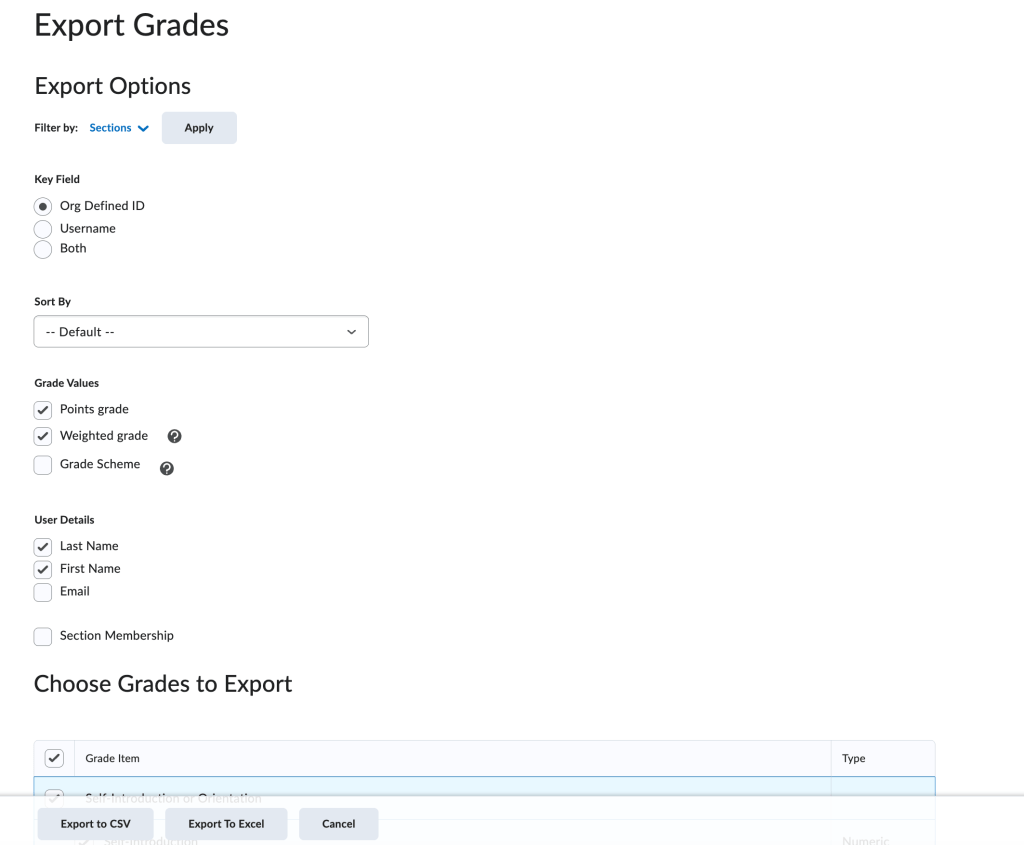
Note any “Total” grade items will not be automatically updated when using the exported gradebook. This includes items like grade category weights and the Final Calculated grate.

Importing the Grade Book #

If you’ve been working in your exported grade book and now want to import it into D2L, go to Grades and click on “Import”.
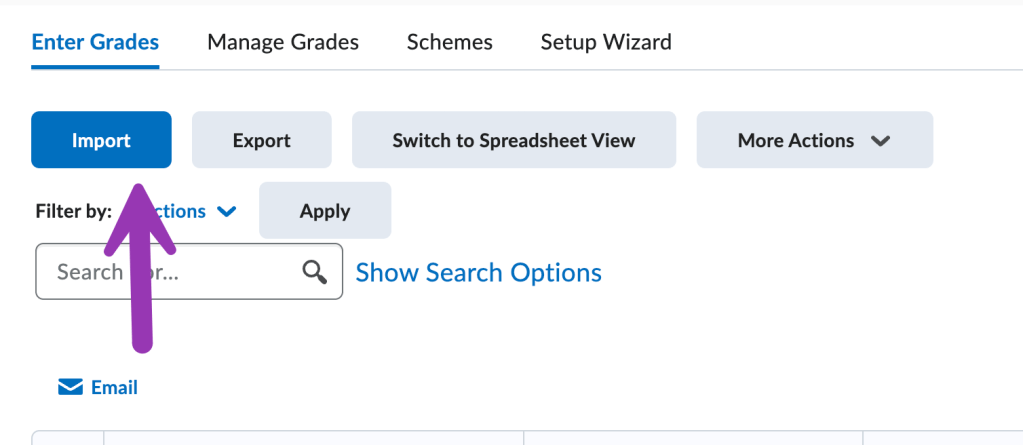
screenshot of import button

Your Grade book file that you want to import will need to be a .csv file. If you have your grade book open in Excel. Go to File–> Save As–> then select .csv as the file type.

Keep the OrgDefinedId column as your A column. You can delete any other columns before you get to your grade items (i.e. first or last names). It is recommended to keep only the grade items that you have edited or added grades for students. Delete the Final Calculated Grade column from your .csv file. As the final column, you will have to add a column with the heading “End-of-Line Indicator” with a pound symbol in each row.

This article describes the proper formatting for an imported grade file in more clear detail. You can also download the sample file from the Import screen.

screenshot of import screen with sample file highlighted.

To import the file, click “Choose File” and upload the file from your computer. Click “Continue” when ready to move to the next step. You can also choose to have D2L to create a new grade item if there are new grade items you have added to your grade book. We generally recommend to leave this option unchecked.

The next screen will scan your file for errors. If you receive any errors, refer to the instructions provided, or review D2L’s article for assistance.
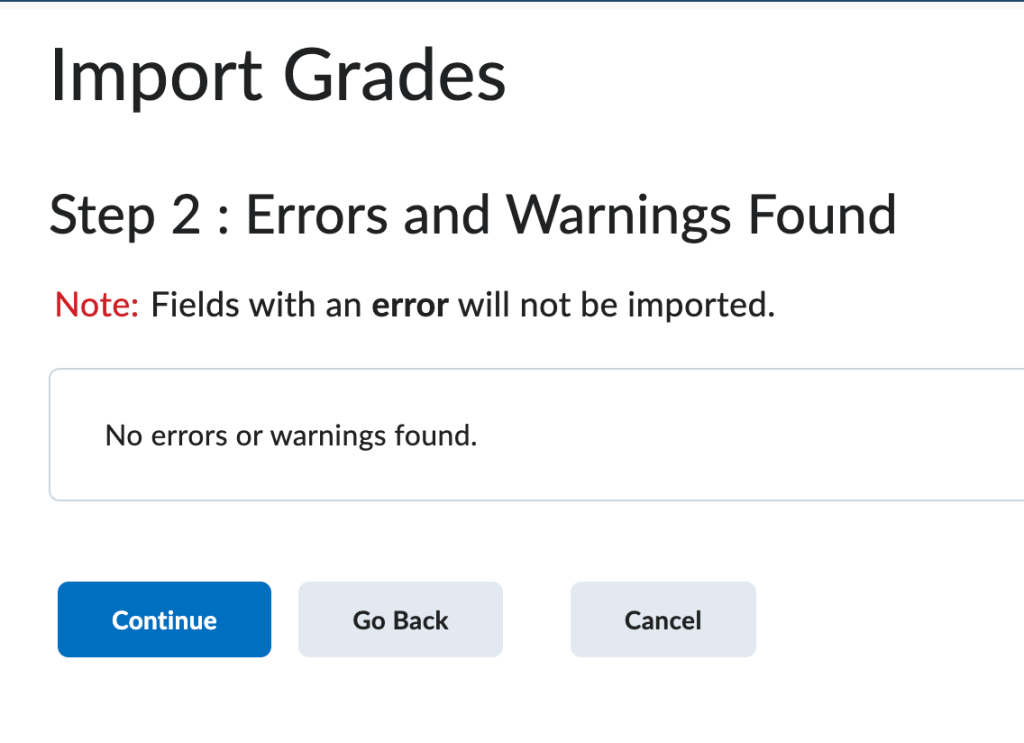
screenshot of import grades screen

The next screen will show the grade items that will be updated in your D2L grade book. It will show what the students current grade was for that grade item and what it will be changed to. In the below screenshot, Test Student 3’s grade will change from a 0 to a 100 for the Peermark Test (Bonus) assignment.
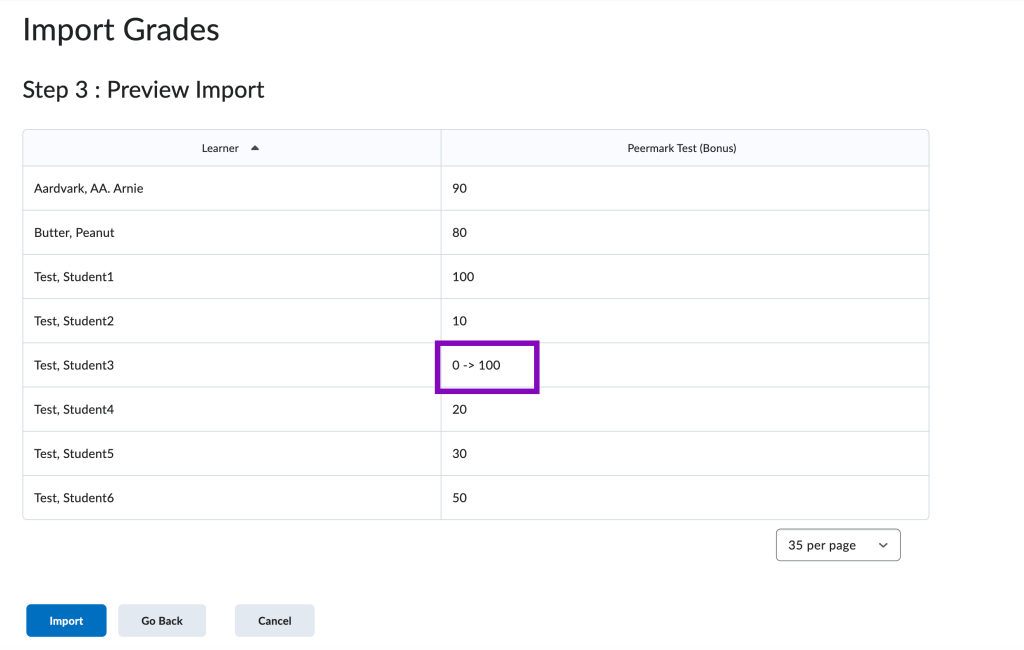
If everything looks correct, click “Import” to import your grades.

Attendance #

We also recommend downloading your attendance register at the beginning of the semester. To do this, go to More Tools–> Attendance. Then, click the title of your Attendance register.
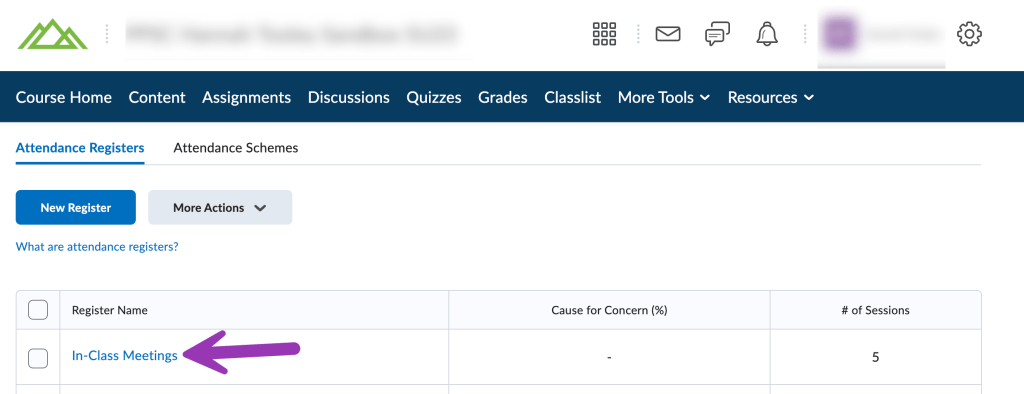
screenshot of attendance registers screen

Then, click on “Export all Data”. This will prompt you to download an excel file of your current attendance register.
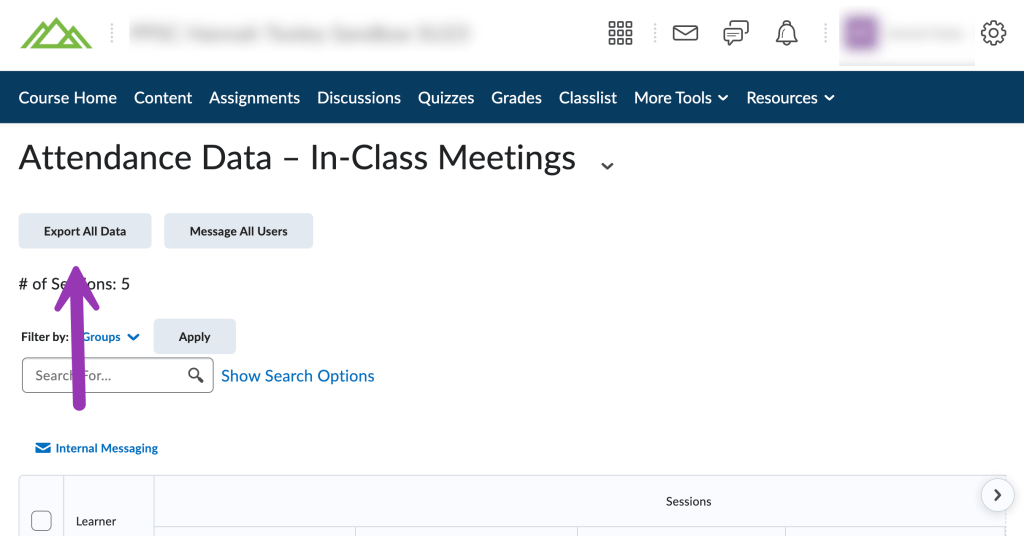
screenshot of export all data button

Download course content #

You can download a module by clicking the down arrow next to the module title and clicking “Download”. It is a good idea to review the zip file that is downloaded to ensure the course materials you want are all there.

screenshot of module menu open with download selected.

Note: any Quizzes, Assignments, Discussions, or External Learning Tools linked in Content cannot be downloaded through Content. Some items such as a “Web Page” or “Video”, will be downloaded as a .html file. You may want to copy and paste the content on these pages individually into a word document.
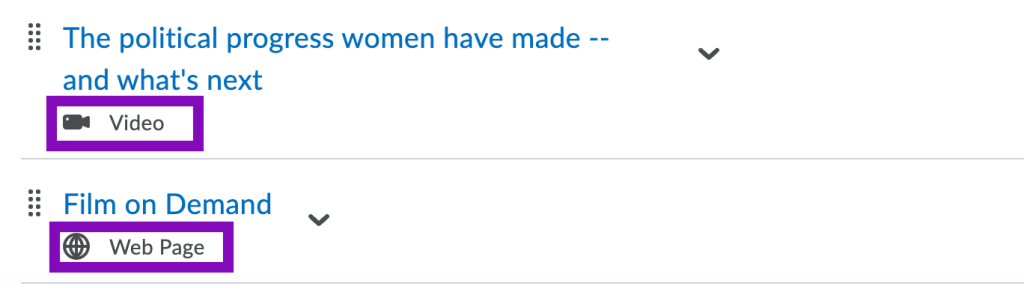
screenshot of example files with video and webpage labels.

You can also download individual files by clicking the down arrow next to title and clicking “Download”.
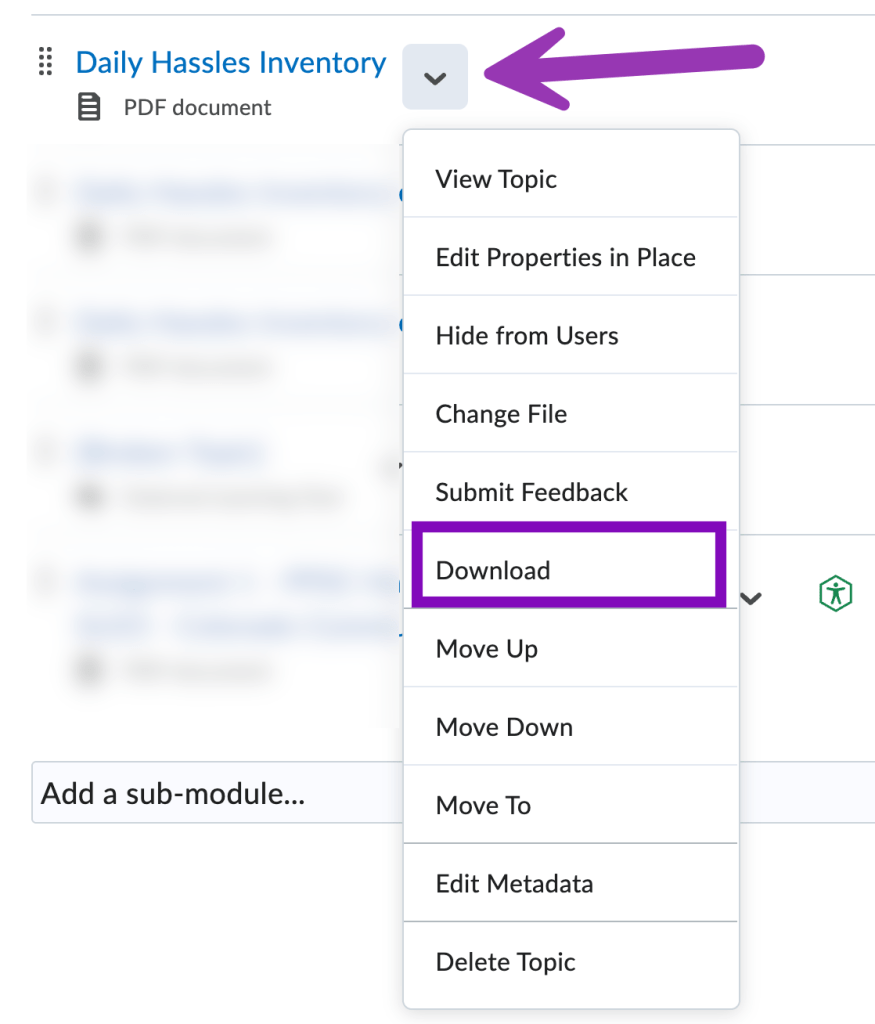
file menu open with download option selected

LTI / Publisher #

If you are using publisher materials (McGraw-Hill, Pearson, Macmillan, Norton), we recommend reaching out to your publisher rep to confirm if students can access the eText and/or publisher platform outside the LMS in the case of a D2L outage.

OER #

If you are using OER for your class, we recommend saving the URL’s for your OER texts or activities in a word document on your computer. If your OER can be downloaded as a PDF or Word document, we also recommend saving that to your device.

Save Assignment Instructions #

It is recommended to save important assignment instructions to your computer. To do this, navigate to the Assignments area. Then, click on “More Actions” and select “Preview”.
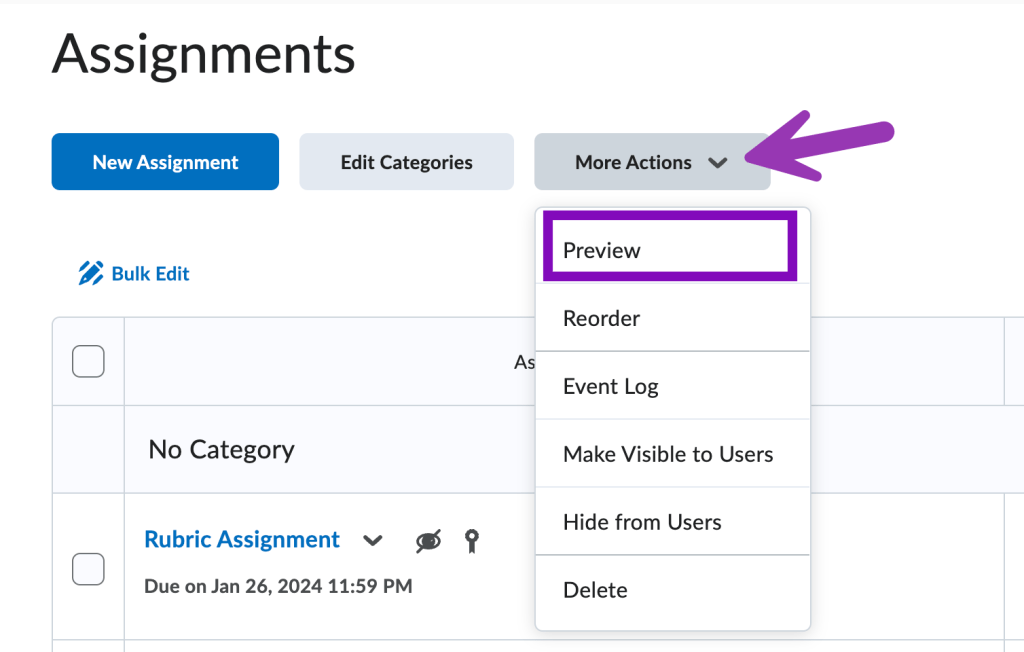
screenshot of more actions button with preview highlighted

Then, click on the title of the assignment you want to view. You may need to click on “Show Assignment Information” to display the full assignment instructions.

assignment previewed with show assignment information link highlighted

Then, print the page. You can do this by shortcut by holding down CTRL + P on Windows or Command + P on Mac. Change the printer to “Print as PDF” and it will save the assignment as a PDF to your computer.

Alternatively, you can copy and paste the assignment instructions to a word document.

Download Student Assignment submissions #

The following article has instructions outlining how to download all student submissions for a given assignment: Download All Assignment Submissions.

Save Quizzes #

To save your D2L Quizzes, use the following article to print your quiz and your answer key: Print a D2L Quiz.

Download Student’s Quiz Submissions #

To download student’s quiz attempts to your computer, go to Quizzes and click on the down arrow next to the quizzes’ title. Select “Grade”.
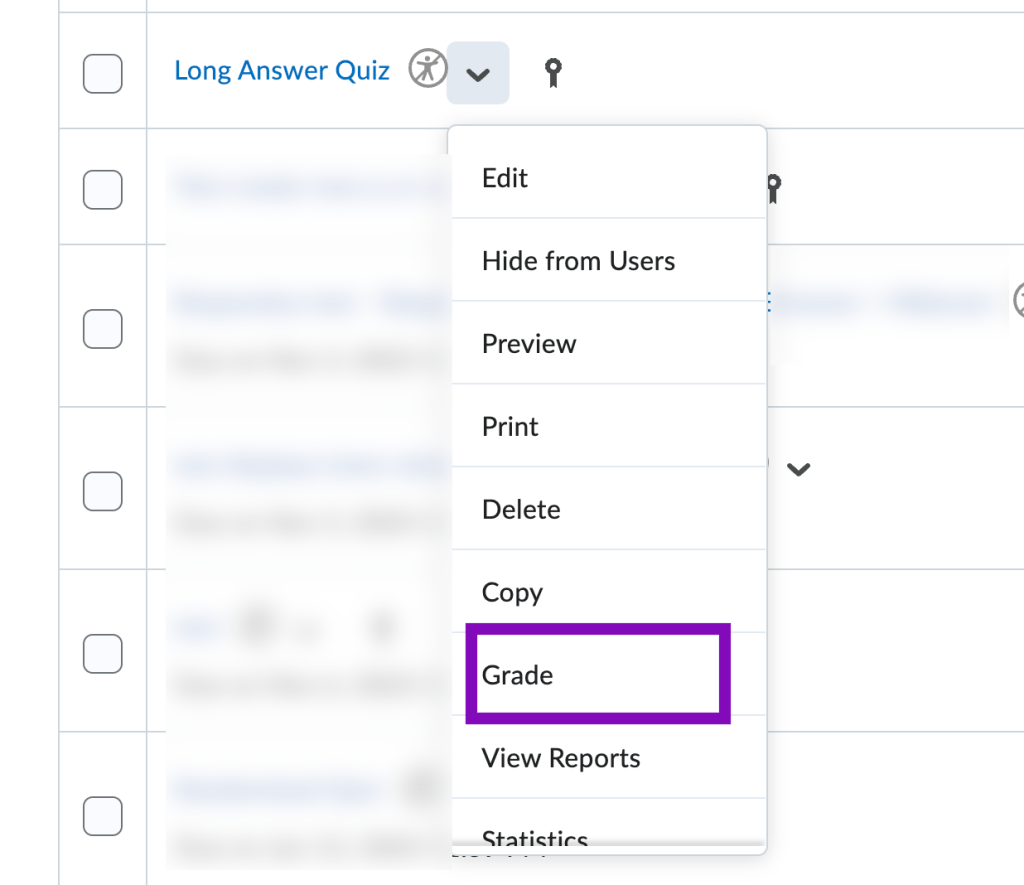
screenshot of quiz context menu with grade highlighted.

Then, click on “Export to CSV” or “Export to Excel”. You will get a D2L notification when the file is ready to download.

This will save your questions and students answers to an excel sheet that can be downloaded to your computer.

screenshot of D2L notification for quiz report export

Save Discussions #

There isn’t an easy way to download Discussions from D2L. If you go to Discussions and click on a Discussion Topic to open it. Then, you can print the page by shortcut by holding down CTRL + P on Windows or Command + P on Mac. Change the printer to “Print as PDF” and it will save the assignment as a PDF to your computer. You can also copy and paste the discussion instructions into a separate Word document.

Save Student Submissions for Discussions #

You can print individual discussion submissions by clicking the down arrow next to the title of the student’s submission and clicking “Print Thread”. Then, you can print the thread to a PDF by selecting Print to PDF.
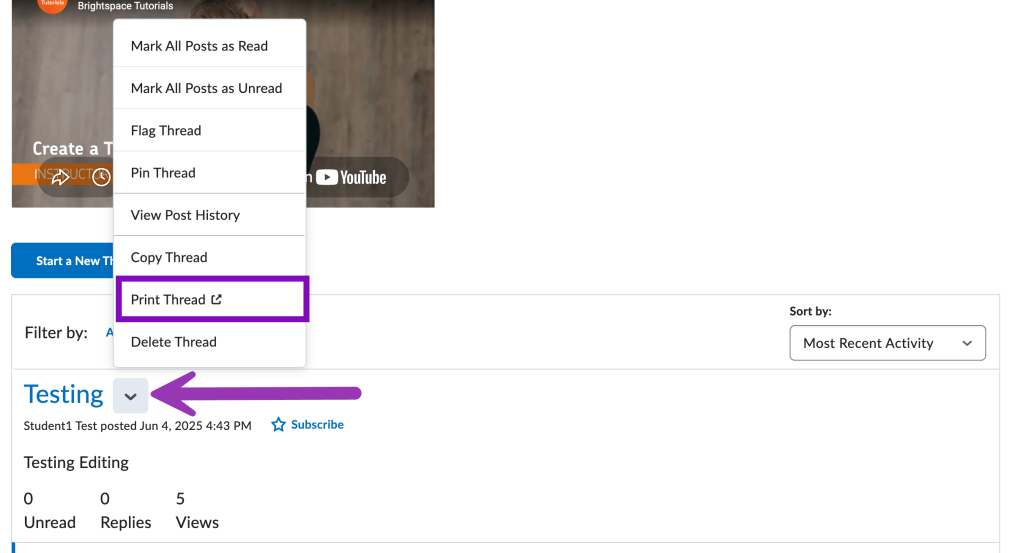
screenshot of student thread menu with print thread option highlighted.

Simple Syllabus #

Simple Syllabus can be accessed by instructors and students outside of D2L by going to cccs.simplesyllabus.com. You can also save your Syllabus as a PDF once you have submitted your syllabus.

Yuja Video #

Yuja Videos can be accessed outside of D2L by going to cccs.yuja.com. Make sure “Colorado Community College System Single Sign-On” is the login method selected from the top-right corner. Then click the “Sign In” button.
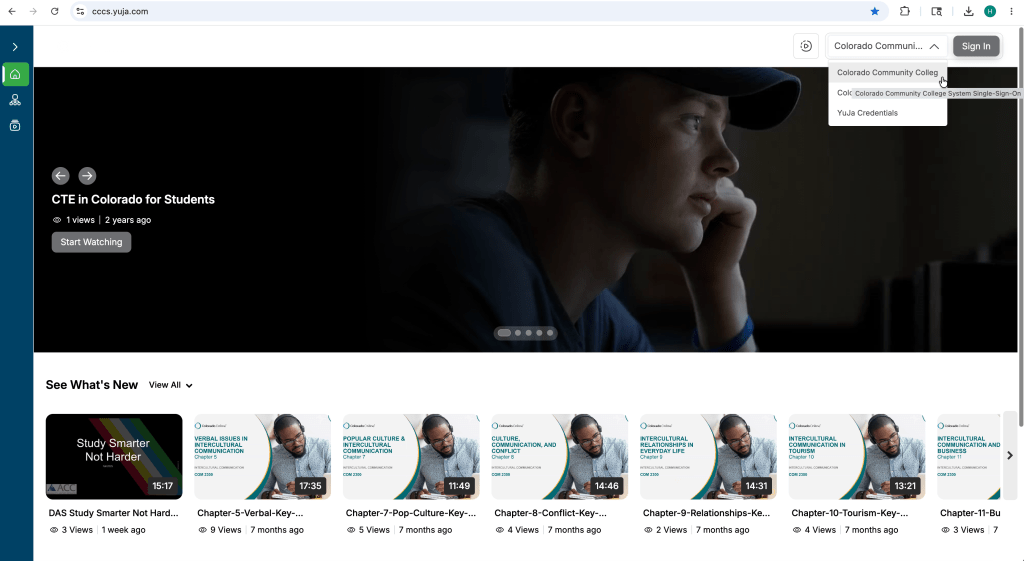
screenshot of yuja login screen

You will be brought to the “Manage Media” dashboard. From here you can mouse over any video and get the sharable link for it. You can upload videos to your Yuja library, and Create a new video as needed.

screenshot of yuja manage media dashboard.

Course Package #

You can also save your D2L Course as a Course Package. This means that it can be uploaded into D2L or another LMS and will keep your course content, assignments, quizzes, discussions, etc. This could be used in a case where the D2L course is not retrievable and you want to start with a fresh course. Note that a Course Package will not save any student data.

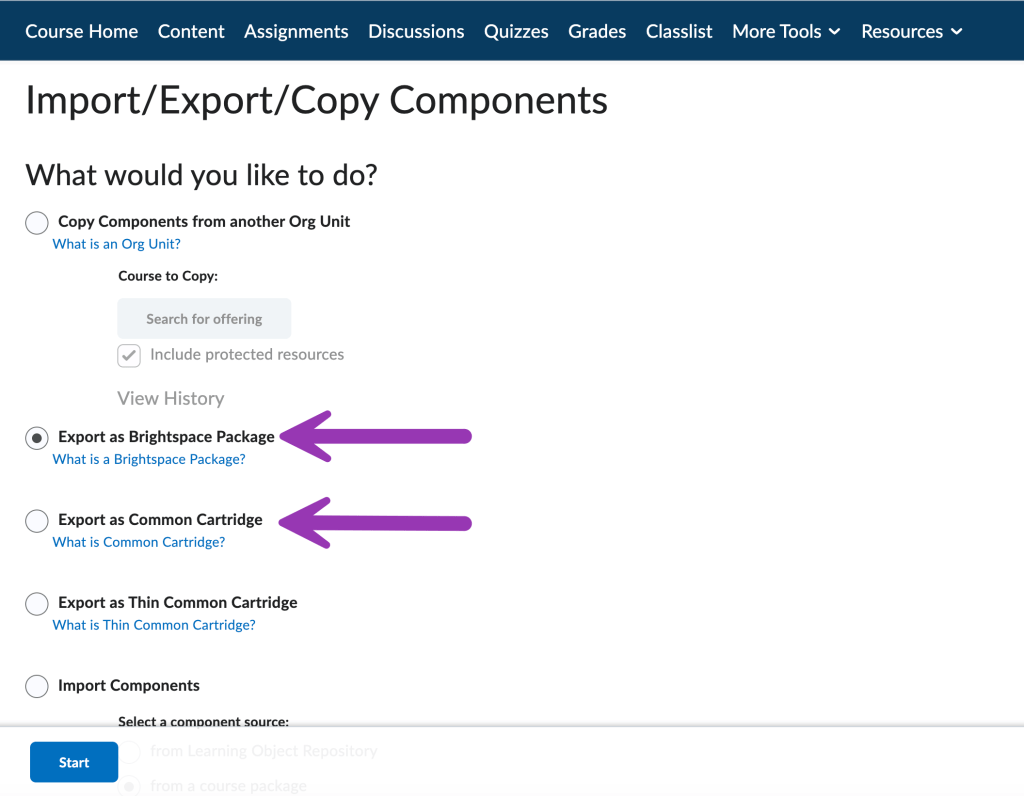
To save your course as a course package, go to More Tools and select “Course Admin”. Then, choose “Import / Export / Copy Components”.

There are two different options to pick from. You can “Export as Brightspace Package”, which will make your course compatible when uploading to another D2L environment. You can also select “Export as Common Cartridge” if there is a different LMS you plan to use. Click the “Start” button once you’ve made your selection.
You will then have the ability to pick and choose which elements you want to save to your Course Package. Check the box for the items you want to include, then click “Continue”.

screenshot of select components to export

Then, click the “Export” button.

confirm components to export screen.

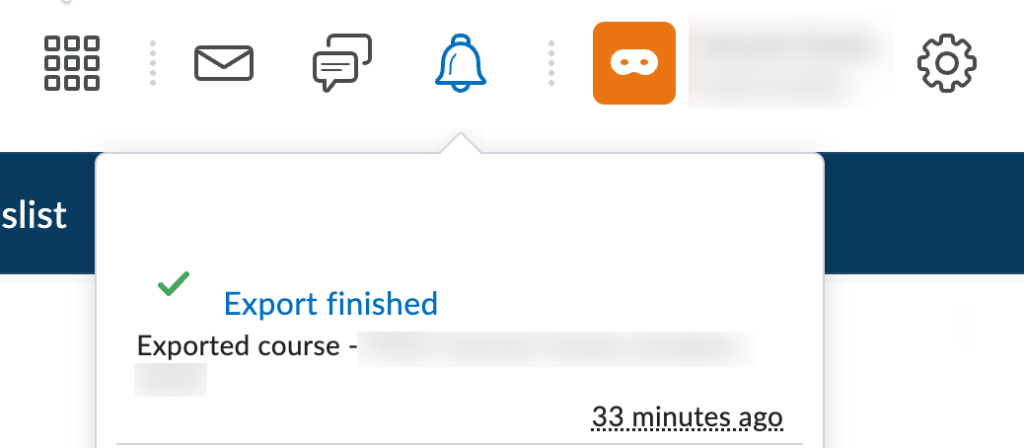
You will then receive a D2L notification with a link to download your course package file when it’s ready.
screenshot of export finished notification

Importing a Course Package File #

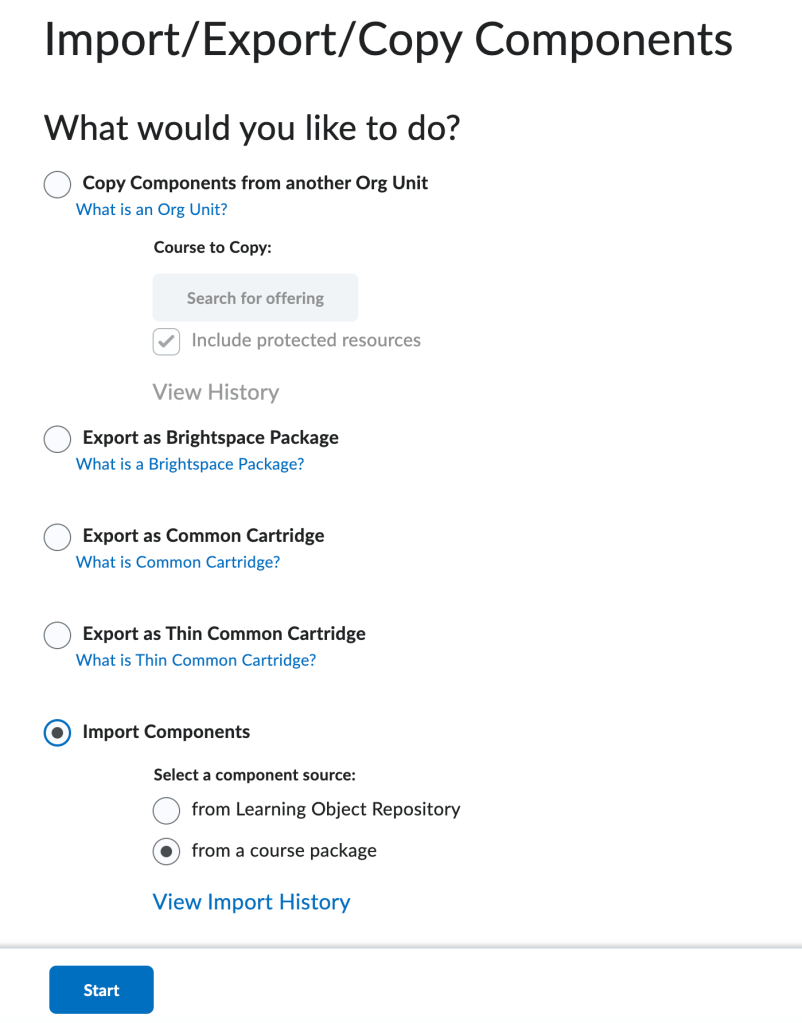
To import a course package, go to More Tools–> Course Admin. Then, choose “Import / Export / Copy Components”. Select the option to “Import Components” and click “from a course package”. Then, click the “Start” button.
Click on “Upload” to locate the course package file on your computer, or click and drag the file to the area within the dotted lines. When it’s finished uploading, click “Import All Components” or click on “Advanced Options” if you want to pick and choose which items to bring in.

You will see a progress screen that will let you know when your course is finished importing.

Related #

Share This Article :

  • Facebook
  • X
  • LinkedIn
  • Pinterest
Still stuck? How can we help?

Still stuck? How can we help?

Updated on May 11, 2026
Add Quiz Special Access Accommodations and Time LimitsCopy an Announcement to Other Courses
Table of Contents
  • Roster
  • Grades
    • Exporting Your Grade Book
    • Importing the Grade Book
  • Attendance
  • Download course content
  • LTI / Publisher
  • OER
  • Save Assignment Instructions
    • Download Student Assignment submissions
  • Save Quizzes
    • Download Student's Quiz Submissions
  • Save Discussions
    • Save Student Submissions for Discussions
  • Simple Syllabus
  • Yuja Video
  • Course Package
    • Importing a Course Package File
PPSC eLearning Knowledge Base & Support

All rights reserved

Loading Comments...

You must be logged in to post a comment.