
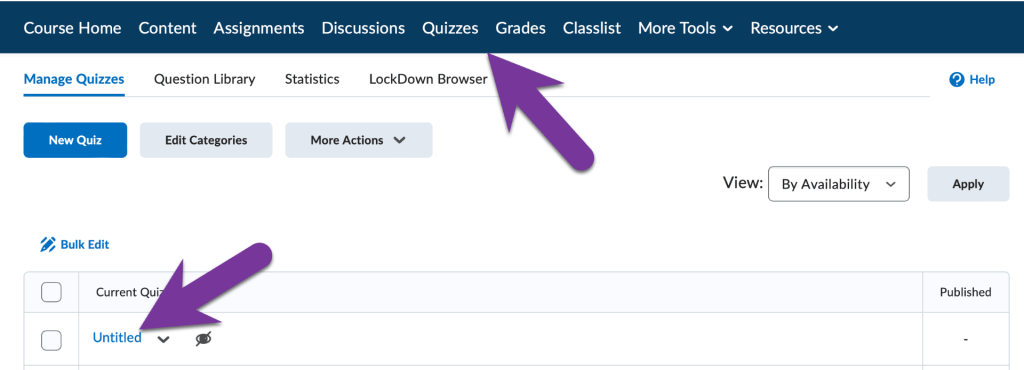
To create a randomized question pool, you must first Create a New Quiz and have Added Questions to Your Question Library. Then, go to your Quizzes tab and click on the title of the quiz you would like to add questions to to edit it.
Then, click on Create New and select Question Pool.

Add a title to your Question Pool, then click on the Browse Question Library Button.

If you created a Section folder in the Question Library, you can check the box next to the section title to pull in all the questions from this folder into your quiz. Alternatively, you can click on the triangle next to section title to open the folder and view all the questions. You can then check the box next to each individual question you’d like to import into your quiz. Click Import when you are finished selecting your questions.

When you’ve imported questions into your question pool, you should see the Number of Questions to Select have a “From #”, where the # is the total number of quiz questions you selected. Enter in the number of questions to be selected, which will be the number of questions students will have on the quiz. D2L will randomly pick that number of questions from the total question pool.

Click Save to add your newly created question pool to the quiz.
If you need to edit a question pool, click on its title from the main Quiz screen.


You must be logged in to post a comment.