
Using an outdated web browser can lead to problems such as pages not loading correctly, sign-in errors, and increased security risks. Follow the steps below to manually check for updates in Microsoft Edge, Google Chrome, and Firefox.
Google Chrome #
1. Open Chrome. If an update is ready, you may see a colored indicator or the word Update on the three-dot menu in the upper-right corner.
2. Click the three-dot icon, then go to Help and select About Google Chrome.
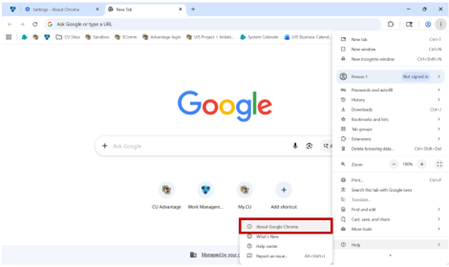
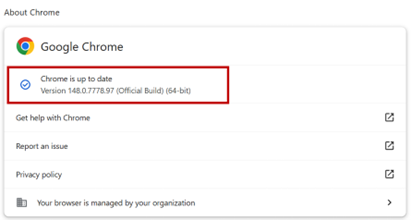
3. Chrome will automatically search for updates and download any that are available.
4. Once the download is complete, click Relaunch to finish applying the update.
Microsoft Edge #
1. In Edge, click the Settings and more icon in the upper-right corner.
2. Choose Settings.
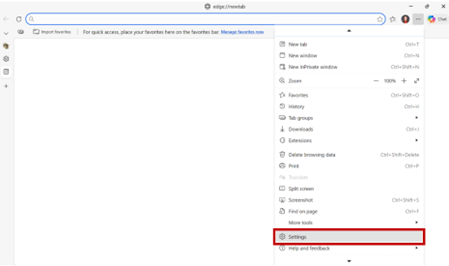
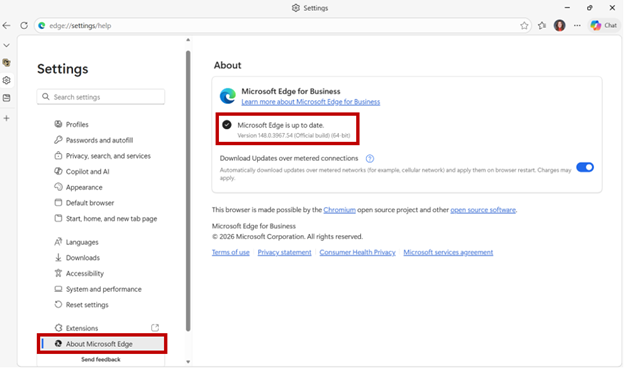
3. In the menu on the left, select About Microsoft Edge.
4. Edge will check for available updates automatically. If an update is found, click Download, then choose Restart to complete the installation. If you see “Microsoft Edge is up to date,” no further action is required.
Firefox #
1. Click the Menu icon in the upper-right corner.
2. Select Help, then choose About Firefox.
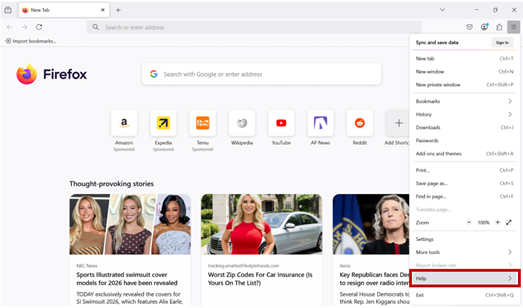
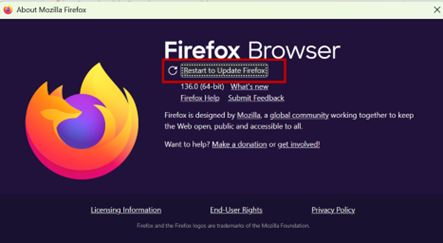
3. Firefox will check for updates on its own and download any available updates in the background.
4. If prompted, click Restart to Update Firefox. If the message says “Firefox is up to date,” you do not need to do anything else.
When Unsure, Restart Your Browser #
If you have already installed an update but websites are still not functioning properly, completely close and reopen your browser. This helps ensure the latest version is fully loaded. You may also try restarting your computer completely to make sure all changes are applied.


