
To view the student roster, including your students’ home college and student emails for Colorado Online courses, log into the Colorado Online Sectionizer. Note: to access the sectionizer, you must be on-campus or use the campus VPN.
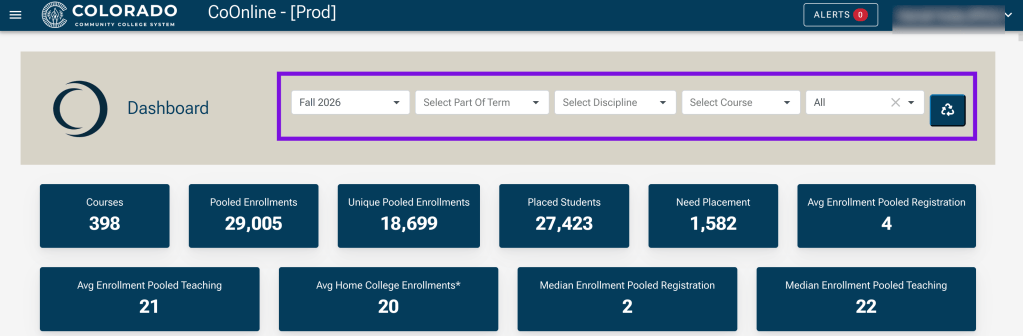
Use the search fields at the top of the screen to narrow down your search. You can choose the semester, part of term, discipline, course, or status.
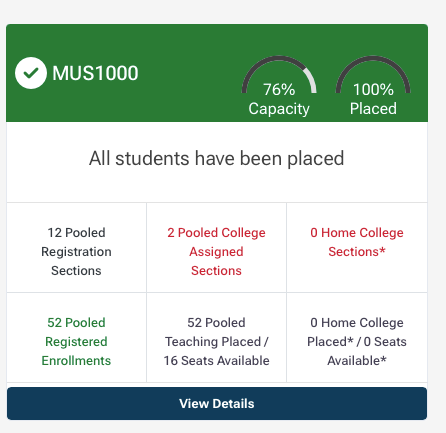
Once you have located the course, you will see information about the number of pooled registration sections, assigned teaching sections, the number of pooled enrollments, and the number of students placed/number of seats availble. Click on the “View Details” button to access more information.
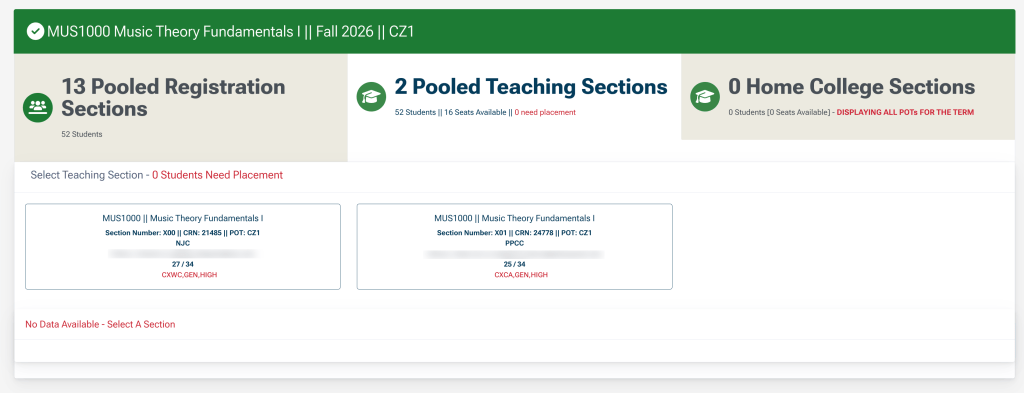
The next screen has three tabs. The left tab shows the total number of students registered from each college (Z sections). The middle shows the number of teaching sections (X sections). The right shows the total number of home sections distributed by the Sectionizer. Click on the middle tab to view more information about the invidual teaching sections.

On the middle tab you will see details about each teaching section including the section number, CRN, Part of Term, the teaching institution, the instructor and their contact information, and the number of students registered in that teaching section. Click on a teaching section to open it’s roster.
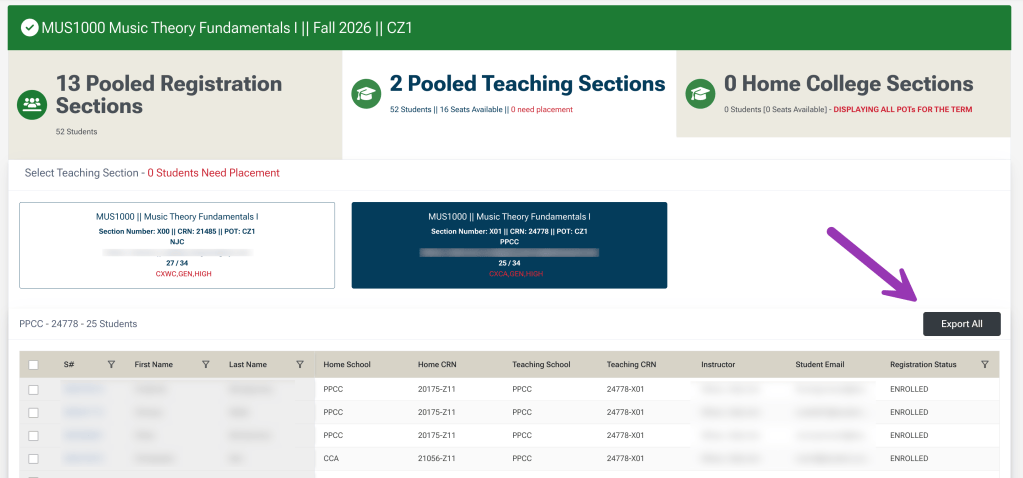
You may need to scroll down to view the roster, which will show the students’ S#, First Name, Last Name, Home School, Home CRN (Z-Registration section), Teaching School, Teaching CRN (X-Teaching section), the instructor, student email, and registration status. Click on Export All if you want to download an excel file with this information.


You must be logged in to post a comment.