
One of the most common questions we get is “Why can’t my students see their Final Grade?”. Unless you release your Final Grade in every section, students won’t see them. Check out this video for a tutorial on how to release final grades, or review the help guide below for written instructions.
How can you tell if students can see them? Look for the eye icon next to the Final Grade.
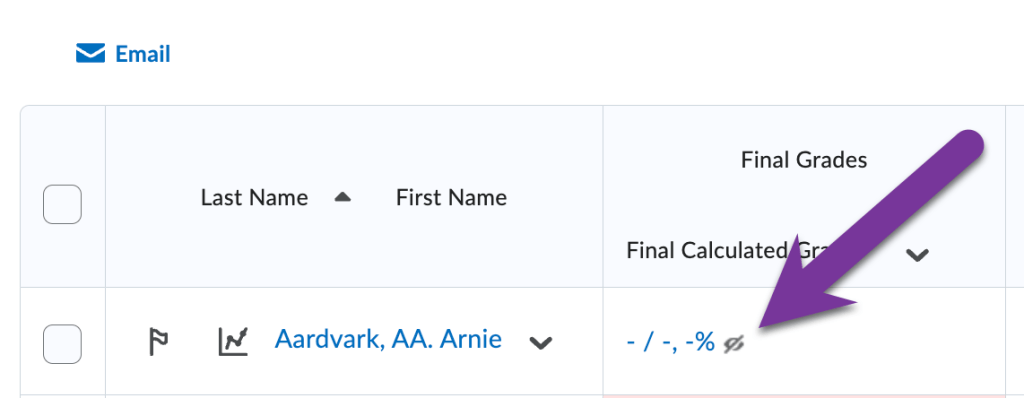
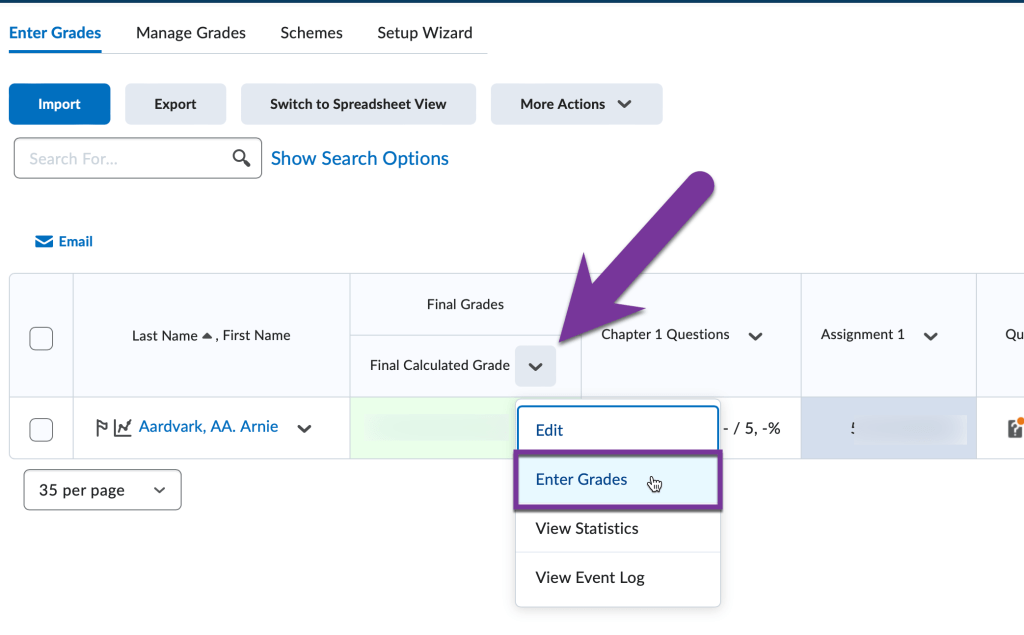
If the eye is crossed out next to your students’ Final Grade, they can’t see them. So, to release them, click on the down arrow next to the Final Calculated Grade column and then select “Grade All.”
On this page, click on the box next to the first row, “Last Name First Name”, to select all students, and then click Release/Unrelease.
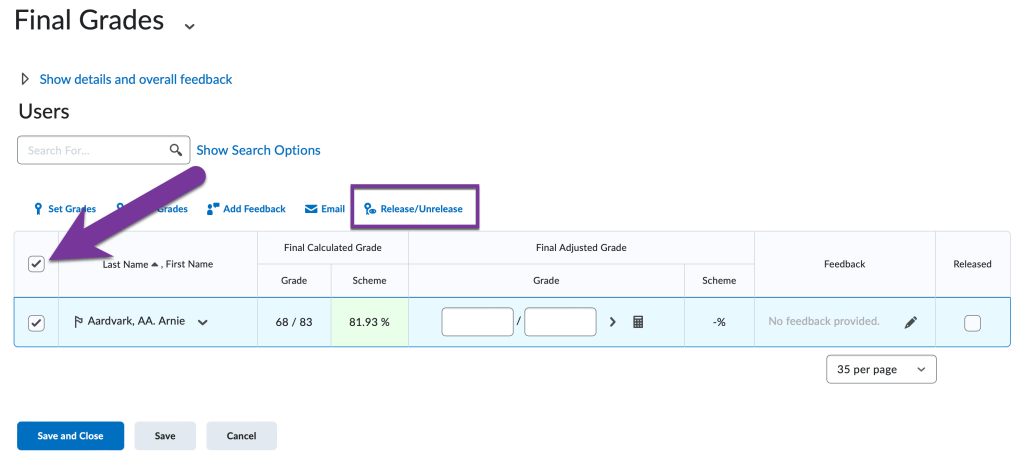
After this, you will see the box in the Released column for each student has now been checked.

Be sure to Save and Close. You will have to click Yes to confirm changes in the popup window that appears. Now you should see the eye icon next to each student’s final grade.


You must be logged in to post a comment.