
Many courses use online publisher platforms such as Pearson, McGraw Hill, Macmillan Learning, Cengage, and others. These platforms sometimes open assignments, eBooks, quizzes, videos, or login windows in a new browser window or pop-up. If your browser blocks pop-ups, you may not be able to access required course materials.
In most cases, you do not need to turn off pop-up blocking for every website. Instead, it is safer to allow pop-ups only for trusted course-related sites, such as your college’s learning management system or publisher websites.
Below are step-by-step instructions for allowing pop-ups in the most common web browsers.
Google Chrome #
Option 1: Allow pop-ups when Chrome blocks one #
- Go to the course or publisher website where the pop-up is being blocked.
- Look for a small pop-up blocked icon in the address bar near the top of the browser.
- Click the icon.
- Select Always allow pop-ups and redirects from [site name].
- Click Done.
- Refresh the page and try opening the course material again.

Option 2: Change pop-up settings manually #
- Open Google Chrome.
- Click the three dots in the upper-right corner.
- Select Settings.
- Click Privacy and security.
- Select Site settings.
- Scroll down and click Pop-ups and redirects.
- Under Allowed to send pop-ups and use redirects, click Add.
- Enter the website address for your course or publisher platform.
- Example: your school’s LMS website or the publisher’s website.
- Click Add.
- Return to your course page and refresh the browser.
Microsoft Edge #
Option 1: Allow pop-ups when Edge blocks one #
- Go to the course or publisher website where the pop-up is being blocked.
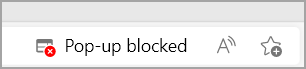
- Look for a pop-up blocked icon in the address bar.
- Click the icon.
- Choose Always allow pop-ups and redirects from [site name].
- Click Done.
- Refresh the page and try again.
Option 2: Change pop-up settings manually #
- Open Microsoft Edge.
- Click the three dots in the upper-right corner.
- Select Settings.
- Click Cookies and site permissions.
- Scroll down and select Pop-ups and redirects.
- Make sure pop-ups are not blocked for the site you need.
- Under Allow, click Add.
- Enter the website address for your course or publisher platform.
- Click Add.
- Return to your course page and refresh the browser.
Safari on Mac #
Allow pop-ups for a specific website #
- Open Safari.
- Go to the course or publisher website.
- In the top menu bar, click Safari.
- Select Settings or Preferences, depending on your version of macOS.
- Click the Websites tab.
- In the left-hand menu, select Pop-up Windows.
- Find the course or publisher website in the list.
- Use the dropdown menu next to the website and select Allow.
- Close the settings window.
- Refresh the course or publisher page and try again.
Allow pop-ups for all websites #
This option is less recommended, but it may be useful for troubleshooting.
- Open Safari.
- Click Safari in the top menu bar.
- Select Settings or Preferences.
- Click Websites.
- Select Pop-up Windows.
- At the bottom of the window, find When visiting other websites.
- Choose Allow from the dropdown menu.
- Refresh your course page and try again.
Safari on iPhone or iPad #
- Open the Settings app on your iPhone or iPad.
- Scroll down and tap Safari.
- Find the option labeled Block Pop-ups.
- Toggle Block Pop-ups off.
- Return to Safari and reload the course or publisher page.
After accessing your course materials, you may want to turn Block Pop-ups back on for better browsing security.
Mozilla Firefox #
Option 1: Allow pop-ups when Firefox blocks one #
- Go to the course or publisher website where the pop-up is being blocked.
- When Firefox blocks a pop-up, a notification bar may appear near the top of the page.

- Click Options or Preferences in the notification bar.
- Select Allow pop-ups for [site name].
- Refresh the page and try again.
Option 2: Change pop-up settings manually #
- Open Mozilla Firefox.
- Click the three horizontal lines in the upper-right corner.
- Select Settings.
- Click Privacy & Security.
- Scroll down to the Permissions section.
- Find Block pop-up windows.
- To allow pop-ups for a specific website, click Exceptions.
- Enter the website address for your course or publisher platform.
- Click Allow.
- Click Save Changes.
- Return to your course page and refresh the browser.
Tips for Accessing Publisher Materials #
If your course materials still do not open after allowing pop-ups, try the following:
- Refresh the page after changing your browser settings.
- Make sure you are signed in through MyCourses/D2L.
- Try using a different browser, such as Chrome or Firefox.
- Clear your browser cache and cookies.
- Disable browser extensions that may block content, such as ad blockers or privacy blockers.
- Make sure your browser is updated.
- Contact your instructor, campus help desk, or the publisher’s support team if the issue continues.


