
Students want to see feedback on the papers they turn in. In D2L, there’s a couple of ways this can be done. You can use D2L’s built in feedback tool, which will be explained in this article, or enable TurnItIn on an assignment folder and grade using their Feedback Studio tool. Let’s take a look at D2L’s tool for giving feedback.
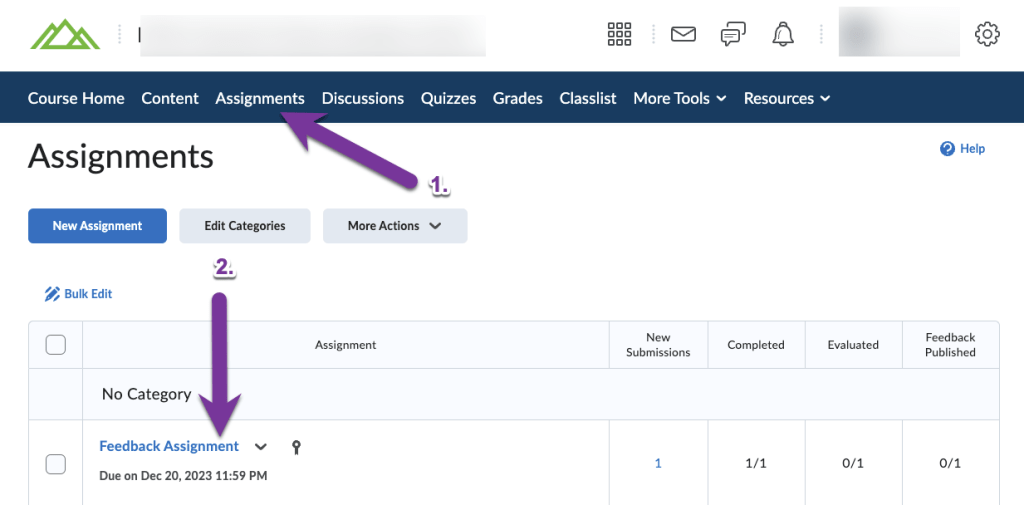
To view student submissions, go to Assignments, then click on the title of the assignment you’d like to view submissions for.
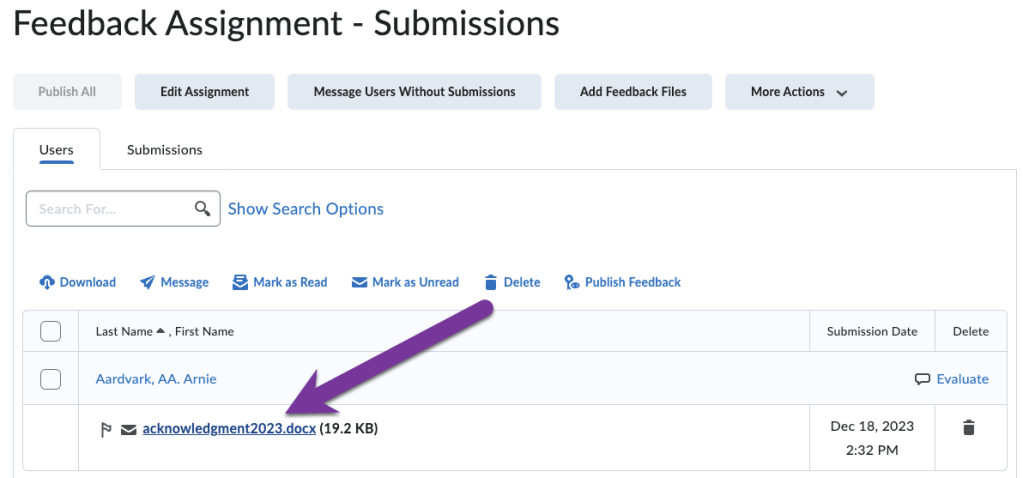
You will end up with a list of the students and the files they’ve submitted. You can view the date and time of each submission in the “Submission Date” column. Click on the title of the student’s submission to give feedback.
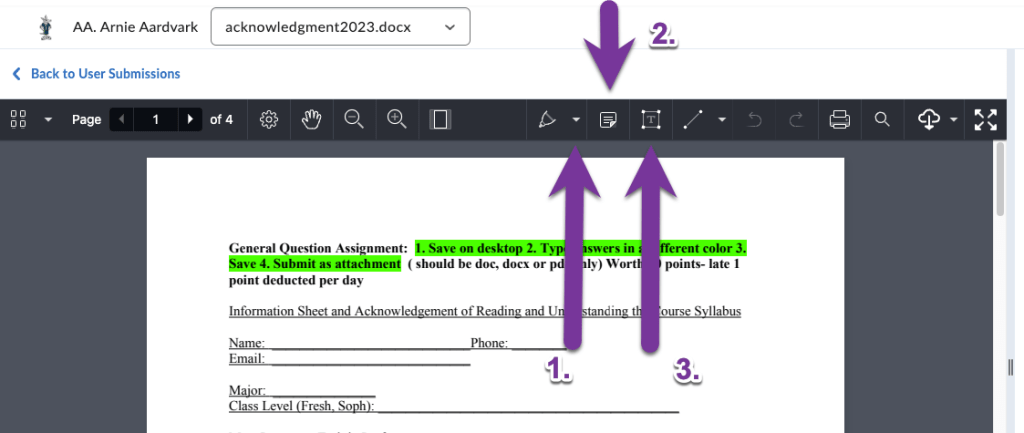
Because Aarnie submitted a .docx file, when I click on the name of the file it will preview on the left side of the screen: (This is also true for .docx, .txt, .pdf, .ppt and .pptx. Other formats may require you to download the file for review. Some file types, such as .exe and .dmg files are not accepted.) Some tools you may want to use are:
- The Marker/Highlighter tool. Click on the arrow next to the “A” icon to choose whether you want to use the Drawing tool, Freeform Highlight Tool, Text Highlighter, or Eraser tool.
- The Note Making tool. Click on the document icon to add a virtual sticky note that students can click to view.
- The Textbox tool. Click on the T-in-a-box icon to add a textbox directly to the document.
On the right side of the screen, you will have the ability to enter in the student’s Overall Grade and give Overall Feedback. You also have the option to Record Audio or Video feedback.

Click Publish to save the feedback and score. If you have multiple students’ submissions to grade, you can click on the User buttons at the top of the screen to navigate to the next student’s work.

Click on the Back to Submissions button in the upper left to take you back to the full list of submissions.

On the list of all student submissions, you can see the date and time your feedback was published to the student next to the student’s name.

Student View #
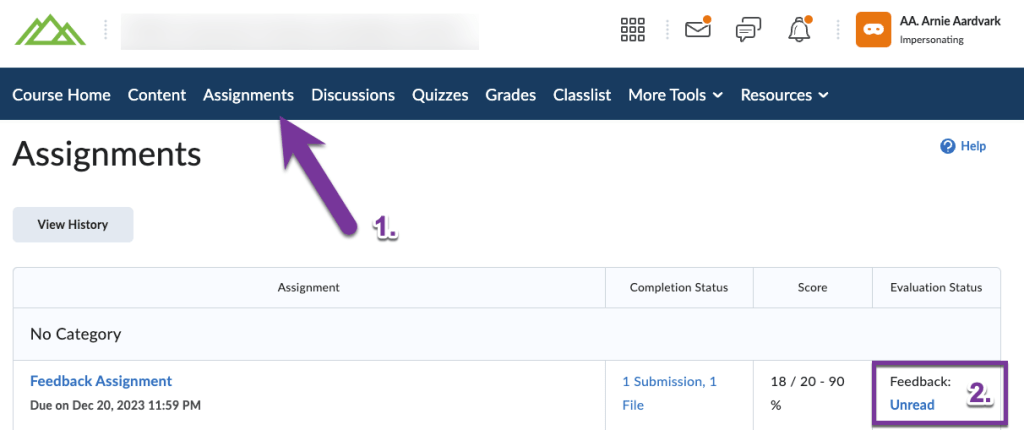
If a student would like to view the feedback on their assignment, they can go to Assignments, then locate the assignment they want to view feedback for. Under the “Evaluation Status” column, the feedback will be noted as Unread or Read. Students can click on the Unread or Read link to view the instructor’s feedback.
On the next screen, if the instructor made notes, marks, or added textboxes to a student’s submitted document, students will then have the option to “View Inline Feedback”.


You must be logged in to post a comment.