
Custom grade schemes in D2L allow you to define how grades are displayed to students in your course. Whether you want to show traditional letter grades (A, B, C, etc.), implement a pass/fail system, or create a unique grading scale that aligns with your course requirements, custom grade schemes provide you the flexibility to present grades in a way that’s most meaningful for your students. This article will guide you through the process of creating and applying custom grade schemes to ensure your grading system accurately reflects your course objectives and assessment criteria.
To start, you’ll need to navigate to grades, then click on “Schemes.”
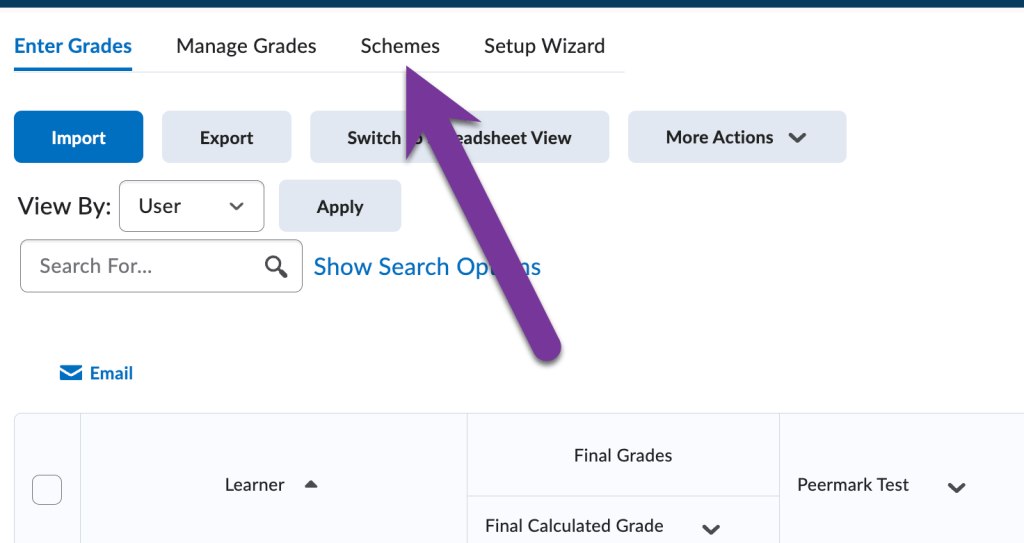
Then, click on the “New Scheme” button.

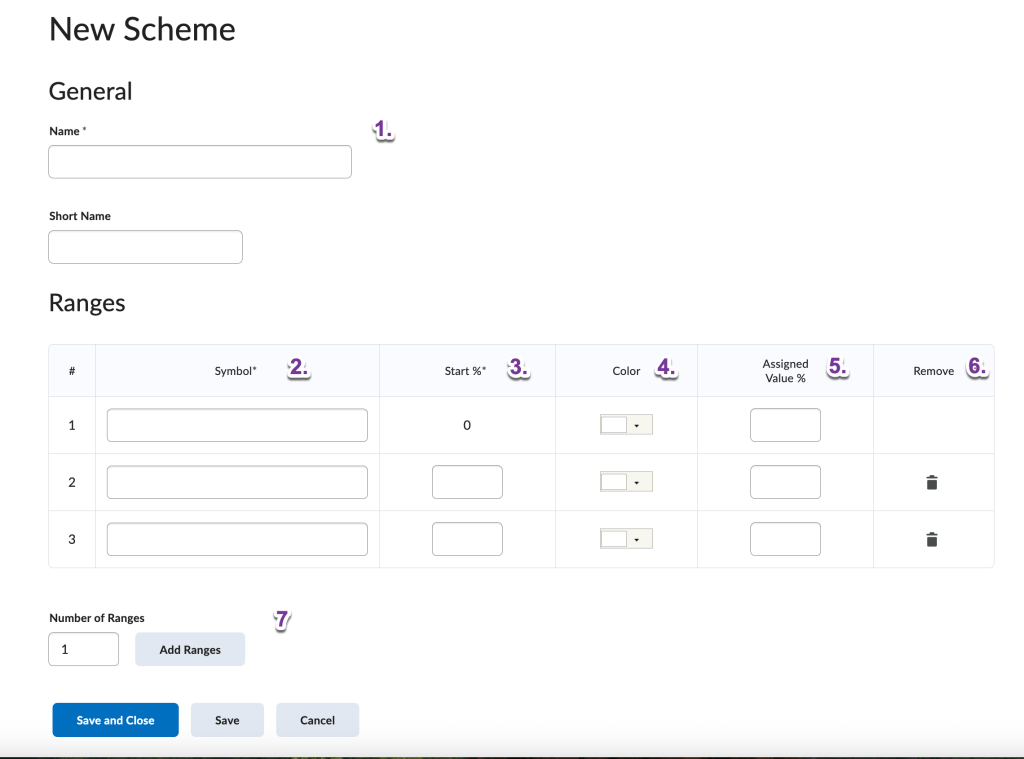
Then, you will need to enter in some information for your custom grade scheme:
- Name: Enter in a name for your grade scheme.
- Symbol: Enter in the text that will be displayed to students when they receive a grade
- Start %: enter in the start range of the % students will receive in order to earn a certain grade.
- Color: You can have a certain color assigned to a percentage grade, which will display in your gradebook, but not to students.
- Assigned Value %: The top range of the % students can earn in order to receive a certain grade.
- Remove: If you need to delete a row, you can click on the trash can icon to delete it.
- Number of Ranges: If you need to add more rows, you can enter in a number and click the “Add Ranges” button to add that many rows to the table.
Below is an example of a Letter Grade scheme, which will display a letter grade from A-F depending on the percentage score the student received.
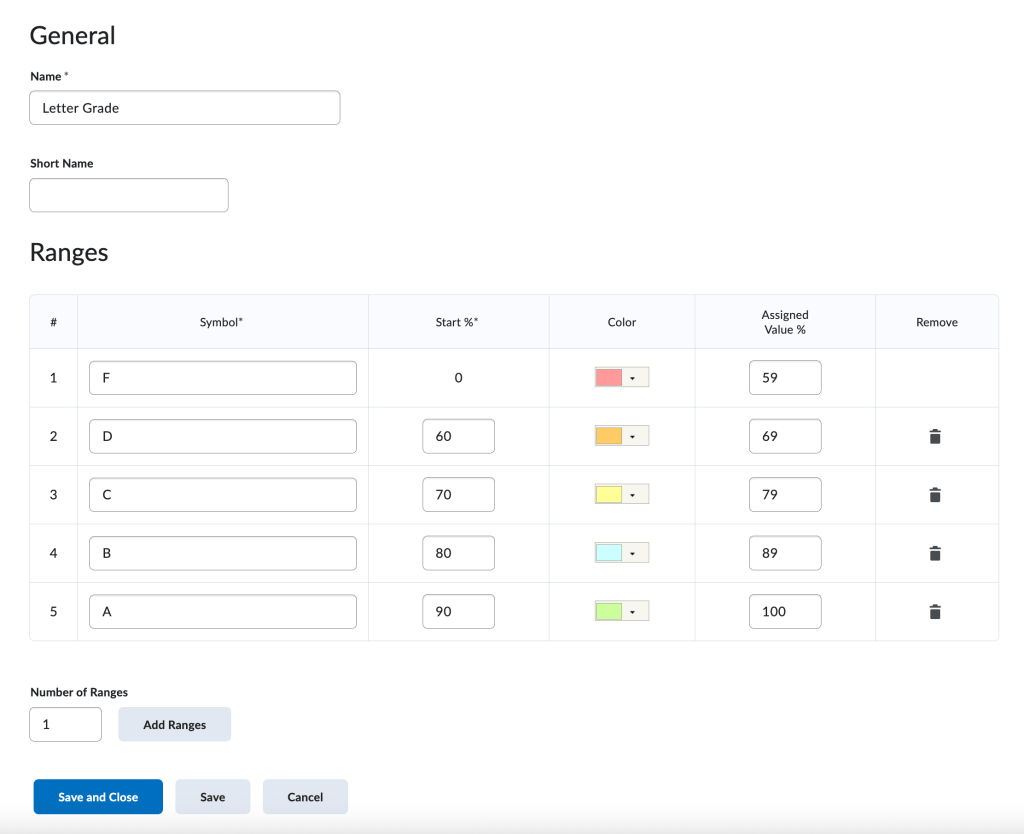
Click “Save and Close” to save the grade scheme.
If you want to apply your new grade scheme to a grade item, please view the following article: Apply a Grade Scheme to a Grade Item.


You must be logged in to post a comment.