
There are several benefits to adding quiz questions to your Question Library rather than directly to a quiz. If you add questions to the Question Library, you will be able to reuse and retrieve questions for multiple quizzes, create randomized question pools and more.
To get started, open your course and navigate to the Quizzes tab. Then, click on Question Library.

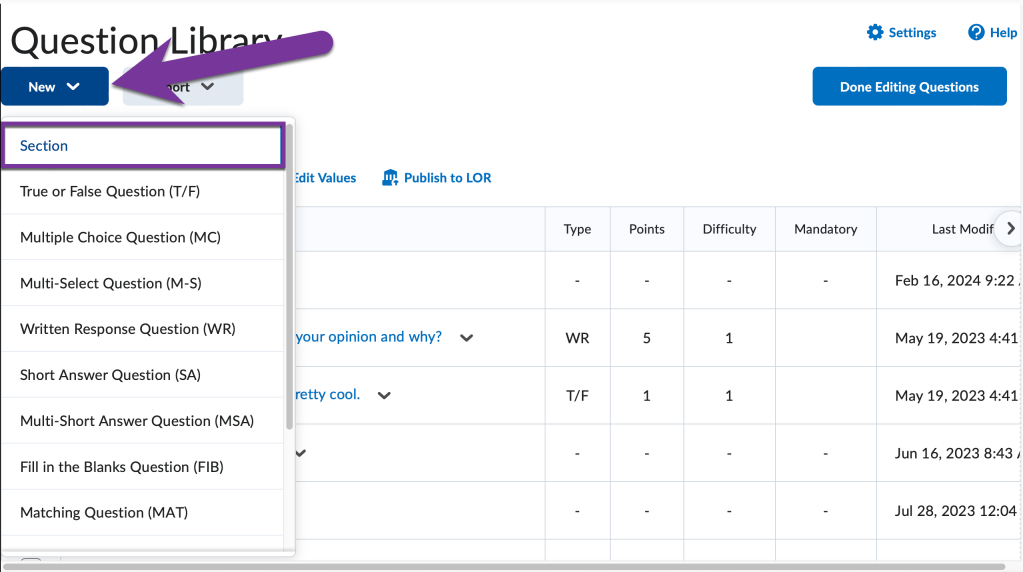
To add quiz questions to the Question Library, click on the New button, then click on the type of question you’d like to add. We recommend choosing the Section option first. This will create a folder in the Question Library you can then add questions to, which will make the library a little more organized.
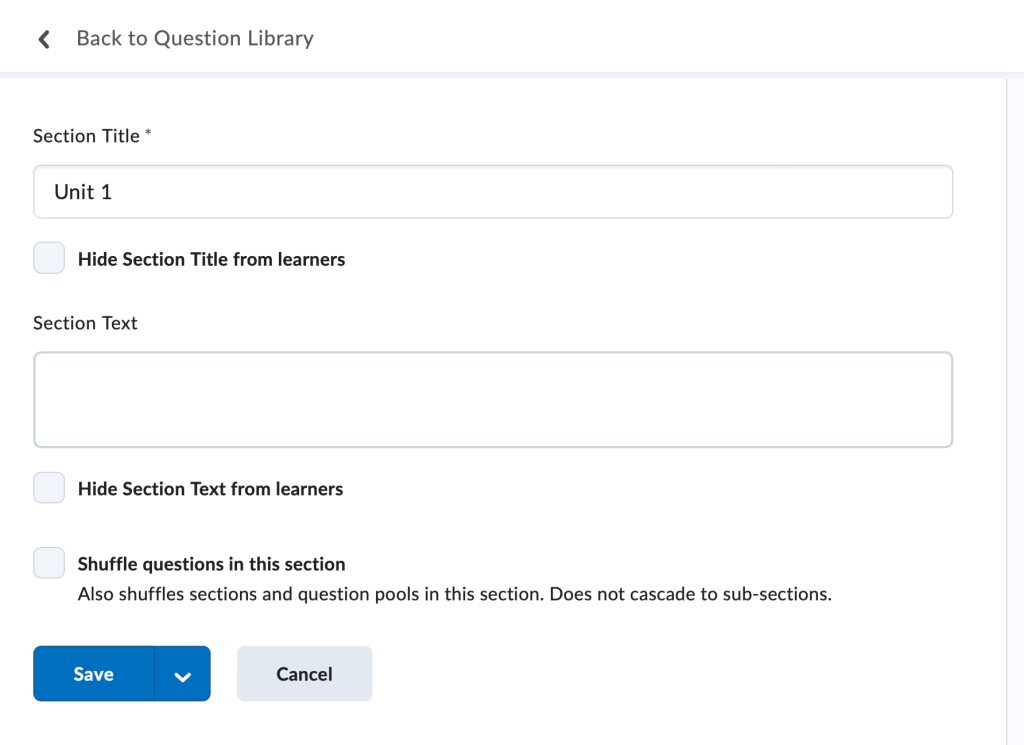
If you choose to create a section, add a title, then click Save.
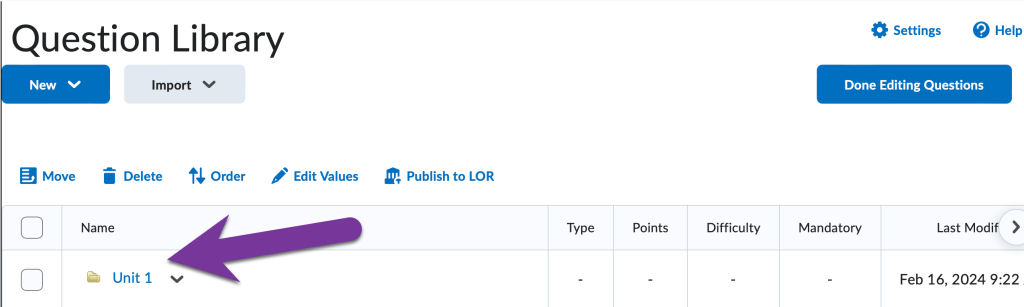
Then, click on the newly created section to open it.
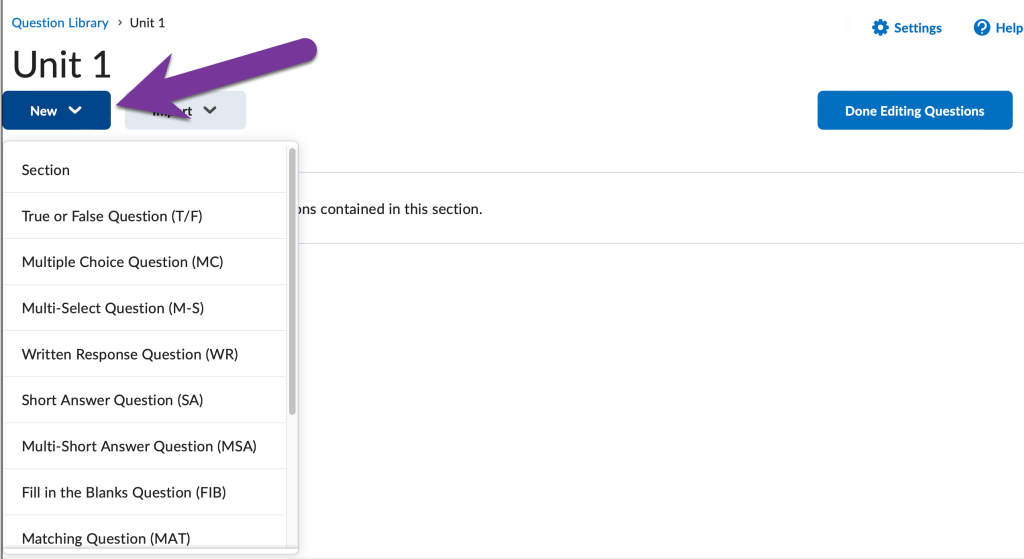
Finally, click New and select the type of question you’d like to add. Keep adding questions and when you’re finished, click on Done Editing Questions.
Now you’ll be able to Add Questions from the Question Library into a Quiz, or Create a Randomized Question Pool.


You must be logged in to post a comment.