
If you want to share a file with students or other members of the CCCS community, you can use the steps below to create a sharable link in OneDrive.
First, log into OneDrive with your pikespeak.edu email.
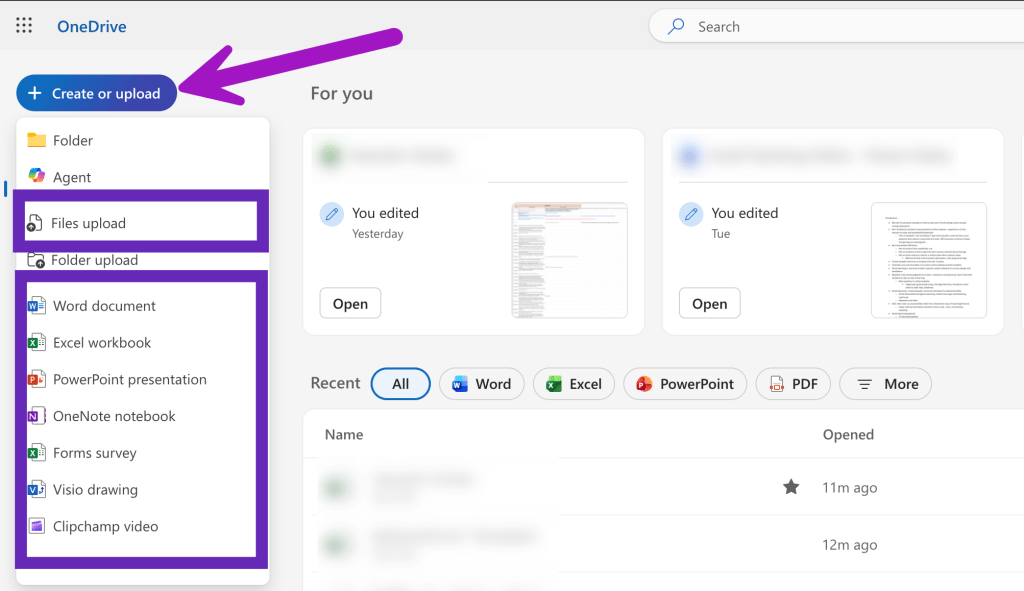
Then, upload or create the file in OneDrive. Click the “Create or Upload” button. Then, select Files Upload if you want to upload a file, or choose the file type you want to create from the list below.
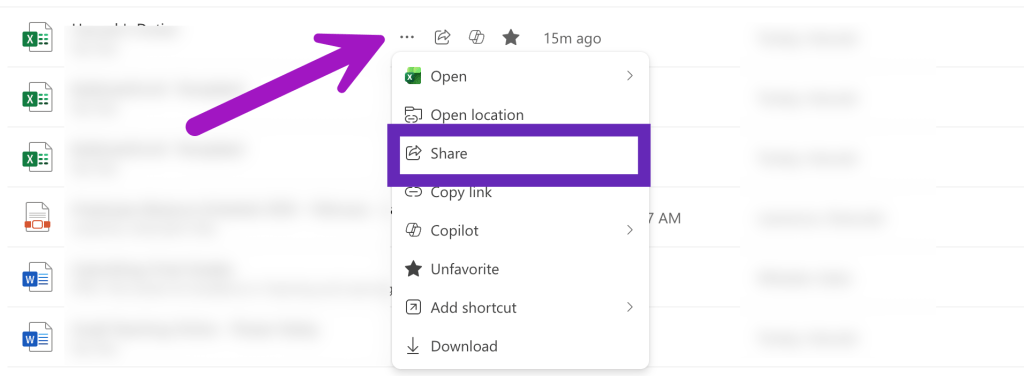
When finished uploading or creating the file, click on the three dots next to the file name. Select “Share” from the menu that pops-up.
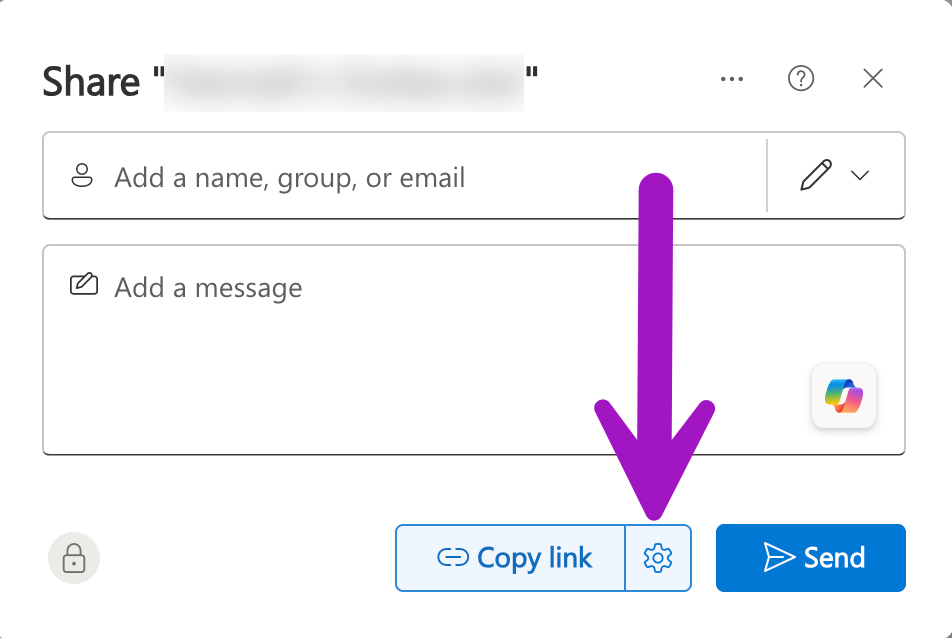
Then, click on the gear icon to open up the link settings.
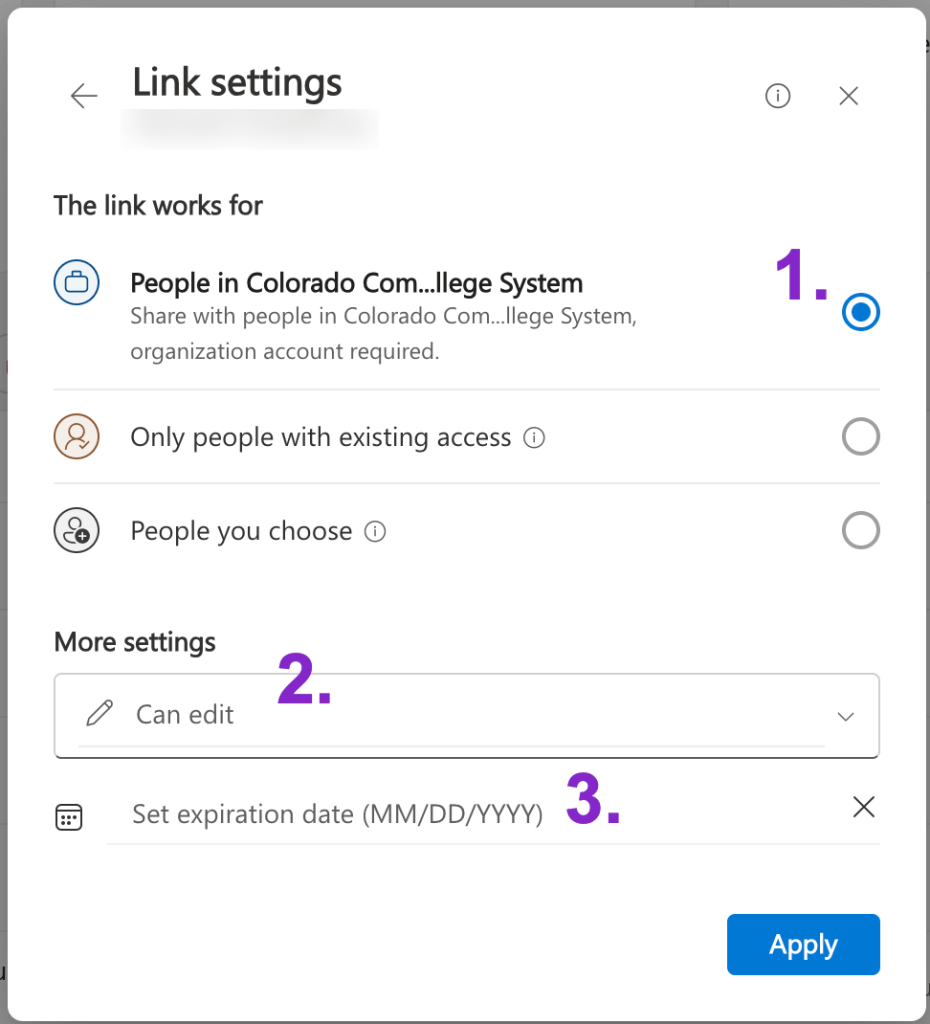
- This Link Works For: Make sure that “People in Colorado Community College System” is selected. This will make it so that anyone with a pikespeak.edu, student.cccs.edu, cccs.edu, etc. email will be able to see your file.
- More Settings Permissions: You will need to determine if others Can Edit, Can View, or Can’t Download (only view).
- Set Expiration Date: You are required to provide an Expiration Date to the link in order for the permissions to save.
- Note that after the expiration date has passes, others will not be able to access the link without it being updated again. We recommend setting the date as far off in the future as possible (up to two years), to prevent access issues.
Click “Apply” to save your link settings.
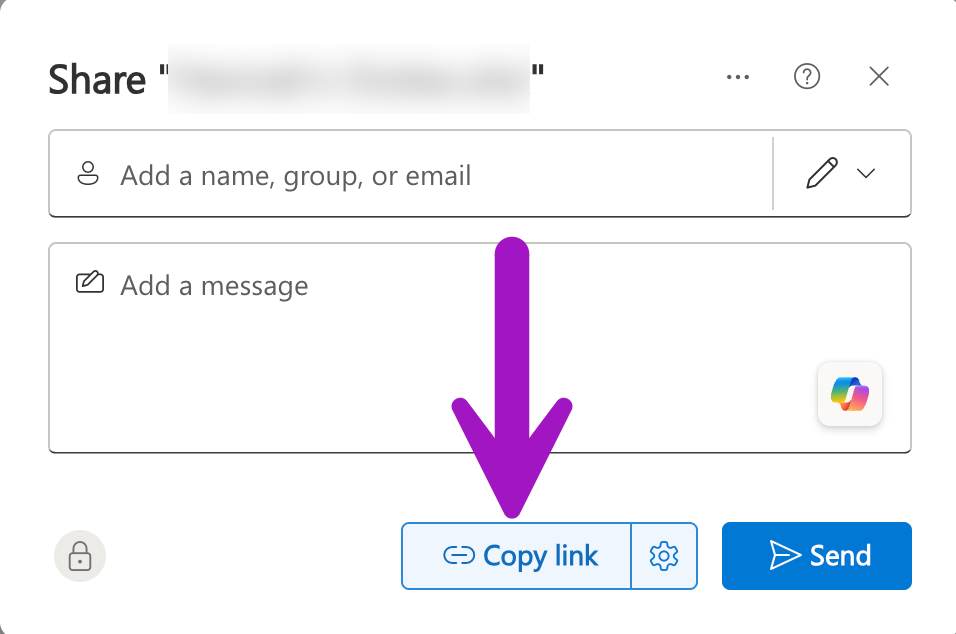
Then, click on the “Copy Link” button to copy the link to your clipboard. This link can now be pasted wherever you choose.


You must be logged in to post a comment.