
See the Yuja Panorama Accessibility Report Inside D2L #
Panorama can display the accessibility report for you directly inside your D2L shell. You should see a person icon pop up next to files in course Content, Announcements, Quizzes with instructions and more. This icon means that Panorama has an accessibility report for you to view for the particular piece of content. Click on the person icon to see the Accessibility Report.

Viewing the Accessibility Report #
The Accessibility Report with the file’s accessibility score and the most common issues will be displayed.
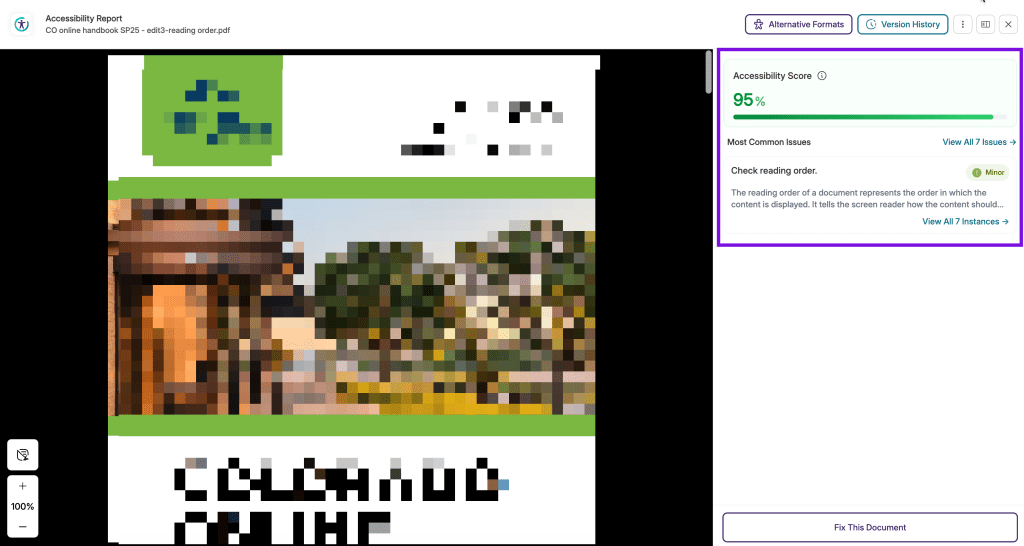
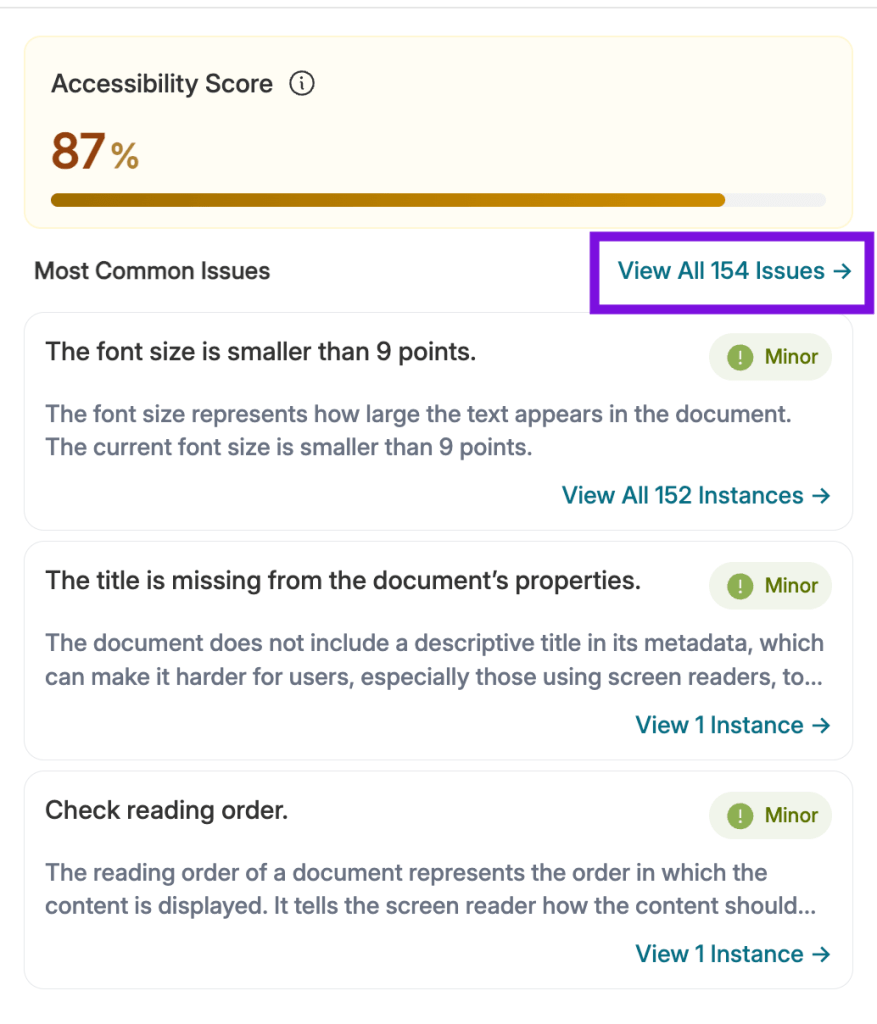
To start fixing any accessibility issues, click on the link to “View All Issues” which is next to the Most Common Issues title.
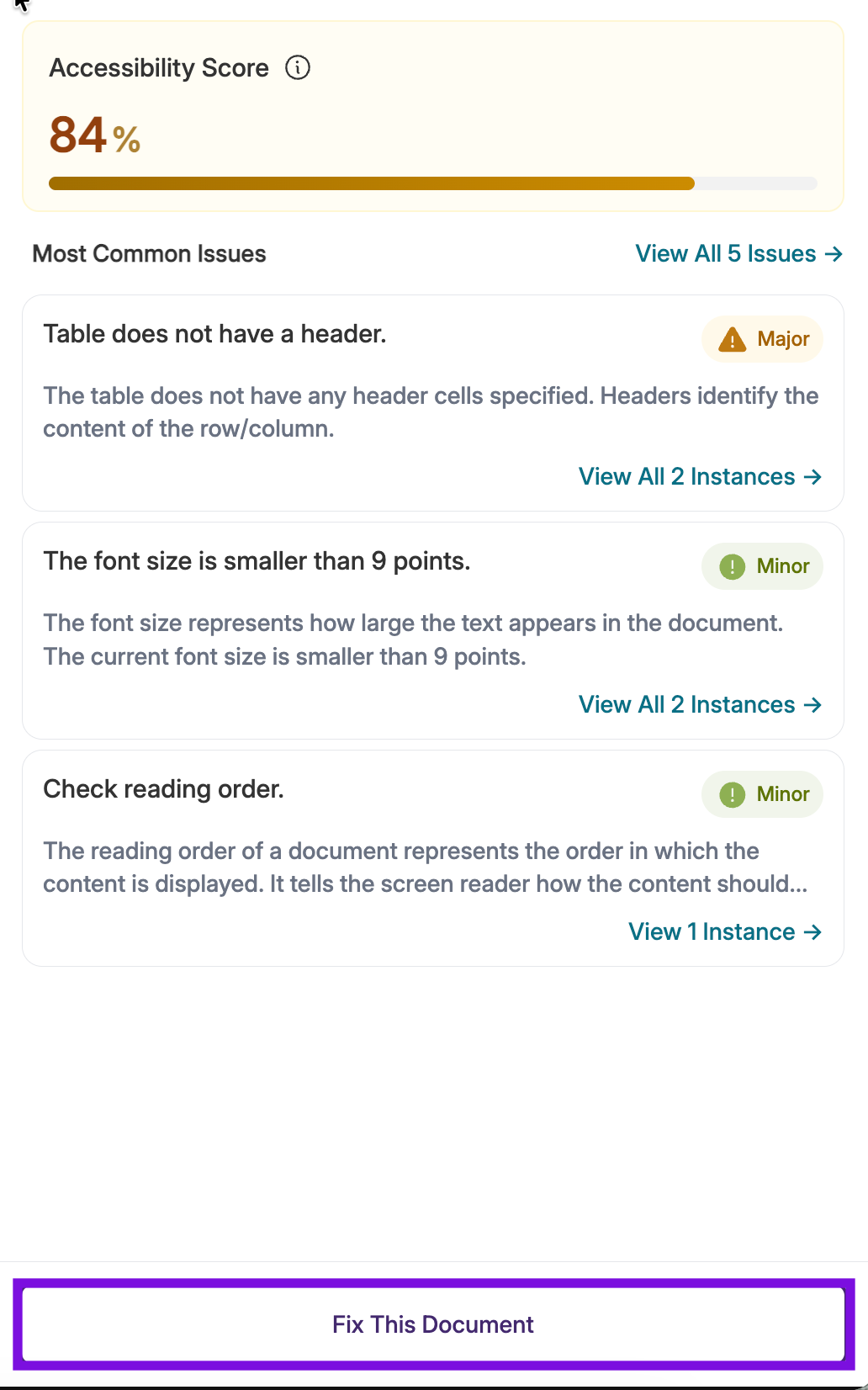
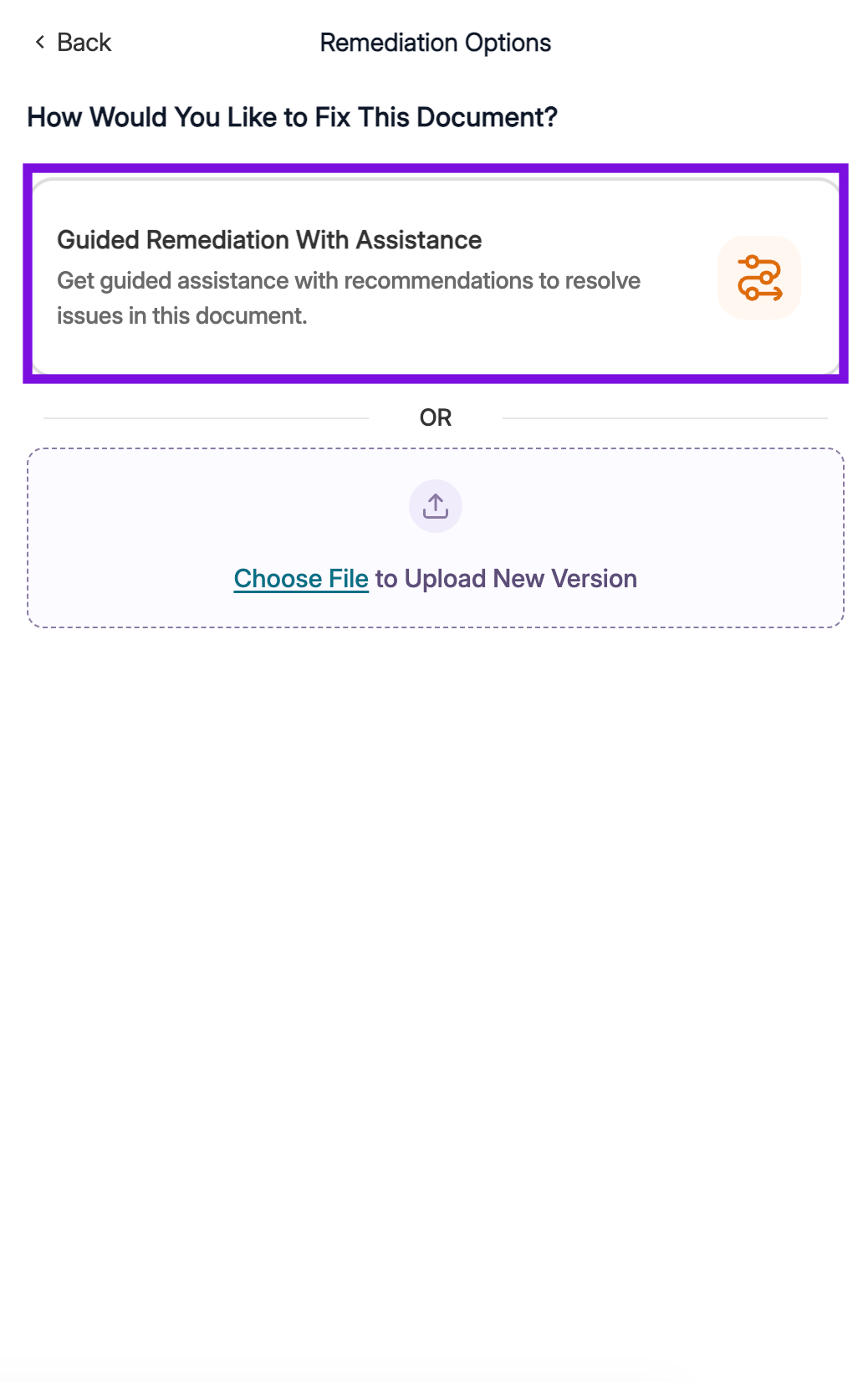
Note: Instead of going to “View all Issues”, you can also click the “Fix this document” button at the bottom of the window. Then, select the “Guided Remediation with Assistance” option to get to this next step.
You can view All Issues at once, or sort by the level of severity using the tabs. Click on the “Fix Issue”, “Check Issue”, or “Learn More” link to review a specific accessibility issue.

Fix Issue – The Fix Issue link will allow you to make an accessibility change directly within Panorama.
Check Issue – This will require you to check and make sure a certain element is accessible, such as verifying that closed captions of a video are accurate, or the reading order of elements on a PowerPoint slideshow.
Learn More – This indicates that the issue cannot be fixed in Panorama, but will give you instructions on how to fix the issue in its origin program (Microsoft Word, Adobe Acrobat, etc).
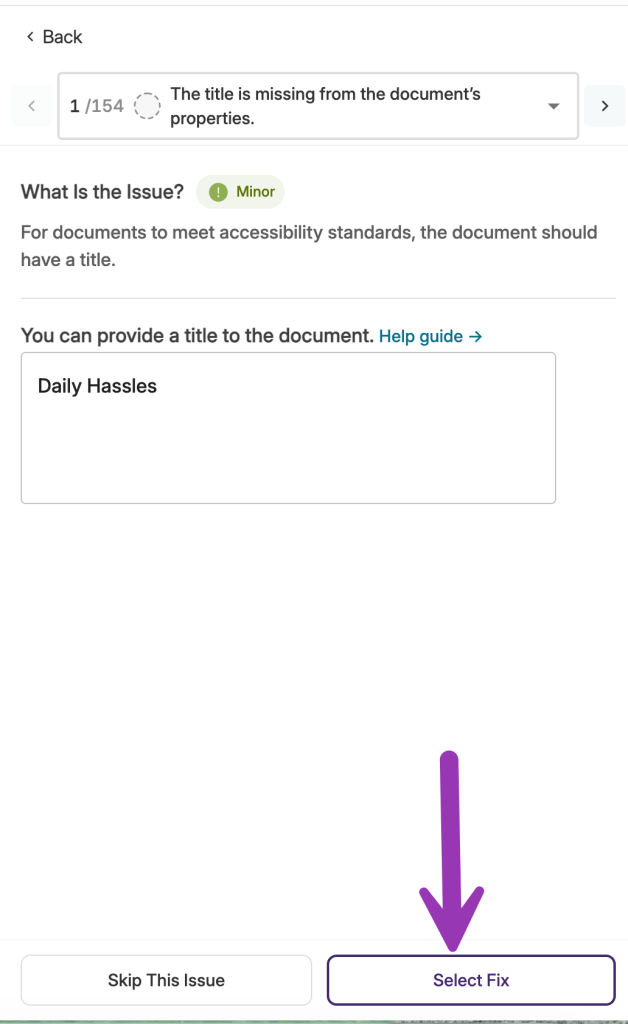
When making a fix in Panorama, follow the instructions given to make the change. Click on Help Guide if you want further information about a particular issue.

Then, click the “Select Fix” button to move to the next accessibility issue. You can also click the “Skip this Issue” if you’d like to come to an accessibility issue at a later time.
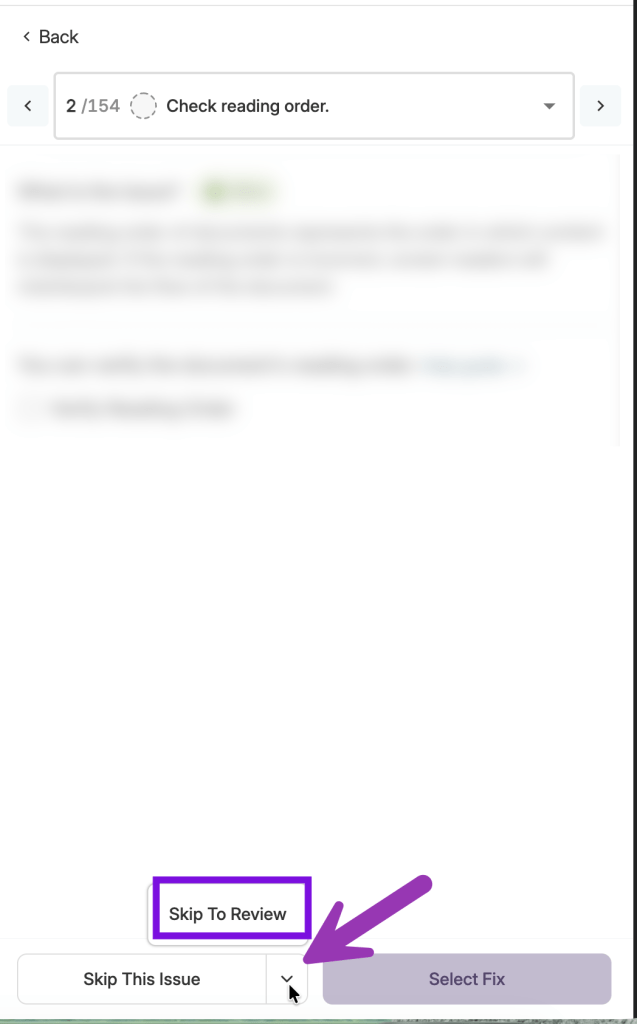
If you’d like to save your changes and come back later, click the down arrow next to “Skip this Issue” and select “Skip to Review”.
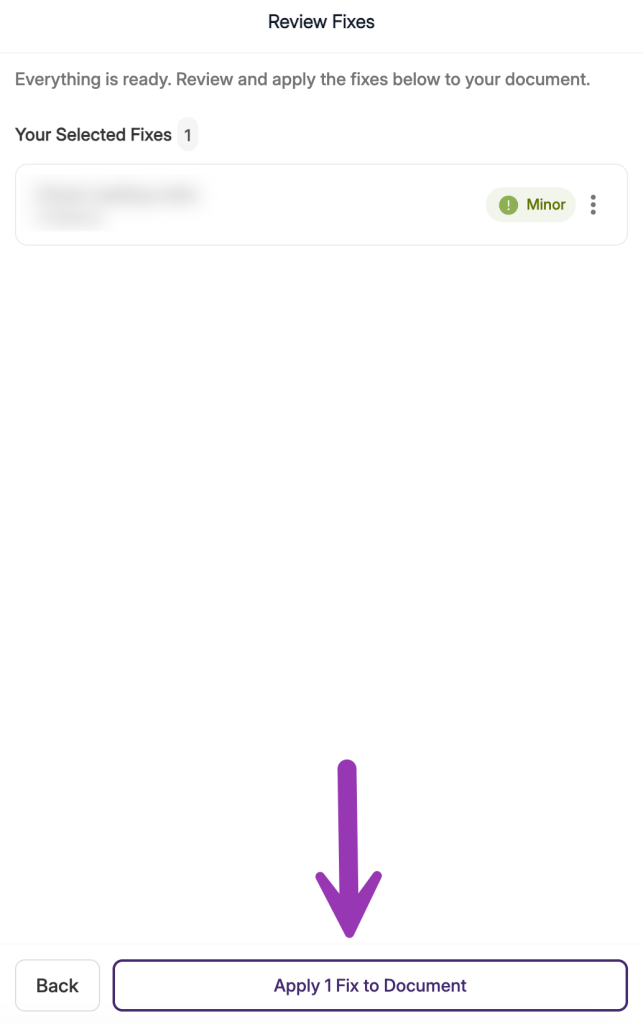
Then, click the “Apply Fix to Document” button. The document may take a couple minutes to apply your changes, then will show a confetti cannon animation to let you know your changes have successfully saved. Note: Do not close out of the tab or window until you see the confetti animation or your changes may not apply.
View an Accessibility Report from the Yuja Panorma Dashboard #
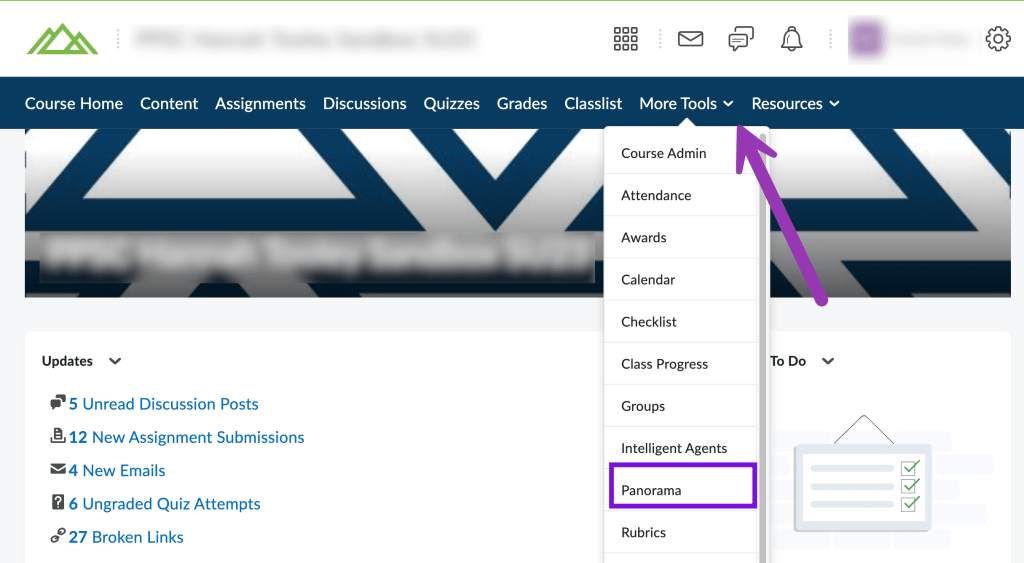
To access the Panorama tool, go into one of your courses, click on More Tools from the course Navigation bar, and click on “Panorama”. You will be taken to the Panorama Dashboard.
Note: You can always access the Panorama through this method, or you can access Panorama directly through their website with your SSO Credentials. However, if you are an instructor, we recommend originally opening Panorama through D2L to ensure you are enrolled with the proper access in Panorama.
Let’s explore the Panorama Dashboard. Make sure you are on the Course Report from the left sidebar menu (it will be highlighted in purple if you are currently on the Course Report).
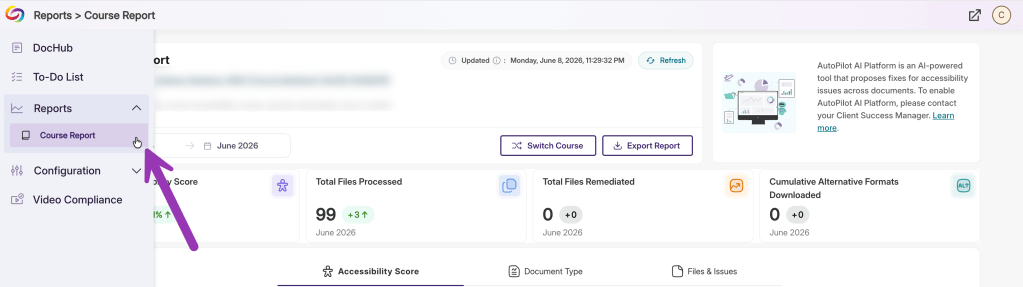
On the Course Report, you will see three tabs. The Accessibility Score tab will show how your overall course score changed over time. The Document Type tab will show the breakdown of how many different file types you have in your course and will show what alternative formats students may be downloading your files in. The Files & Issues tab will be the most important and will allow you to fix individual files in your course.
Note: If you are opening Panorama for the first time, it can take up to 30 minutes for a course to be fully scanned. If you are logging in for the first time during a peak traffic time (such as the week before classes start) note that it may take a little longer for your courses to be scanned.
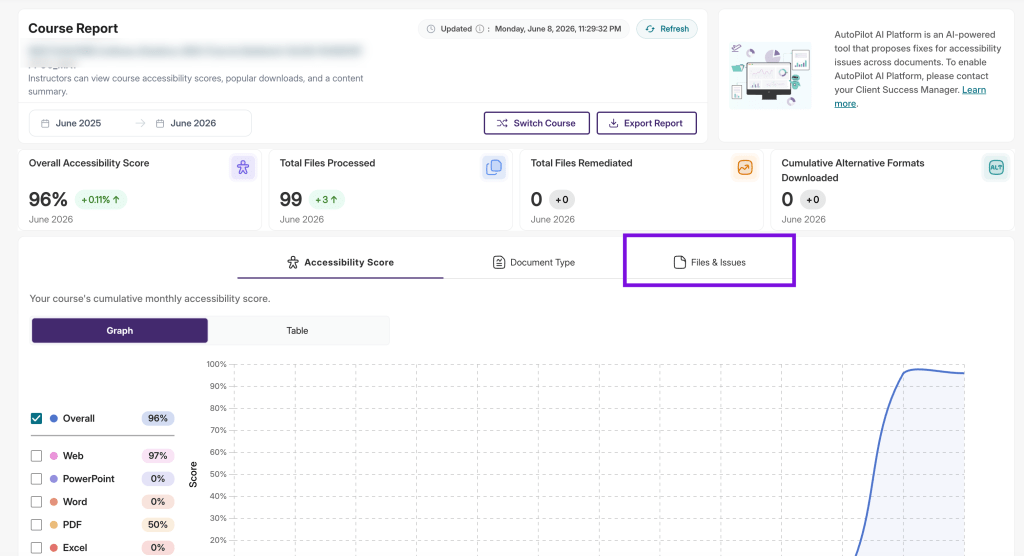
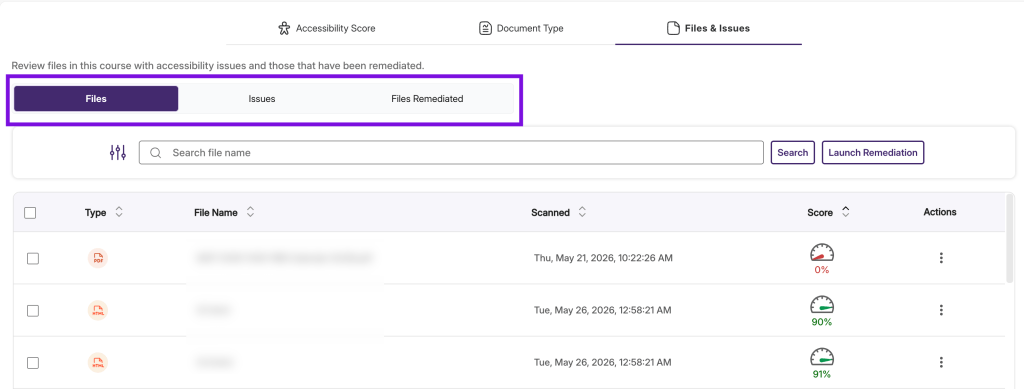
From here you can choose to fix individual files by least accessible to most accessible in the “Files Tab”, or if you’d rather fix by individual accessibility issue, click the “Issues” tab. The “Files Remediated” tab will show how many course files you have made accessibility changes to.
Click on the File Name or the Score Dial icon to open up the Alternative Formats Menu.
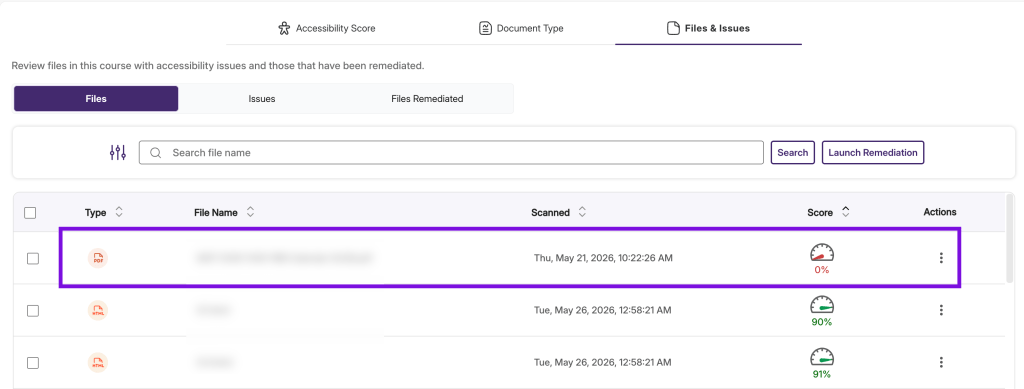
Follow the instructions to View the Accessibility Report to remediate your files.
If you have any questions, please reach out to us at elearning@pikespeak.edu.


You must be logged in to post a comment.