
Several times during a semester, we receive a message explaining that students can’t see their grades. Almost always the issue is the same, that dates have been entered into the grading area thinking that this sets the start/end dates to an Assignment, Discussion, or Quiz but this is not the truth.
Date restrictions set up in Grades, set times students can see their grades, not when they can access an Assignment, Discussion, or Quiz.
To check if you have this issue #
- Go to Grades
- Select Manage Grades
- Look for the StopWatch icon, this lets you know a date is set that could block students from seeing their grades.

To fix the issue #
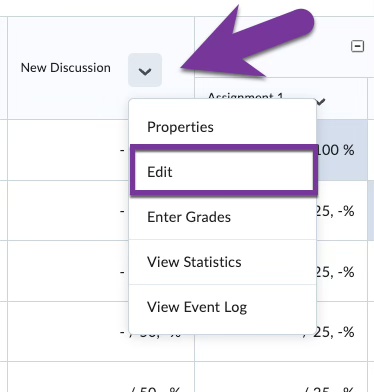
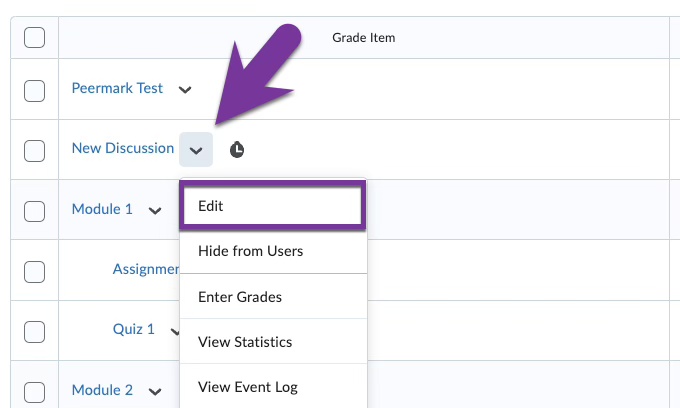
Go to Grades and select Enter Grades or Manage Grades.

Click the Drop Down Arrow next to the quiz name and Select Edit
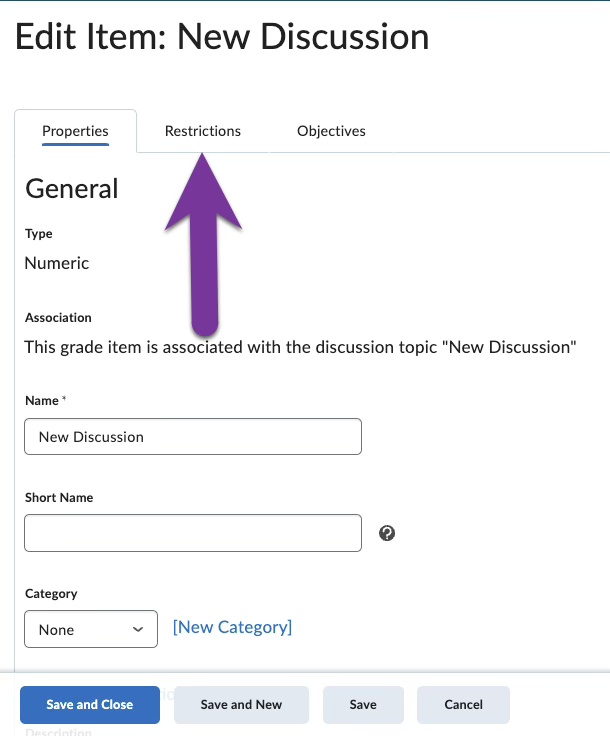
Go to the Restrictions tab
Uncheck all of the Availability Boxes then click Save
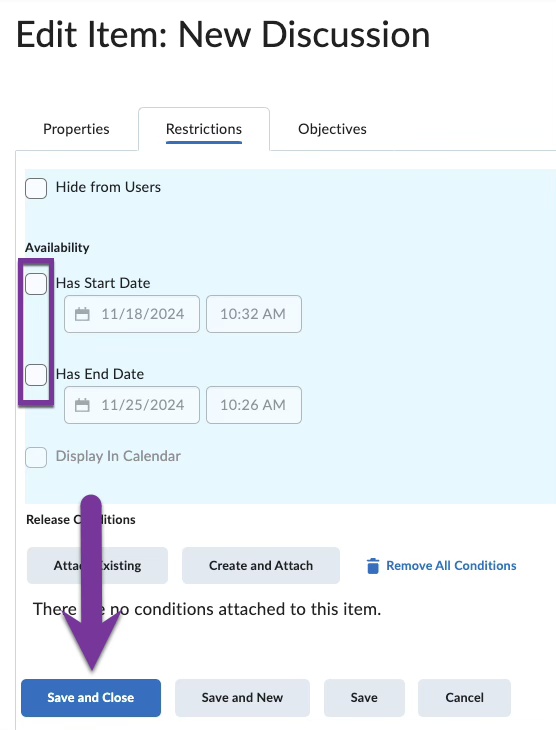
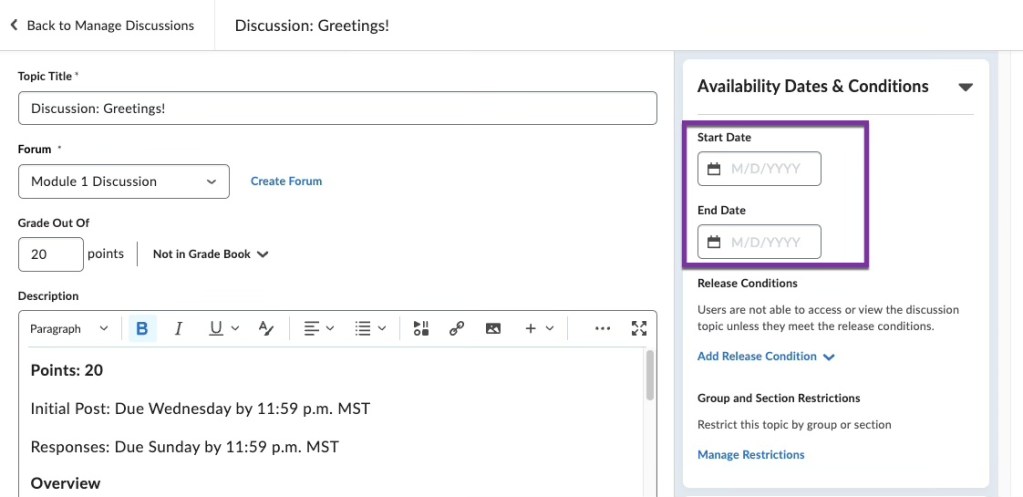
This fixes the issue with students not being able to see their grades. If you want to add a date to the Assignment, Quiz, or Discussions, go to that tab, edit that item, and set the Start/End Date Restrictions in the Availability Dates & Conditions menu.
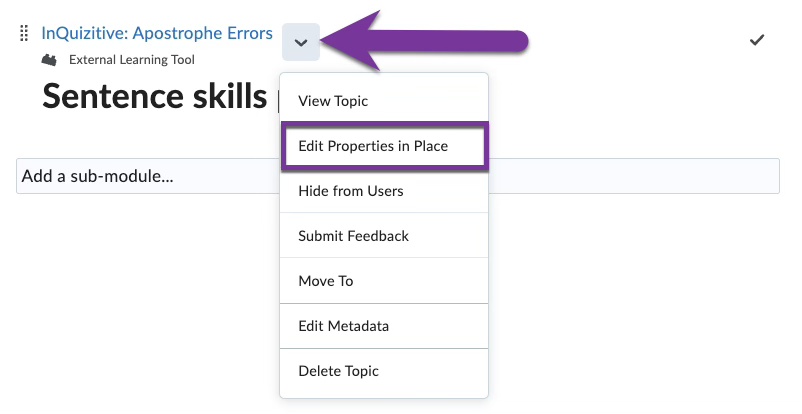
Note: If you want to set a start/end date to an external learning tool (i.e. an assignment from a 3rd party publisher), find the link in Content, and click the down arrow next to its title. Then, choose “Edit Properties in Place”.
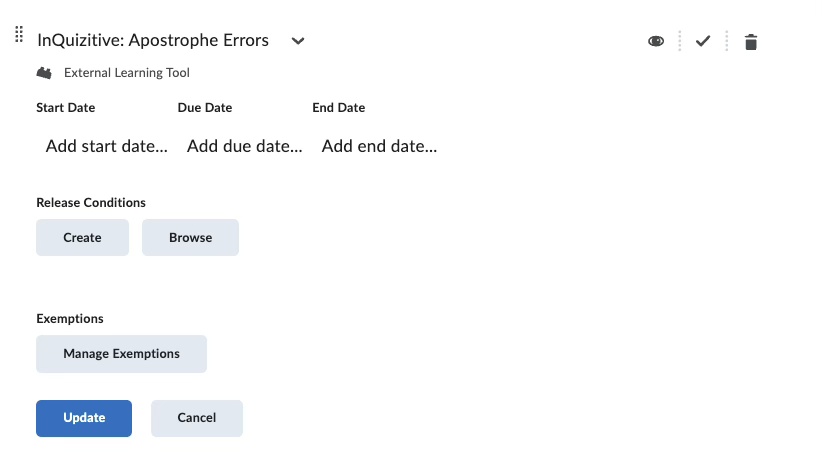
Click into the “Add dates and restrictions” field. Enter in a Start Date, Due Date, and End Date as you wish. Click “Update” when finished.


You must be logged in to post a comment.