
If you need to view the number of times an instructor has logged into a course or viewed a certain D2L tool, use the steps below to find the report you need.
Open a D2L course shell. Near the bottom of a course home page is the Course Overview widget with links to a few different reports:

The Class Engagement report is used more to track student progress, but you can see how many discussion threads/replies the instructor has posted.

In the Course Access report, you can see how many times an instructor has entered the course. Be sure to select the time period you want to view and make sure the “Instructor” role is the only one checked. You can export the report as a CSV or XLSX file using the buttons near the top of the screen.
Note: if there are multiple people with the role of “Instructor”, you can reach out to us at elearning@pikespeak.edu and we can pull the Course Access Report for a specific instructor in a specific course.
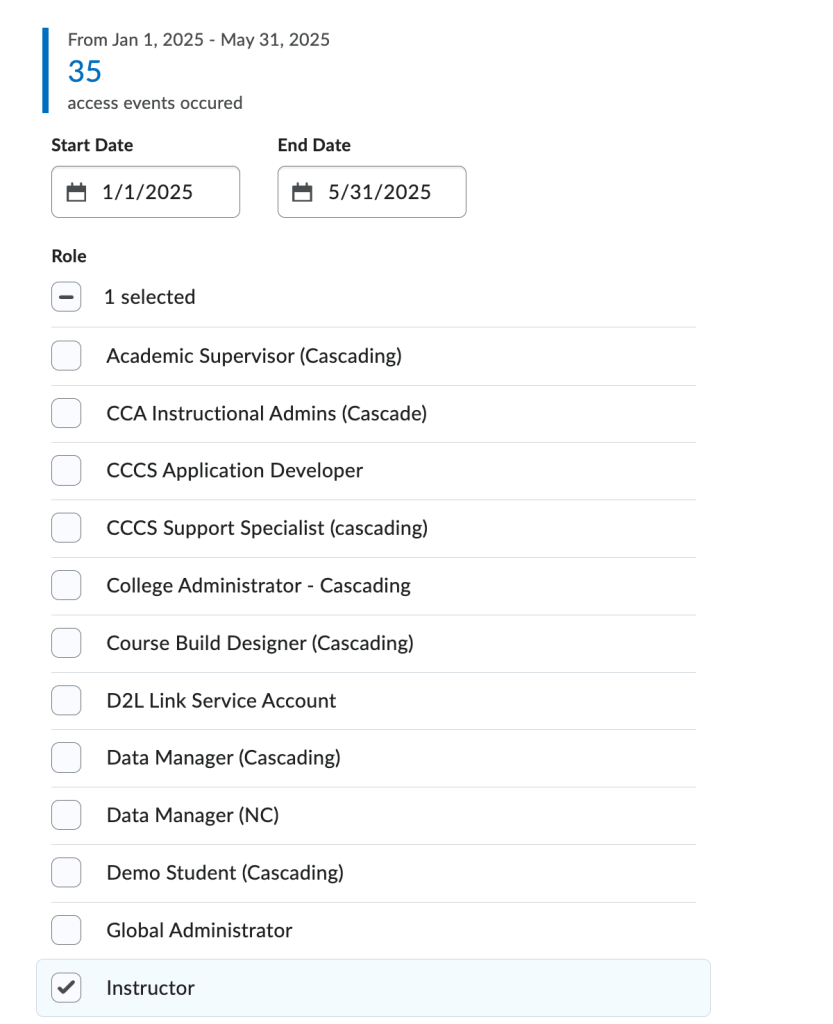
In the Tool Access report, you can see how many times an instructor went into each tool. Select a time period, and make sure the “Instructor” role is the only one checked. You can export the report as a CSV or XLSX file using the buttons near the top of the screen


You must be logged in to post a comment.