
What is the Accessibility Checker? #
The accessibility checker is a built-in tool in Microsoft Office that can check your documents for common accessibility errors.
In addition, it will provide information on how to fix the error, works in real-time, and can even be left open while you work on a document.
Note: You can get a free copy of the latest Microsoft Office via Office 365 for PPSC.
What does the checker do? #
Basically, the checker automatically checks your document for accessibility based on a checklist of common problems. This checklist varies depending on the product used (Word, PowerPoint, Excel).
The accessibility checker categorizes detected issues as (according to Microsoft):
- Errors – Errors are for content that makes a file very difficult or impossible for people with disabilities to understand.
- Warnings – Warnings are for content that in most, but not all, cases makes a file difficult for people with disabilities to understand.
- Tips – Tips are for content that people with disabilities can understand, but that might be better organized or presented in a way that would improve their experience.
You of course want to make sure your documents contain no errors, warnings, or tips (if possible); but I wanted to explain the difference between each of them.
How to use the checker #
View instructions on how to open the Accessibility Checker on Microsoft’s website. This website has instructions on how to access the accessibility checker on windows, Macs, and the web version of Microsoft products.
Finding and solving errors, warnings, and tips. #
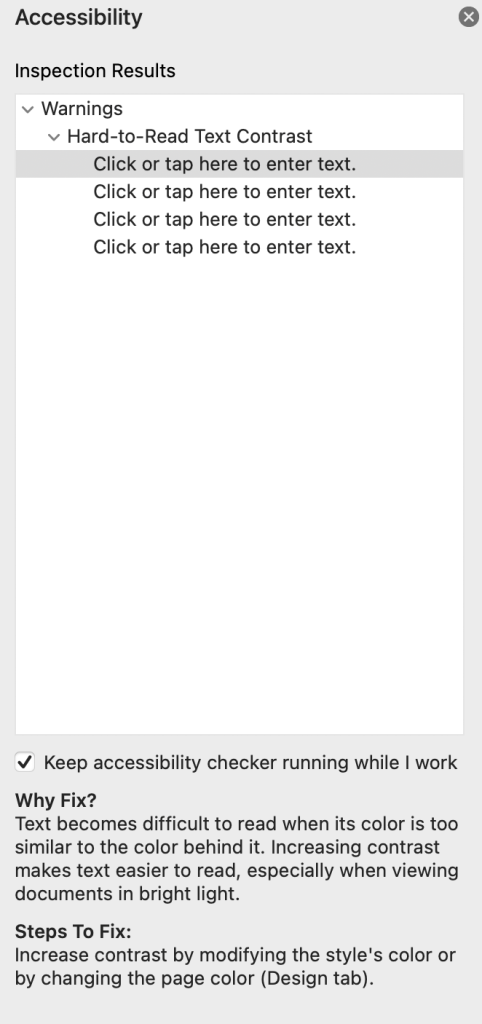
When using the checker, you will see a panel appear on the right side. It will display any errors, warnings, or tips that the document has.

You can click on any errors or warnings to get information on how to fix them and why you should.
Video Tutorial #
The following video tutorial is a great overview of how to use the accessibility checker:
Questions #
If you have any questions, please don’t hesitate to contact the eLearning department at elearning@pikespeak.edu.


You must be logged in to post a comment.