
If a student experiences any technical problems during a quiz attempt, you as the instructor have the ability to submit a student’s quiz attempt for them, re-open a quiz attempt, or reset a student’s quiz attempt to resolve the student’s issue.
- Submitting a quiz will make sure everything the student has in progress is saved as a completed attempt.
- Reopening a quiz attempt can be used in a case where a student experienced a technical issue mid-attempt and needs extra time to finish what they started.
- Resetting a quiz attempt will erase what the student had already completed and make it so the student starts the quiz attempt again from scratch.
Submit a Quiz Attempt #
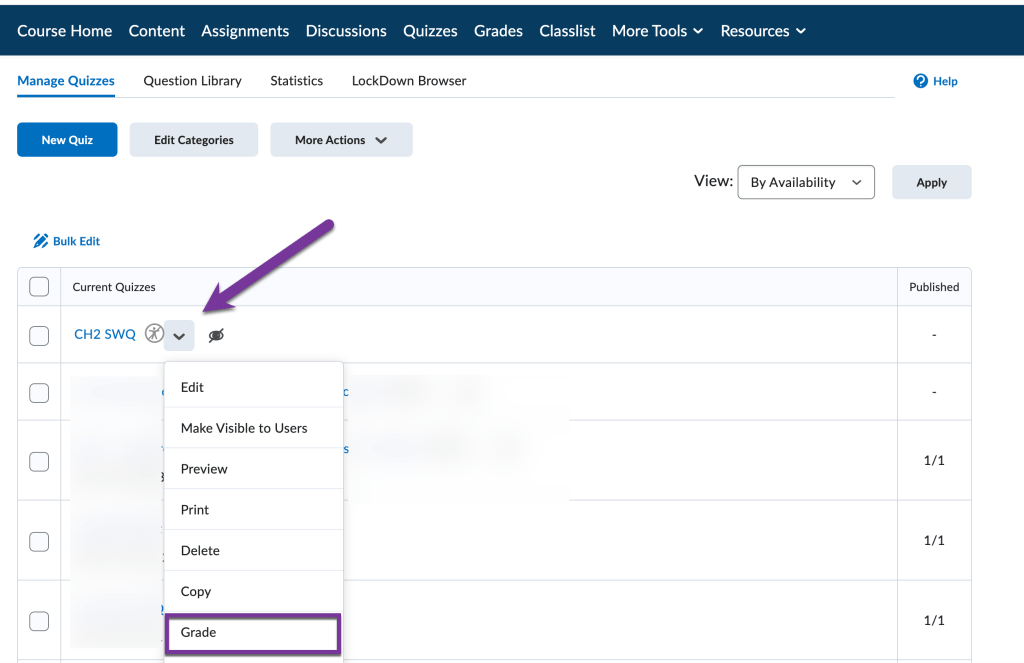
Go into Quizzes. Then, click on the down arrow next to the title of the quiz with attempts that need to be manually submitted. Select “Grade”.
Then, locate the student you need to submit the attempt for and click on the person with a shadow icon next to the attempt.

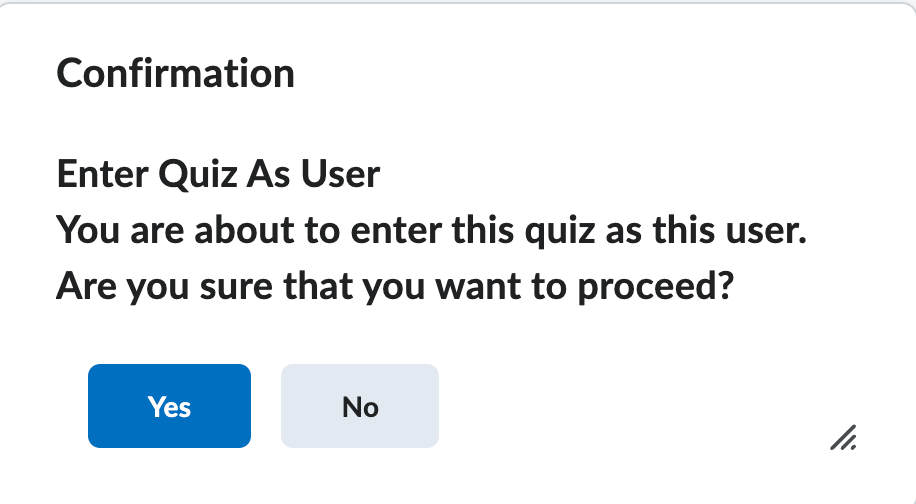
A popup message will appear asking you if you want to go into the quiz as a student. Click “Yes”.
The screen will show the students’ attempt and include all the answers they had clicked or typed in. Click “Submit Quiz” at the bottom of the screen to submit the attempt.

On the next screen, click “Submit Quiz” to confirm.

You will be taken back to the Grade Quiz screen as an instructor.
Reopen a Quiz Attempt #
Go into Quizzes. Then, click on the down arrow next to the title of the quiz with attempts that need to be manually submitted. Select “Grade”.
Then, locate the student you need to submit the attempt for. Check the box next to the student’s attempt, then click “Reopen” near the top of the table. (Note: The student’s attempt must be submitted in order to be re-opened. If the student’s attempt was In-Progress, you can manually submit the attempt for them first using the steps in the previous section).

A window will appear to confirm that the quiz attempt should be reopened. If there is an end date or time limit on the quiz that has passed or been exceeded, there will be a prompt to extend these settings. Click “Reopen Attempt”.

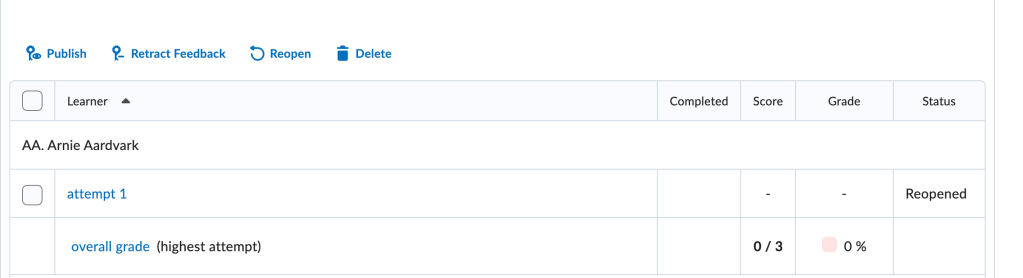
The page will refresh and the student’s attempt status will change to “Reopened”.
Reset a Quiz Attempt #
Go into Quizzes. Then, click on the down arrow next to the title of the quiz with attempts that need to be manually submitted. Select “Grade”.
Then, locate the student you need to submit the attempt for. Check the box next to the student’s attempt, then click “Delete” near the top of the table.
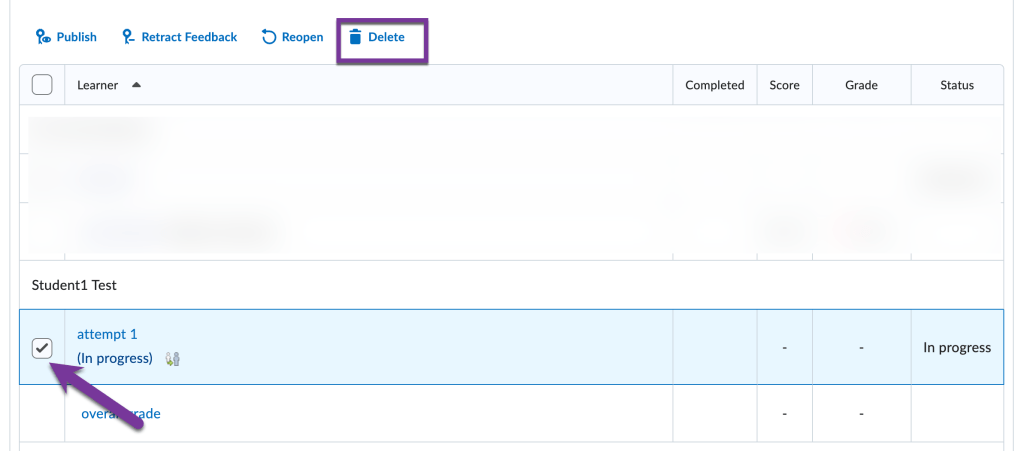
You will see a pop-up window confirming that you would like to delete the attempt. Click “Yes” to continue.
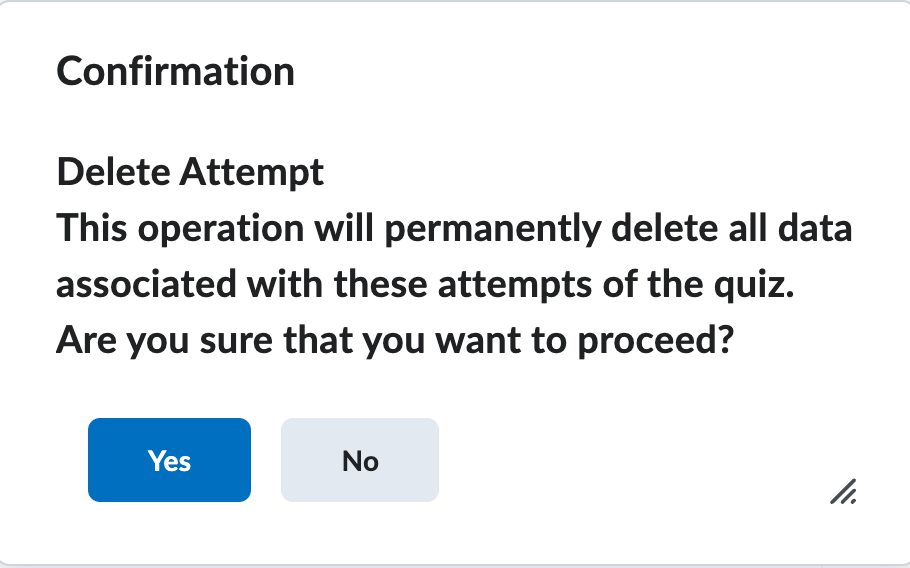
The page will refresh, and the students attempt will be deleted. Note: if the end date for the quiz has passed, you may need to enable Special Access for the student in order for them to re-take the quiz.


You must be logged in to post a comment.