
To reply to a discussion post, go to the Discussions area on your course nav bar and click the title of the discussion topic that you’d like to reply to.

Then, we can read the entire thread. To post a reply to the discussion prompt, click on “Start a New Thread”.

Then, enter a title for your post, and type in your response. You can add links, images, and more using the WYSIWYG editor. Then, click Post when you’re finished.

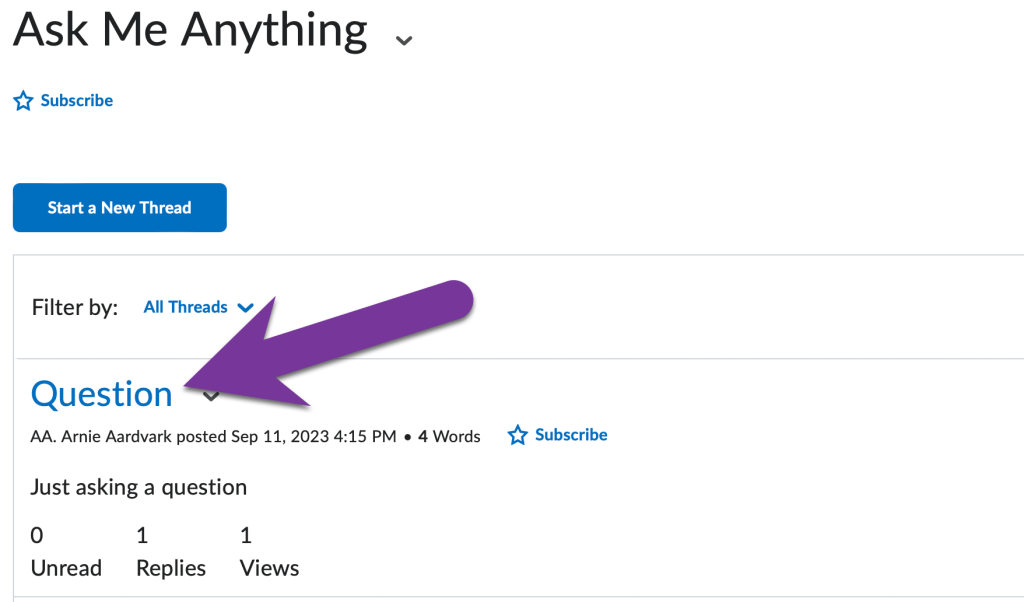
To reply to a specific student, click on the title of their post. In this example, we can see that Arnie has replied to our thread, so it’s time to reply back to him.
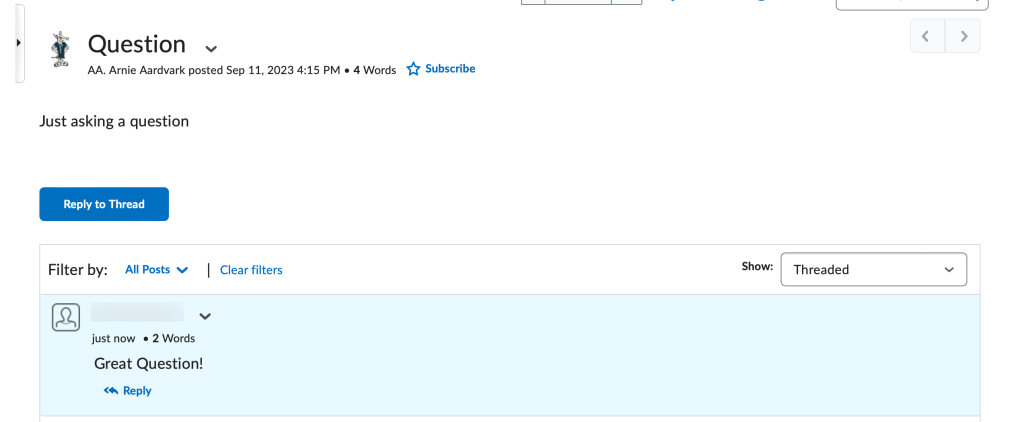
Click on “Reply to Thread”.

Your new reply will appear in blue.


You must be logged in to post a comment.