
To put the grade columns in the order you want, start by going to Grades -> Manage Grades. In this example, the Chapter 2 Questions column is listed before Chapter 1 Questions which is what we want to change.
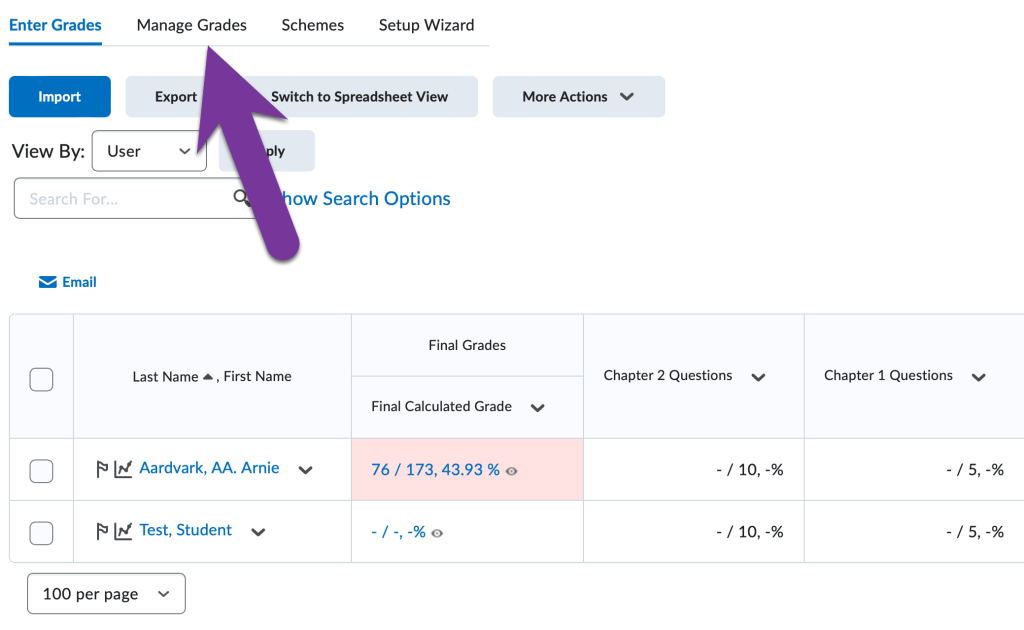
Click on More Actions -> Reorder.

From here, you can change the order of the columns by using the dropdowns and putting the numbers in the order you want. We recommend starting with the grade items you want to appear first and the other columns will change numbers automatically. Be sure to click Save when you are done.
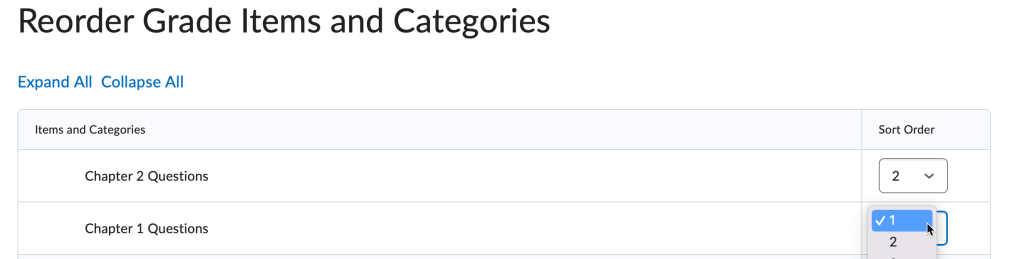
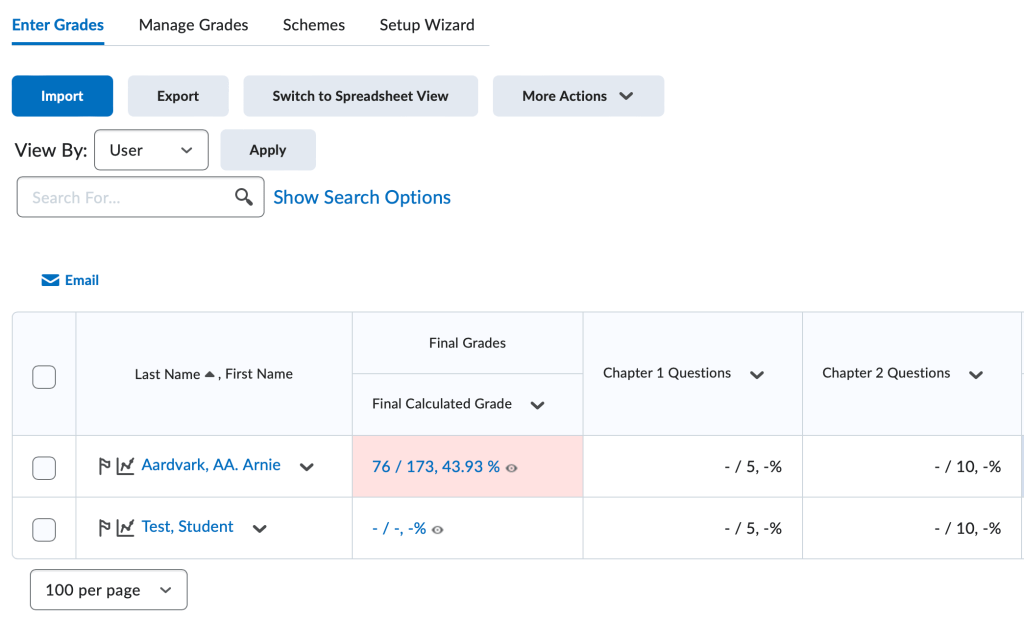
As soon as you have the numbers the way you want, click Save. You’ll be taken to the Manage Grades screen so you can confirm the order is correct.


You must be logged in to post a comment.