
If you have a situation where you accidentally marked the wrong answer correct on a quiz question, or if you’d like to “throw out” a question that many students are getting wrong on a quiz, below are some instructions on how you can delete or edit quiz questions after students have quiz attempts.
First, navigate to your course and click on Quizzes. Then click the down arrow next to the title of the quiz you’d like to change, and click “Edit”.

To edit a question, click on it from the Questions area below and a pop-up window will appear for you to edit your question. Be sure to Save & Close when finished.

To delete a question, click on the checkmark next to it. Then click More Actions–> Delete. Save & Close the quiz.

After editing or deleting your question, click the down arrow next to the title of the quiz and select Grade.
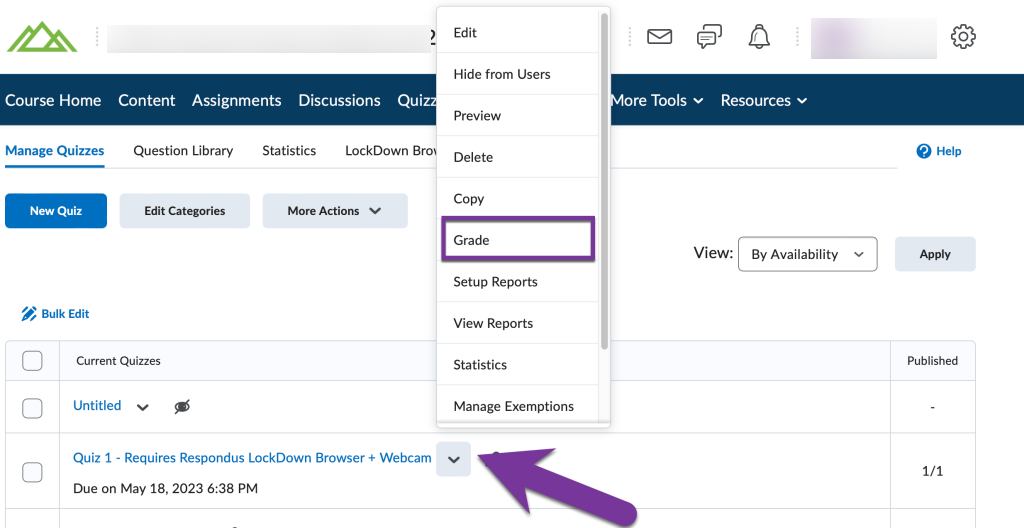
Click on the “Questions” tab. Then, you can choose to “Grade Individual Responses” if you want to give points back to only the students that missed the question, or you can check “Update all attempts” which will give all students a set amount of points for a particular question (if a student got it correct originally, they’d get bonus points with this option).

You will see the question you edited/deleted in the “Questions that are not in the quiz anymore” section. Click on the question to start grading, then save when you are finished making changes.


You must be logged in to post a comment.