
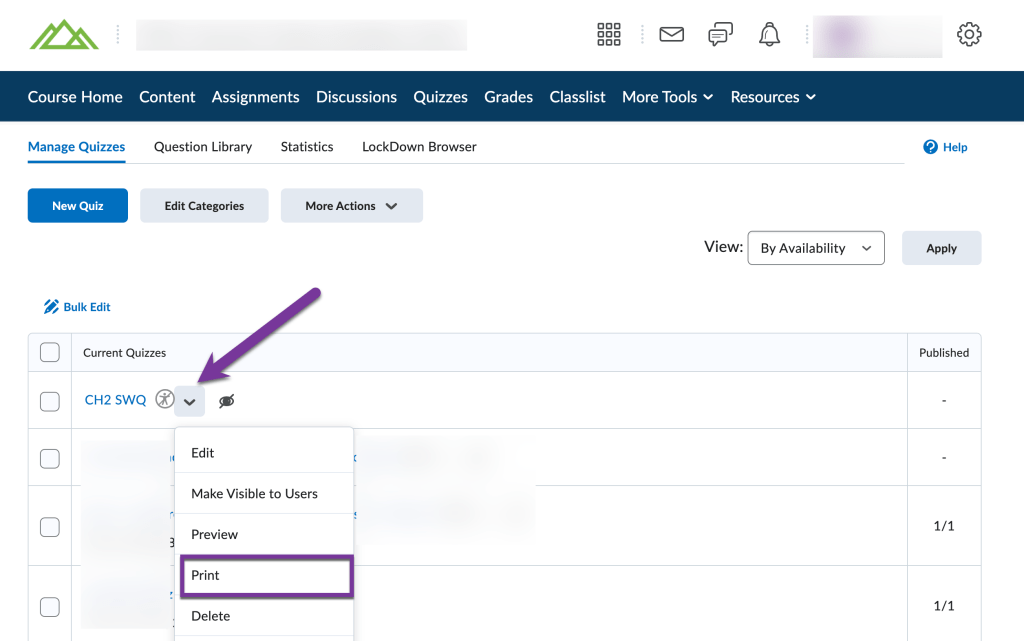
To print a quiz in D2L, navigate to the Quizzes area in your course shell.
Click the down arrow next to the title of the quiz you’d like to print, then select, “Print”.
Then, you’ll see a preview of the quiz and have a few options you can add:
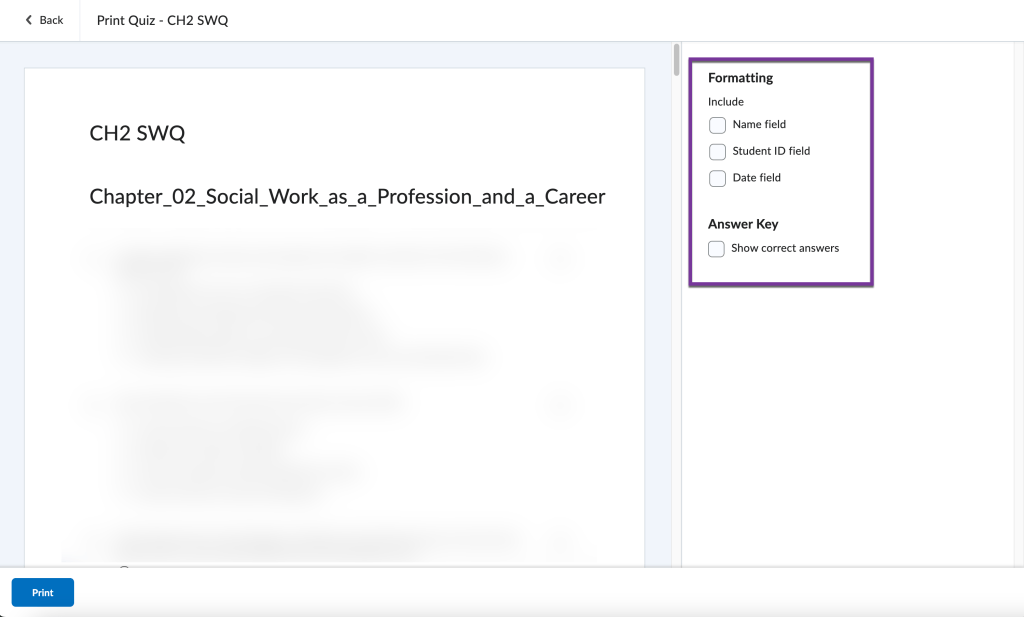
- Name Field – add a place for students to write their name
- Student ID Field – Add a line for students to write their S#’s
- Date Field – Include a link where students can write the date.
- Answer Key – An answer key for the test will also be printed.
After clicking the Print button at the bottom of the screen, you can then select where you would like to print your quiz to, how many copies you would like.
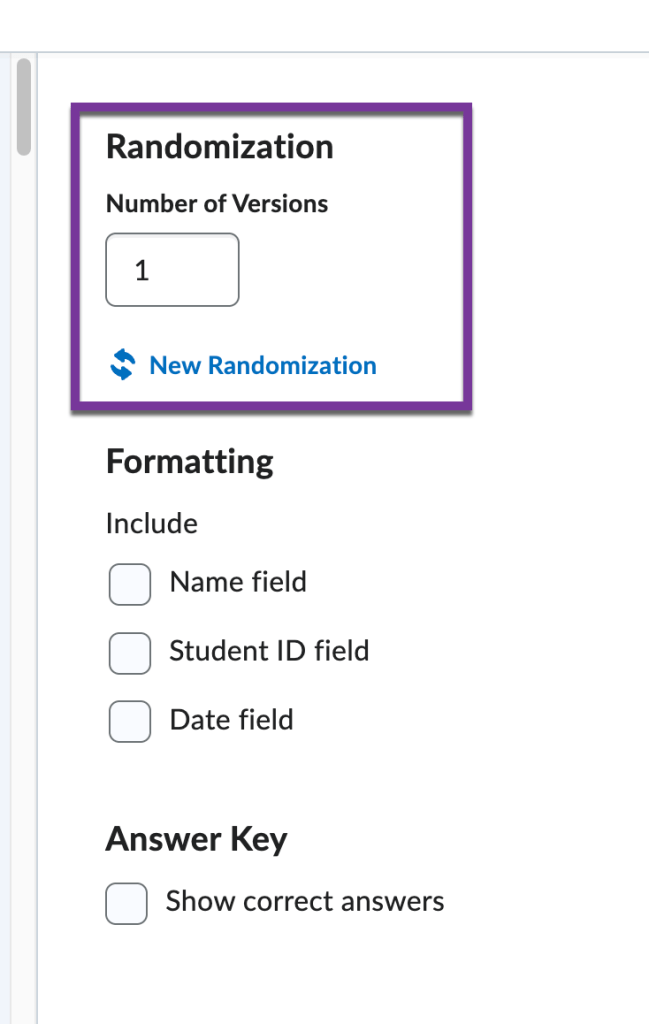
Note: If you’ve chosen to shuffle questions on your quiz (located in your quiz settings in the Timing & Display menu), you will have an additional option to enter in the number of different versions you’d like to print.
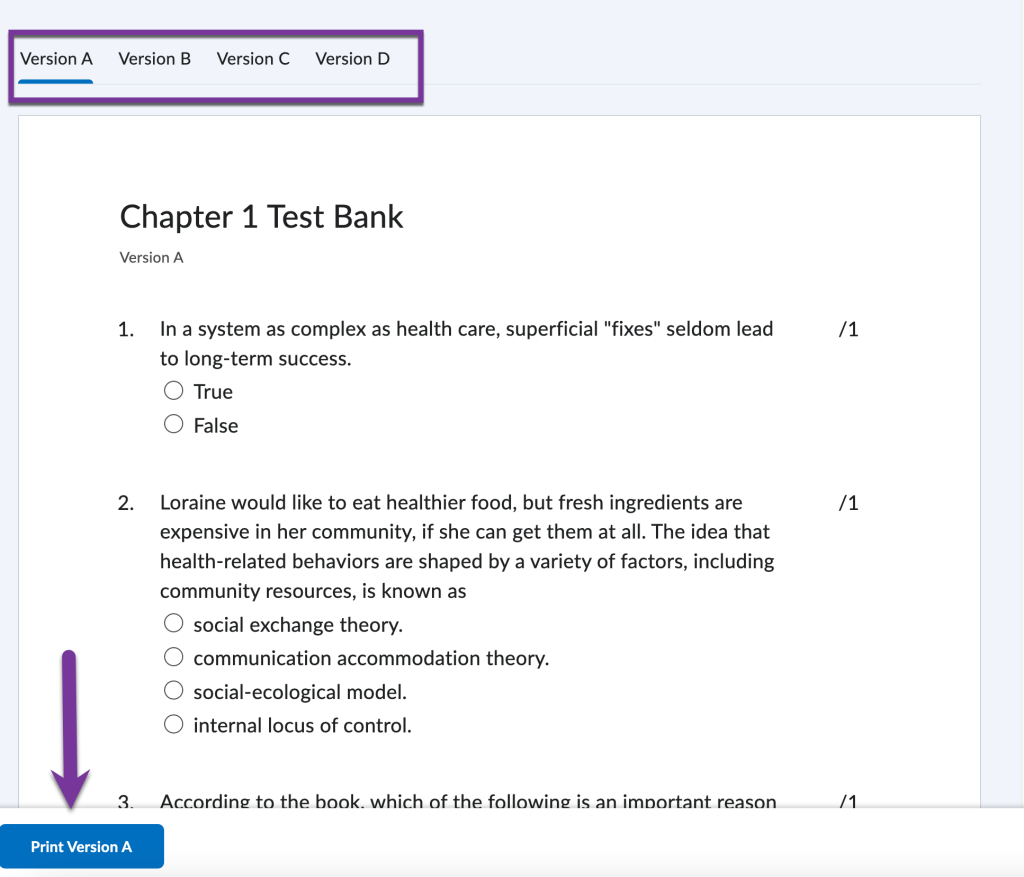
After entering in the number of versions you need, you will then need to click each tab to see each different version and print each version individually.


You must be logged in to post a comment.