
If you’d like to make a quiz with some bonus (extra credit) questions, first make sure you’ve Created a Quiz and Added Quiz Questions to it.
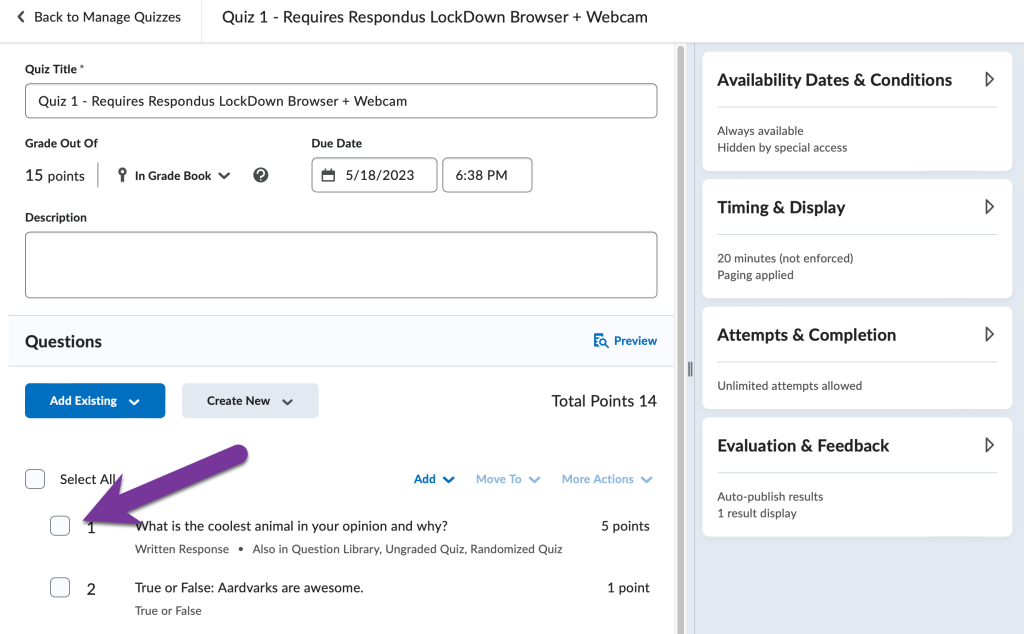
Once you’ve added your questions, check the box next to the questions you would like to be bonus questions.
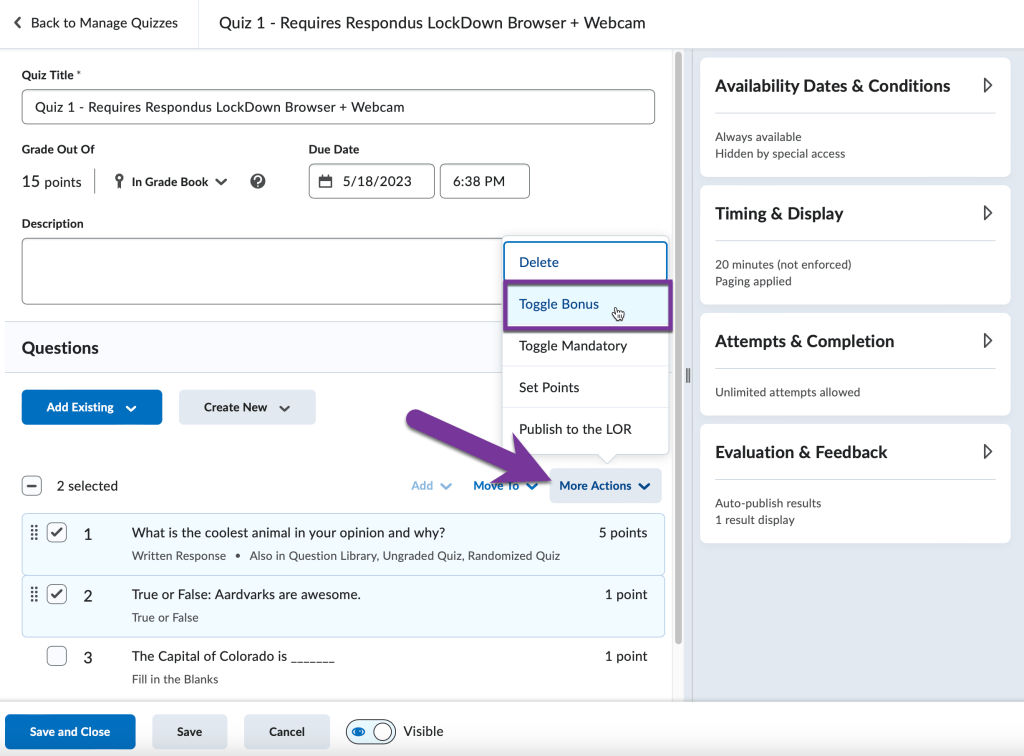
Then, click on More Actions and select Toggle Bonus.
You should see the word BONUS under the points for the question.

Be sure to Save and Close your quiz when finished.
Earn above 100% #
By Default, students can only earn up to 100% on a grade item. If you’d like to give students the chance to earn above 100 percent on your quiz, you will need to make an edit to the grade item for this quiz. Go to Grades in your course nav bar, then locate the grade item for the quiz. Click the down arrow next to its title, then click on “Edit”.

Scroll down until you see the “Grading” section, then make sure to check the “Can Exceed” box. This will make it so students can receive more than 100% on this grade item.
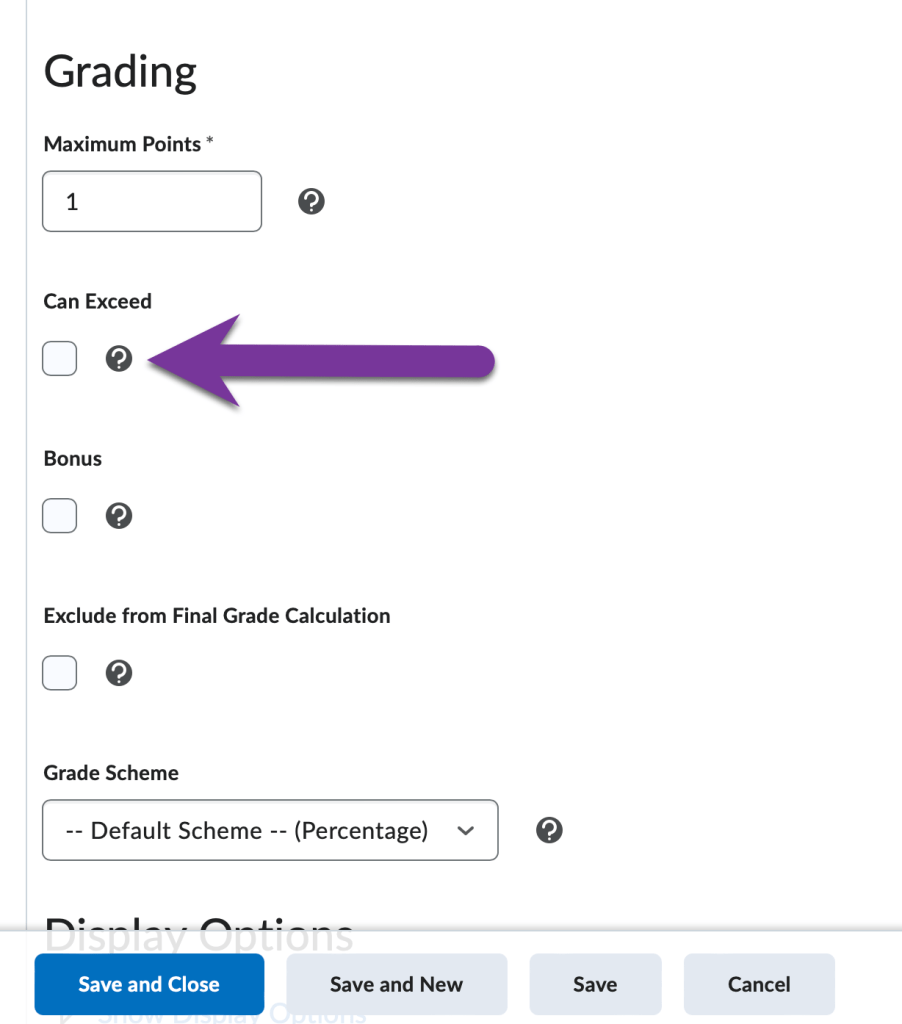
Note: Do not check the “Bonus” option under the grade item settings. This will make the entire quiz extra credit, instead of the specific questions you picked out in the first steps of this article.


You must be logged in to post a comment.