
TurnItIn (TII) is a wonderful tool available to instructors. In order to use TurnItIn, a D2L Assignment folder must have the TII integration turned on. (NOTE : Students may not submit directly to TII, but rather must submit to an Assignment with TII enabled).
Go to the Assignments link on your Course Navbar and click on the down arrow next to the title of the assignment you’d like to add TurnItIn to. Then, click on “Edit Assignment”.

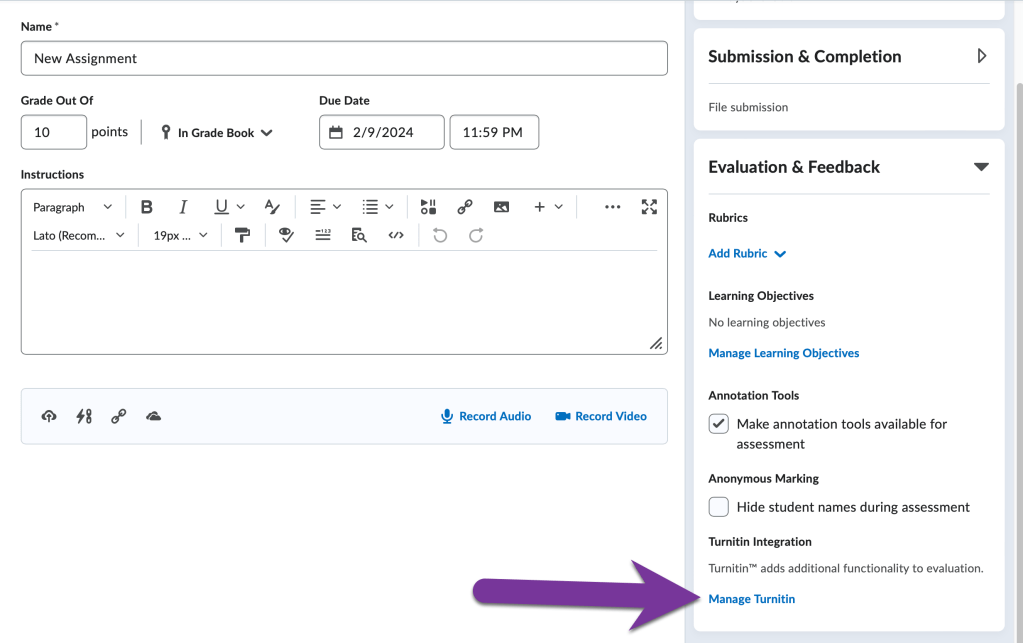
Click on the Evaluation & Feedback menu to open it. Then, click on the Manage TurnItIn link near the end of the menu options.
There are two things you can choose to enable with TurnItIn. The first is the Similarity Report, which will check your students’ submissions for plagiarism. The second option is to enable Online Grading, which will allow you to use TurnItIn’s feedback studio. You can choose to turn on one or both options.

Click Save to confirm your choices.
Then, Save and Close the Assignment.
When students go to turn in their assignment, they will see a notice that they are also submitting their assignment to TurnItIn.

When students start submitting Assignments, you will see an extra column(s) for TurnItIn when viewing submissions. Click on the percentage students received in the Similarity Report column to see the student’s result in TurnItIn. Click on the pencil in the Online Grading column to start grading student’s assignments in TurnItIn.


You must be logged in to post a comment.