
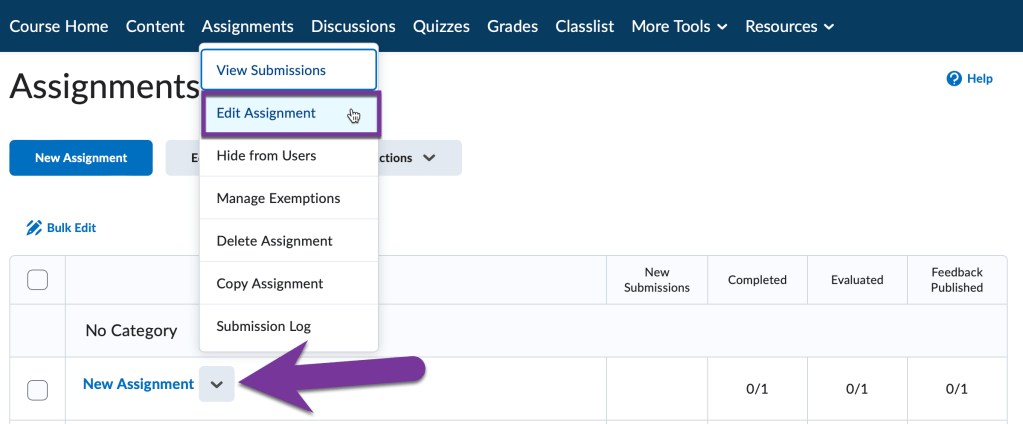
When grading assignments in Assignments, it’s very convenient to be able to have the scores go automatically to the Grades area. In order to do this however, you must link your assignment to a Grade Item. This must be done in Assignments. Let’s go to the Assignments tab, find the assignment we want to link to a Grade Item, and click the down arrow next to its title. Then, click on “Edit Assignment”.
If your assignment has “Ungraded” listed in the “Grade out of” field, start typing the number of points you’d like the assignment to be where it says Ungraded. This should change the screen to show that the assignment is connected to the gradebook.

If the assignment is displaying that it is “Not in Grade Book”, click on it to pull up a drop down menu where you can choose to “Add to Grade Book”, or “Link to Existing” if you’ve already created a Grade Item in the grade book for this assignment.
If you are linking to an existing grade column, make sure that the points match between what’s listed on this assignment, and what’s in the grade book.

Click Save and Close to save your changes to the assignment.


You must be logged in to post a comment.