
If you’d like to see if a certain grade item (grade column) is associated with the correct learning assessment, or any learning assessment, follow the steps below.
First, go to Grades from your course, then click on the Manage Grades Tab.

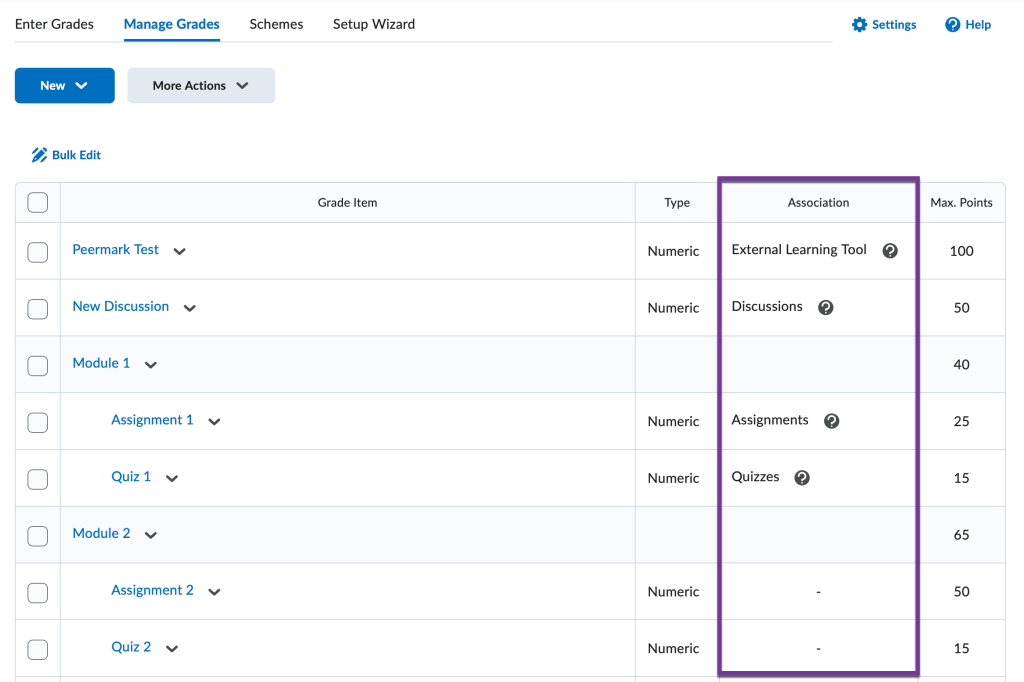
Then, in the chart that appears, look at the associations column. If the grade item is associated with an assignment, discussion, quiz, or external learning tool (such as a publisher assignment). If the association column is blank for a grade item, this means it isn’t associated with any learning assessment activity inside of D2L.
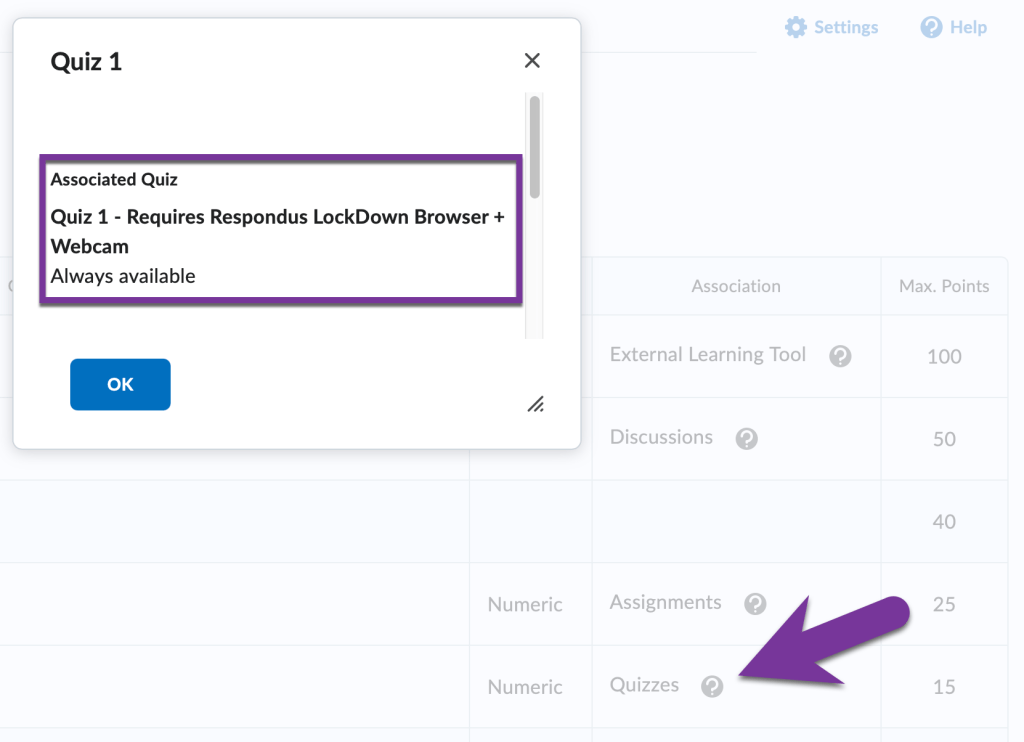
Click on the question mark icon to get more details about the assignment, discussion, quiz, external learning tool, etc the grade item is associated with. You can see the exact title of the activity that is associated.
If you want to change the association #
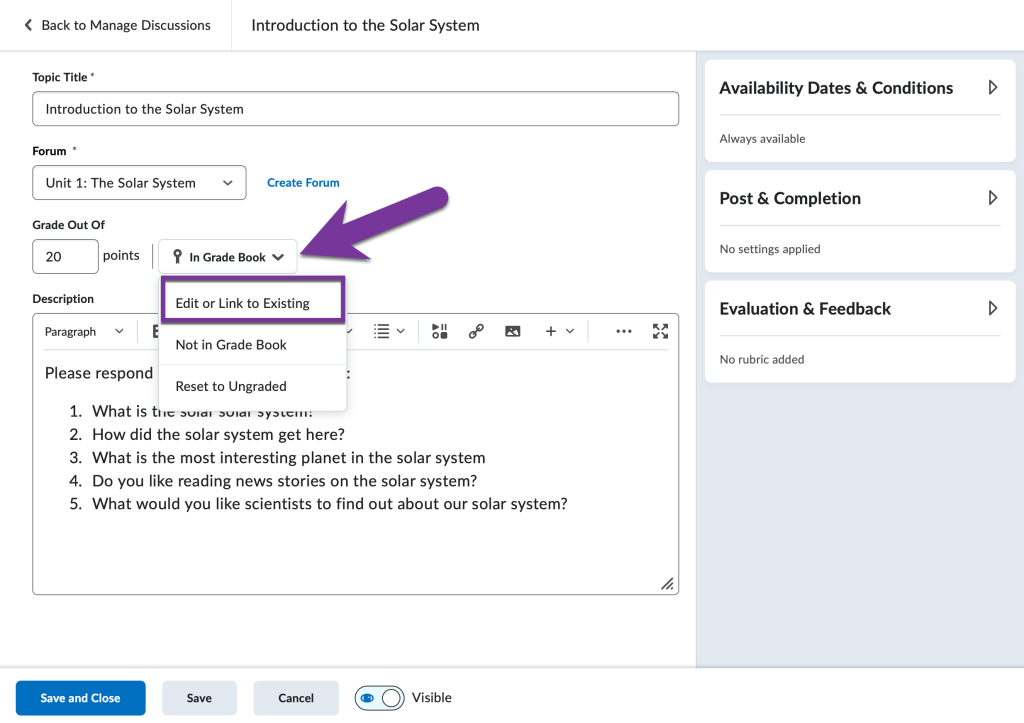
If you need to change the grade column association, go the activity through the Assignments, Discussions, or Quizzes link on the course nav bar. Then, click on the down arrow next to the title of the learning assessment and click on “Edit”. You should see a field that says “In Grade Book” or “Not in Gradebook”. If you want to change the grade item association, click on this field and choose the “Edit or Link to Existing”.
Next, you’ll have the option to create a new grade item and link the activity to it, or you can link it to an existing grade item. Note that you will only be able to see grade items that are not associated with any other activities.
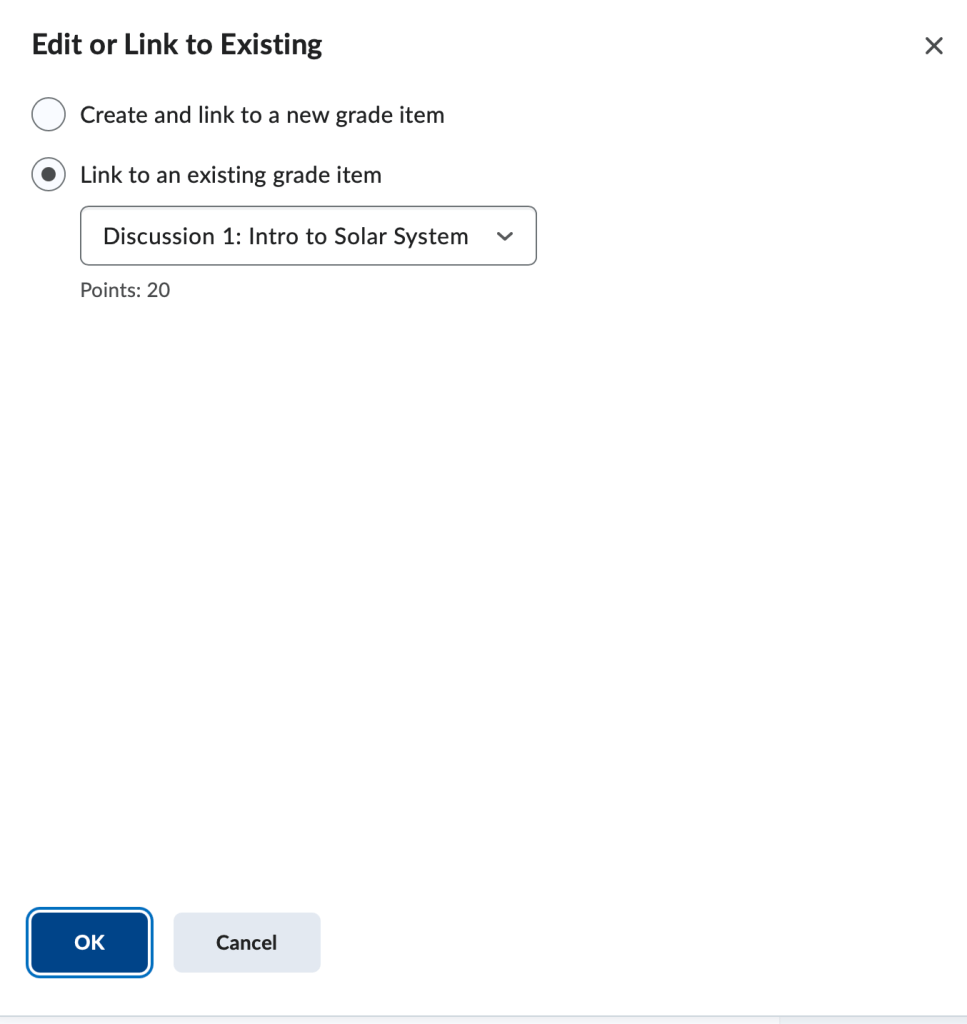
Click Ok, then Save and Close the activity when finished.


You must be logged in to post a comment.