Skip to content
PPSC eLearning Knowledge Base & Support
  • Knowledge Base
  • News
  • Submit a Support Ticket
  • Training
  • PPSC Healthy Course Checklist
  • eLearning Glossary
  • Contact Us
  • Knowledge Base
  • News
  • Submit a Support Ticket
  • Training
  • PPSC Healthy Course Checklist
  • eLearning Glossary
  • Contact Us

Accessibility

  • Accessible Headings in Word
  • Accessible Images in Microsoft Office
  • Accessible Links in Microsoft Office
  • Accessible Tables in Word and PowerPoint
  • Creating Transcripts for Audio Files
  • Finding Captioned Videos on YouTube
  • Fixing the Top Accessibility Issues with Yuja Panorama
  • How to Caption Videos
  • How to give a student special access
  • How to Print Homework/Quizzes/Tests in MyLab Math
  • Microsoft Excel Accessibility
  • Microsoft Word Accessibility Overview
  • PowerPoint Accessibility Overview
  • Print a D2L Quiz
  • Reading Order in PowerPoint
  • Structuring Your PowerPoint for Accessibility
  • The Accessibility Checker (Microsoft Office)
  • Video Accessibility: Captions
  • Yuja Panorama – Getting Started

Colorado Online @

  • Adding an eText to a Course (Barnes and Noble)
  • CO Online Course Materials and Teaching Resource Shells Guide
  • CO Online Pooled Section Student Resources
  • Colorado Online @ Important Resources
  • Colorado Online Handbook
  • Create a Sandbox Course (CO Online Only)
  • Crosslisting Pooled Sections in D2L
  • Department Chair Course Readiness Checklist
  • Digital Integrations for Colorado Online @ Courses
  • How to Enroll in the Common Course Framework
  • Instructional Calendars for CO Online and PPSC
  • Instructor Publisher / Third-Party Vendor Integration Help
  • No-Show Process for Colorado Online
  • Share Course Materials with Other Instructors (CO Online Only)
  • Spring Breaks and Colorado Online
  • Submitting Grade Changes for CO Online Pooled Courses
  • Submitting Incompletes for CO Online Pooled Courses

D2L

  • Accreditation Requirements
    • Creating Measurable Module-Level Learning Objectives
    • What is Regular and Substantive Interaction (RSI)?
  • Announcements
    • Copy an Announcement to Other Courses
    • Create an Announcement
    • Dismissed Announcements: Why students are seeing deleted announcements
    • How to restore deleted assignments, discussions, quizzes, and more
    • Send an Announcement to Students’ Emails
  • Assignments
    • Adding HIPs Rubric to Assignment Folders
    • Assign (enroll) members to groups
    • Create an Assignment Submission Folder
    • Create an Extra Credit (Bonus) Grade Item
    • Create groups
    • Download All Assignment Submissions
    • Give a student special access to an Assignment submission folder
    • Give Students Feedback on their Assignment Submissions
    • Grading an Assignment submission folder with rubrics
    • How to give a student special access
    • How to restore deleted assignments, discussions, quizzes, and more
    • How to view grade item associations 
    • Link a rubric to an assignment submission folder
    • Link Grades to a Submission Folder in Assignments
    • Link Turnitin to Assignment Submission Folders
    • See the course from a student view (Impersonate Arnie Aardvark)
    • Turnitin Feedback Studio
  • Attendance
    • Attendance Overview
  • Calendar
    • Add an item to the calendar
  • Content
    • Add / Create a Module
    • Content Tools Overview
    • Create a new file in D2L (HTML Webpage)
    • Create an external link in your D2L course
    • Creating Transcripts for Audio Files
    • D2L Course Image Standards
    • Embed Video or Other Item with Code
    • Films on Demand
    • Finding and Uploading Videos To Use In Your Curriculum
    • Finding Captioned Videos on YouTube
    • Hide content from students
    • How to Caption Videos
    • How to restore deleted assignments, discussions, quizzes, and more
    • Import Course Materials into D2L
    • Link to other D2L content and activities
    • Move items in Content
    • Remove items or modules from the Content page
    • See the course from a student view (Impersonate Arnie Aardvark)
    • Upload a File to Content
  • Course Copy
    • Copy Course Components
    • Import Course Materials into D2L
  • Course Evaluations
    • Accessing Administrator (Department Chair) Course Evaluation Accounts
    • How to Access Course Evaluations
    • When do Course Evaluations open for Students?
  • Course Management
    • Add Quiz Special Access Accommodations and Time Limits
    • Copy an Announcement to Other Courses
    • Deleting and Restoring Student Discussion Posts
    • Department Chair Course Readiness Checklist
    • Enroll Others in a Course Shell
    • Enroll yourself in training courses
    • How to give a student special access
    • How to restore deleted assignments, discussions, quizzes, and more
    • How to see a Withdrawn Student’s D2L Activity
    • Spring Breaks and Colorado Online
    • Submit, Reopen, or Reset a Student’s Quiz Attempt
    • View Instructor Engagement in a Course
    • When are course shells made available?
    • When are Crosslist Requests made available?
  • Discussions
    • Add a new discussion forum
    • Add a new discussion topic
    • Assign (enroll) members to groups
    • Create an Extra Credit (Bonus) Grade Item
    • Create groups
    • Deleting and Restoring Student Discussion Posts
    • Discussion Settings
    • Grading a discussion submission using a rubric
    • How to give a student special access
    • How to restore deleted assignments, discussions, quizzes, and more
    • How to view grade item associations 
    • Link Grades to a Discussion Topic
    • Reply to a discussion post
    • See the course from a student view (Impersonate Arnie Aardvark)
  • Email
    • Forwarding Emails from MyCourses Email to Your PPSC Email
    • Send a D2L Email to your students
    • Send an Announcement to Students’ Emails
    • Sending students emails outside of D2L
  • eText
    • Adding an eText to a Course (Barnes and Noble)
  • External Learning Tools
    • Activate and Use WebEx Collaborate
    • Adding an eText to a Course (Barnes and Noble)
    • Embed Video or Other Item with Code
    • Films on Demand
    • Finding and Uploading Videos To Use In Your Curriculum
    • Finding Captioned Videos on YouTube
    • Import Course Materials into D2L
    • Import Quiz Questions via a Test Bank File
    • Instructor Publisher / Third-Party Vendor Integration Help
    • Link Turnitin to Assignment Submission Folders
    • Respondus LockDown Browser and Monitor – Getting Started
    • Using Yuja Verity with MyOpenMath Exams
    • WebEx – Getting Started
    • WebEx – Sharing and Recording
    • Zoom in MyCourses – Getting Started
  • Grades
    • Adjust What My Students and I Can See Regarding Points, Percentages and Colors in Grades
    • Apply a Grade Scheme to a Grade Item
    • Bulk Edit Grade Items
    • Calculating Blank or Ungraded Items
    • Create a Custom Grade Scheme
    • Create an Extra Credit (Bonus) Grade Item
    • Create Grade Columns / Items
    • Delete a Grade Column / Item
    • Drop the Lowest Grade for a Student
    • Exclude Grade from Final Grade Calculation
    • Export Grades
    • Give Students Feedback on their Assignment Submissions
    • Grade Essay or Written Response Questions
    • Grading a discussion submission using a rubric
    • Grading an Assignment submission folder with rubrics
    • Hide Grade Items from Students
    • How to Enter Grades
    • How to restore deleted assignments, discussions, quizzes, and more
    • How to see a Withdrawn Student’s D2L Activity
    • How to view grade item associations 
    • Link Grades to a Discussion Topic
    • Link Grades to a Quiz
    • Link Grades to a Submission Folder in Assignments
    • Make Sure My Students Can See Their Final Grade
    • Put Grade Columns Into Categories
    • Reorder the Grade Columns
    • Restrictions on Grades
    • See a dropped or withdrawn student’s grades
    • See a student’s progress
    • See the course from a student view (Impersonate Arnie Aardvark)
  • Groups
    • Assign (enroll) members to groups
    • Create groups
  • Important Dates
    • Instructional Calendars for CO Online and PPSC
    • When are course shells made available?
    • When are Crosslist Requests made available?
    • When do Course Evaluations open for Students?
  • Locker
    • D2L Locker Tool Overview
  • Navigation
    • Course Homepages
    • D2L MyCourses Home Page
    • Daylight Overview
    • How to find Courses in MyCourses
    • MyCourses Homepage Showing a Different College
    • MyCourses references, information, and step-by-step help
    • Navigating D2L (MyCourses Home)
    • See the course from a student view (Impersonate Arnie Aardvark)
  • Quizzes
    • Add a Time Limit to a Quiz
    • Add Questions from the Question Library into a Quiz
    • Add Quiz Questions to the Question Library
    • Add Quiz Special Access Accommodations and Time Limits
    • Allow students to see the answers when they are done with a quiz
    • Converting Word Tests to D2L Quizzes
    • Create a quiz
    • Create a Randomized Question Pool
    • Create Quiz Questions
    • Find missing or “In-Progress” quizzes
    • Grade Essay or Written Response Questions
    • How Students can See Feedback for Quizzes in D2L
    • How to give a student special access
    • How to Print Homework/Quizzes/Tests in MyLab Math
    • How to restore deleted assignments, discussions, quizzes, and more
    • How to view grade item associations 
    • Import Quiz Questions via a Test Bank File
    • Link Grades to a Quiz
    • Make Quiz Question a Bonus Question
    • Print a D2L Quiz
    • Remove or Edit a Question after Students have Submitted Attempts
    • Respondus LockDown Browser and Monitor – Getting Started
    • See the course from a student view (Impersonate Arnie Aardvark)
    • Submit, Reopen, or Reset a Student’s Quiz Attempt
  • Rubrics
    • Adding HIPs Rubric to Assignment Folders
    • Create a Rubric
    • Grading a discussion submission using a rubric
    • Grading an Assignment submission folder with rubrics
    • Link a rubric to an assignment submission folder
  • Turnitin
    • Link Turnitin to Assignment Submission Folders
    • Turnitin Feedback Studio
  • Widgets
    • Edit the Instructor Information Widget

Department Chair Support

  • Accessing Administrator (Department Chair) Course Evaluation Accounts
  • Department Chair Course Readiness Checklist
  • Simple Syllabus: Guide for Department Chairs

Honorlock

  • Adding the Honorlock Link on the Content Page
  • Honorlock – Getting Started (Instructor)
  • Honorlock – Getting Started (Students)
  • Honorlock FAQ

Microsoft Office

  • Accessible Headings in Word
  • Accessible Images in Microsoft Office
  • Accessible Links in Microsoft Office
  • Accessible Tables in Word and PowerPoint
  • Converting Word Tests to D2L Quizzes
  • Create a Shareable OneDrive Link
  • Microsoft Excel Accessibility
  • Microsoft Word Accessibility Overview
  • PowerPoint Accessibility Overview
  • Reading Order in PowerPoint
  • Structuring Your PowerPoint for Accessibility
  • The Accessibility Checker (Microsoft Office)

OERs

  • Films on Demand
  • Overview on Open Educational Resources

Respondus

  • Respondus FAQs
  • Respondus LockDown Browser and Monitor – Getting Started

Simple Syllabus

  • Add A New Component to Your Simple Syllabus
  • Add link to Simple Syllabus in Your D2L Course
  • Change the Access (Privacy) Settings on your Simple Syllabus
  • Copy a Simple Syllabus
  • Introduction to Simple Syllabus
  • Making a Simple Syllabus Component Public/Private and Visible/Invisible: 
  • Print a Simple Syllabus (Submit to Division Shell)
  • See Which Students Read Your Simple Syllabus
  • Sending students emails outside of D2L
  • Sharing Your Simple Syllabus
  • Simple Syllabus FAQ
  • Simple Syllabus Training Recordings
  • Simple Syllabus: Guide for Department Chairs
  • Walkthrough of Editing / Publishing a Simple Syllabus

Student Resources

  • D2L Locker Tool Overview
  • Dismissed Announcements: Where Did My Announcements Go?
  • Enroll yourself in training courses
  • Forwarding Emails from MyCourses Email to Your PPSC Email
  • Getting Started with Yuja Verity (Students)
  • How Students can See Feedback for Quizzes in D2L
  • Reply to a discussion post
  • Student Publisher / Third-Party Vendor Help
  • Upload or Submit a Video to an Assignment, Discussion, or Quiz using Yuja Video

WebEx

  • Activate and Use WebEx Collaborate
  • WebEx – Getting Started
  • WebEx – Sharing and Recording

Yuja Panorama

  • Fixing the Top Accessibility Issues with Yuja Panorama
  • Yuja Panorama – Getting Started

Yuja Verity

  • Getting Started with Yuja Verity (Instructors)
  • Getting Started with Yuja Verity (Students)
  • Using Yuja Verity with MyOpenMath Exams
  • Yuja Verity Training

Yuja Video Platform

  • Add a Yuja Video to Your Course
  • Getting Started with the Yuja Video Platform
  • How to Create a Video Quiz with Yuja Video
  • Recording and Creating Videos with Yuja Video
  • Upload or Submit a Video to an Assignment, Discussion, or Quiz using Yuja Video
  • Yuja Video Training Resources

Zoom

  • Zoom in MyCourses – Getting Started
View Categories
  • Home
  • Docs
  • D2L
  • Course Management
  • How to see a Withdrawn Student’s D2L Activity

How to see a Withdrawn Student’s D2L Activity

If a student has withdrawn or been dropped from a course, instructors can still view the work students submitted prior to being removed from the course.

To view this data, go to your course’s Classlist. Then, click on the “Enrollment Statistics” button.

enrollment statistics button

Scroll down until you see a Withdrawals section. All students who have withdrawn or dropped should be located here. When you find the student you’d like to view activity for, click the downward arrow next to their name and click “View grades”.
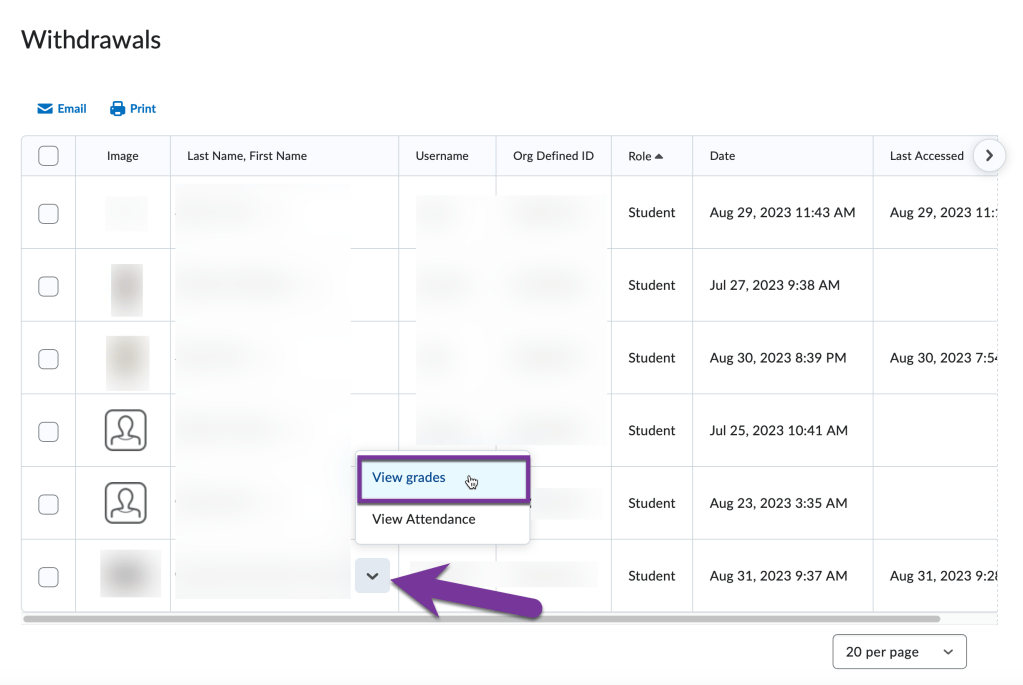
list of withdrawn students. the context menu for a student has been clicked and the view grades option has been highlighted.

The next screen will show a list of all grade items available in your course. If a student submitted something, you will see a question mark icon (?) under Submission. To see the submission, click on the question mark icon.

question mark icon under submission

From here, you can see the date and time a student submitted their work under the “Written” date. If the student took a quiz with multiple attempts, the best way to view the date and time they submitted their quiz is by choosing their attempt, rather than the default Completion Summary. Make sure to close this window or click “Go Back” to exit.

written date is highlighted. quiz attempt has been changed to attempt 1.

Related #

Share This Article :

  • Facebook
  • X
  • LinkedIn
  • Pinterest
Still stuck? How can we help?

Still stuck? How can we help?

Updated on September 11, 2023
How to restore deleted assignments, discussions, quizzes, and moreSpring Breaks and Colorado Online
PPSC eLearning Knowledge Base & Support

All rights reserved


Loading Comments...
 

You must be logged in to post a comment.