
Purpose of this Article #
You may get contacted by Accessibility Services on behalf of a student in your course, asking you to print out Assignments/Homework/Tests from your MyLab Math course. This article will demonstrate how to do this.
Accessing MyLab Math #
While inside of your D2L course content or in your MyMathLab Course, navigate to the MyLab Math Assignment Manager link.


Printing Assignments/Homework/Tests from MyLab Math #
You will now be taken to the Homework/Test Manager screen that lists all your Assignments in MyLab Math.
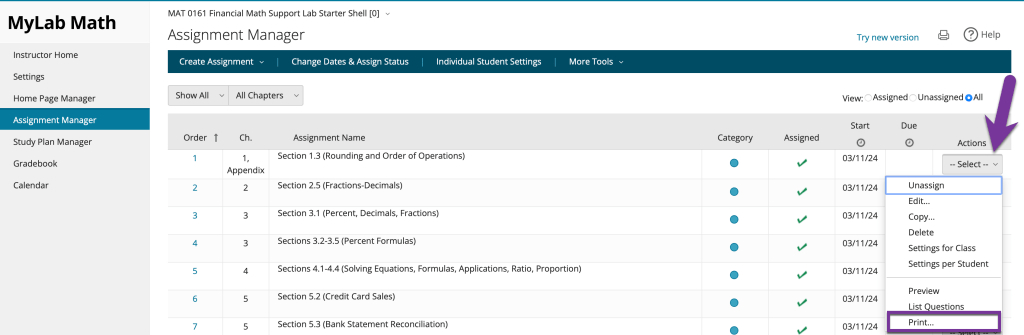
You will notice that to the very right of each Assignment is a column that is labeled as “Actions”. In this column is a dropdown box that is labeled as, “Select”. Clicking on this dropdown will present you with several options, you will want to click on the Print option to begin the printing process of an Assignment.
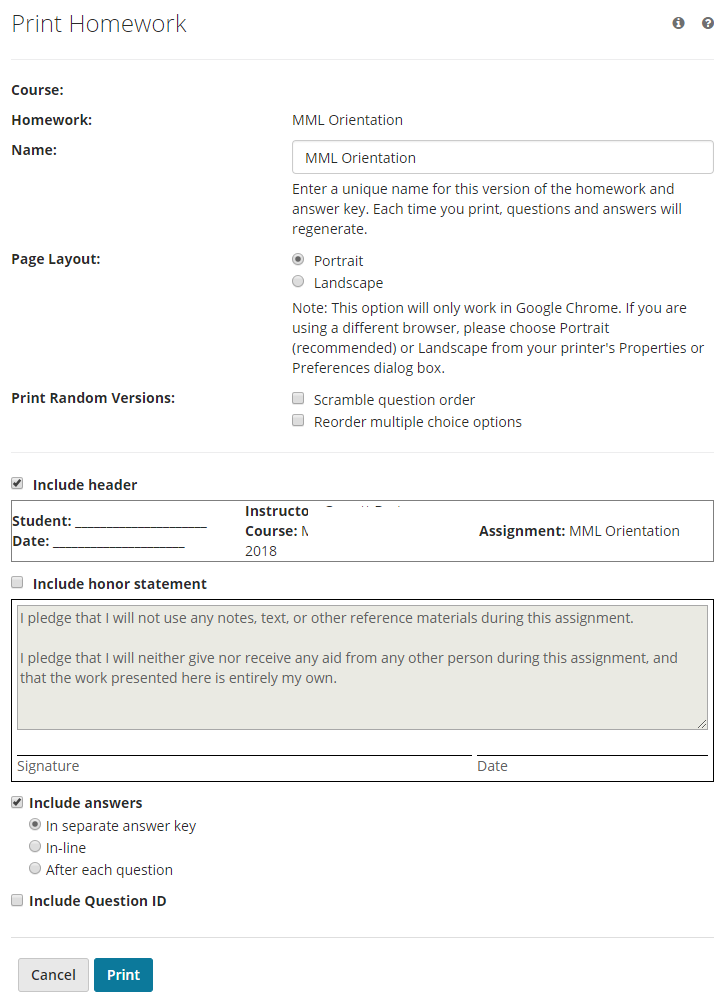
After clicking on this option, a new window will open that will allow you to setup how the Assignment is printed.
There are several features that you can do on this screen to configure how it is printed, for example:
- Page Layout – By default, this option should go to Portrait, which will work for 99% of the Assignments printed. But, you can change to Landscape mode if necessary.
- Scramble Question Order – This option will scramble the order in which questions appear.
- Reorder Multiple Choice Options – This is useful if you want to reorder the Multiple Choice options for each time the Assignment is printed.
- Include Header – You can include a header with your class information, and an area for the student to print their name and the date.
- Include Honor Statement – You could include an honor statement with this option.
- Include Answers – If you are grading this, then you would want to make sure to not select this option (aka uncheck it), since otherwise the answer key would print after the Assignment prints.
- Include Question ID – I would leave this option unchecked.
When printing, you may get a notification that Pop-ups are blocked. You will need to allow pop-ups in order to print the homework/assignment in MyLab Math. The following screenshot is an example of a blocked pop-up notification using Chrome, and how clicking on it will give you the option to allow pop-ups.

Note: You may have to close the window, and try printing the assignment once again from the Homework/Assignment manager, to have the allow pop-ups setting take effect.
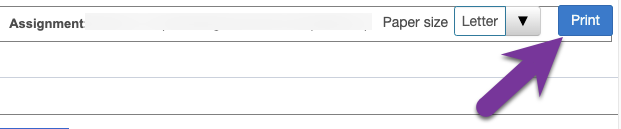
Once the Print option works, you will see a preview of what the Homework/Assignment will look like. You can click on the Print button to finally print the Homework/Assignment.
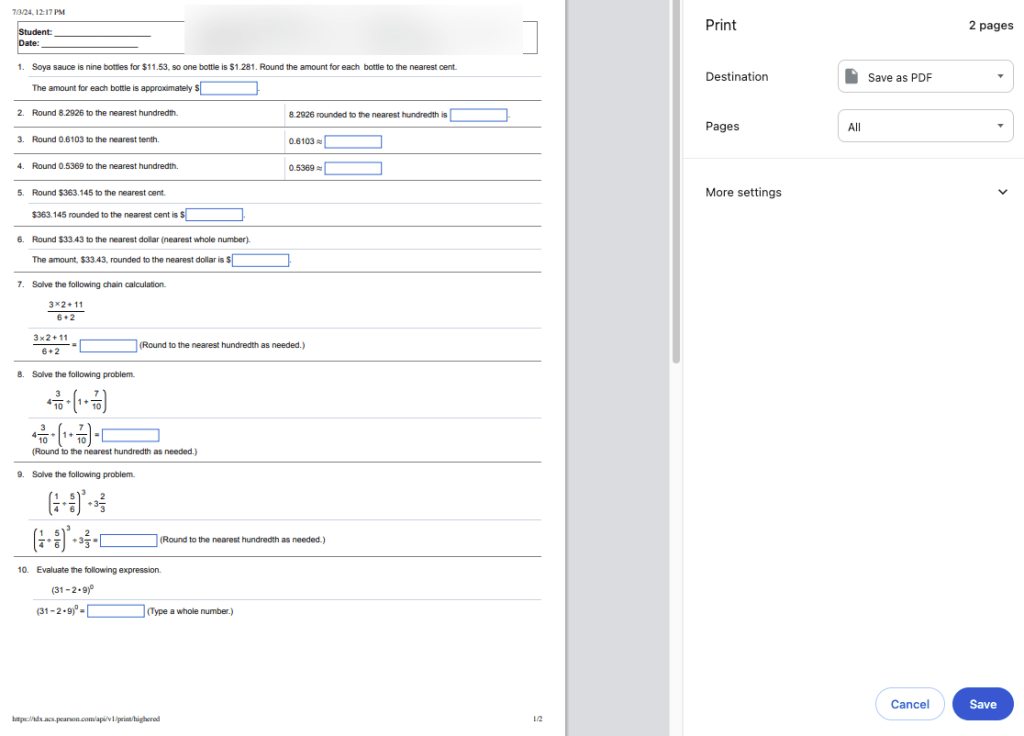
You will then be taken to your browser’s Print Preview screen, where you can actually send the Homework/Assignment to a physical or virtual printer.


You must be logged in to post a comment.