
Written response questions allow students to be assessed at a higher level of thinking and can also discourage copying of answers between students. The drawback to written response questions is that the instructor has to manually grade them. Let’s take a look at how to do this.
First, navigate to the Quizzes tab and click on the down arrow next to the title of the quiz you would like to grade. Click on Grade from the drop down menu that appears.

There are two ways to grade written response questions, sorted by User/Attempt or by Question. If you go by User/Attempt, you’ll be able to review each students’ quiz attempt one after the other. This tutorial will show you this first method. However, if you want to try the Question method and grade 1 question at a time for all students, click on the Questions tab.

This will show you the entire attempt. Scroll down until you see a section called “Quiz Results”. This section will show you all the student’s answers to all questions on the exam, including the already graded multiple choice questions. (You can edit the MC questions here as well if there’s a mistake.)
Locate a written response question you’d like to grade. Enter in the score you’d like them to receive. You can also click on the Expand Question Feedback link to enter in individual feedback for the student’s response to this specific question.
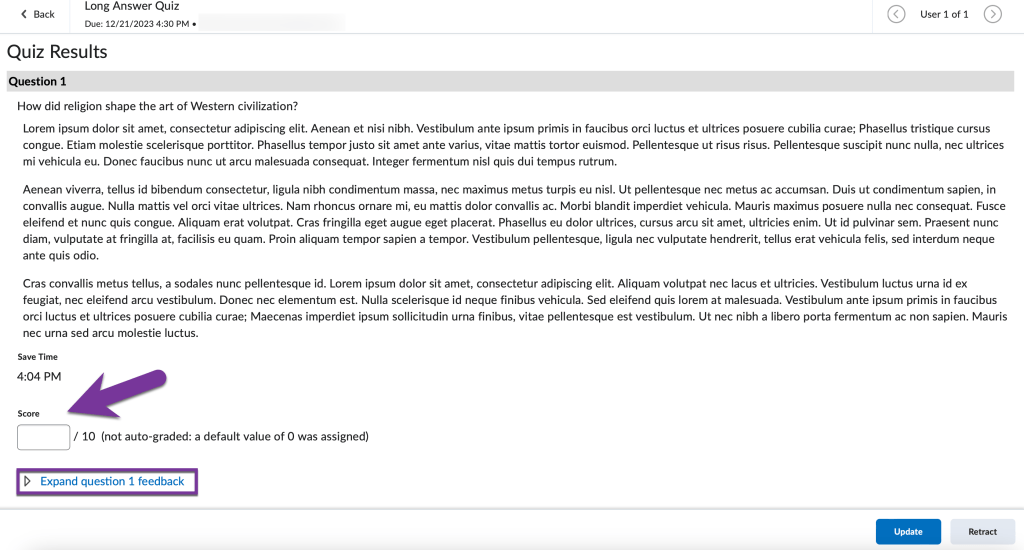
When finished grading all written response questions, click on the Update button at the bottom right corner of your screen.

Then, if you have multiple students who have submitted quizzes, you can navigate to the next student by clicking the left and right “User” buttons in the top right corner.



You must be logged in to post a comment.