
There are two ways that you can drop the lowest grade for a student. The easiest way is to create a grade category with all the Grade Items that students can have dropped (for example, if you want to have the lowest exam dropped, place all exams in a “Exams” grade category in the grade book).
In other cases, you can manually exempt students from a specific grade item. If you choose to go this route, we recommend exempting students at the end of the semester; otherwise, you will have to manually keep track of each student’s scores and progress throughout the semester.
Steps to Drop the Lowest Grade from a Grade Category #
- In your course, select Grades in the navigation bar.
- On the next page, select the Manage Grades tab.
- Click New to create a new category,
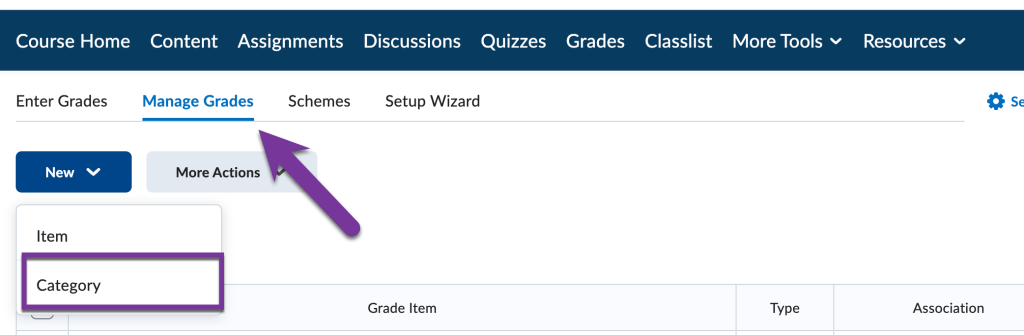
OR locate the grade category you want to adjust. Click the chevron icon beside its title and select Edit.

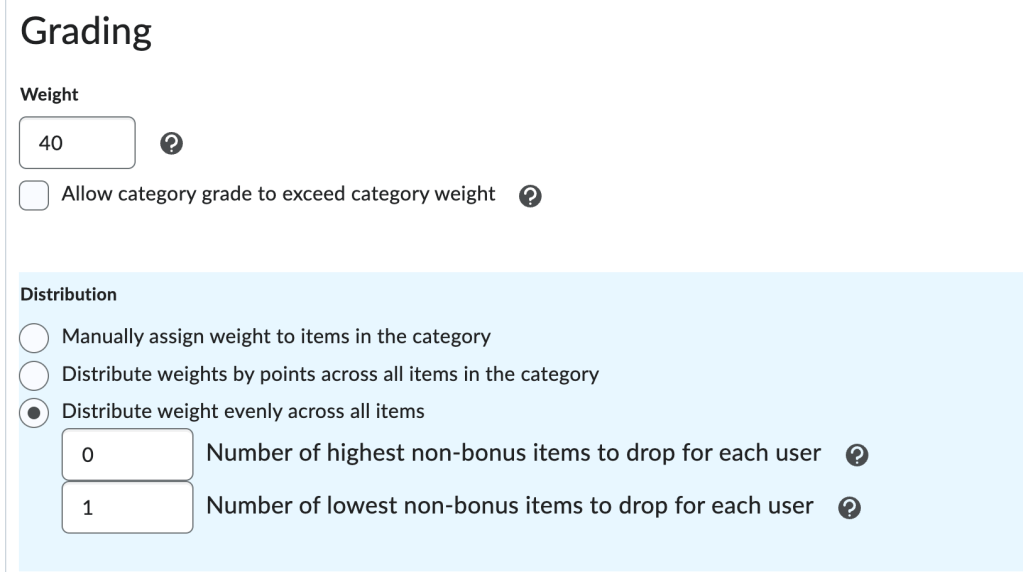
- Scroll down to the Grading Section to view Distribution options.
- If your final grade is set up as Weighted, select Distribute weight evenly across all items and enter the number of lowest non-bonus items to drop for each user.
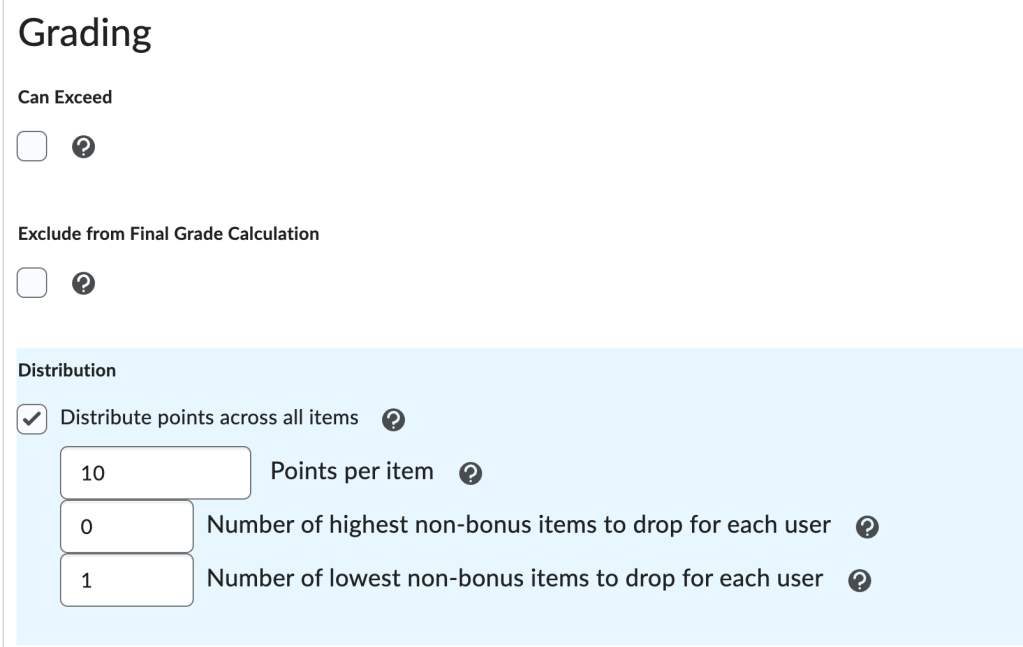
If you are using Points for the final grade calculation, select Distribute points across all items, set the points per item, and enter the number of lowest non-bonus items to drop for each user. (To set the points per item in a category of items with different values, you may select an approximate average of the point values. This step is equivalent to distributing weight evenly across all items in a weighted final grade calculation.)
- Click Save before you exit the page.
Steps to Exempt a Student from an Assignment #
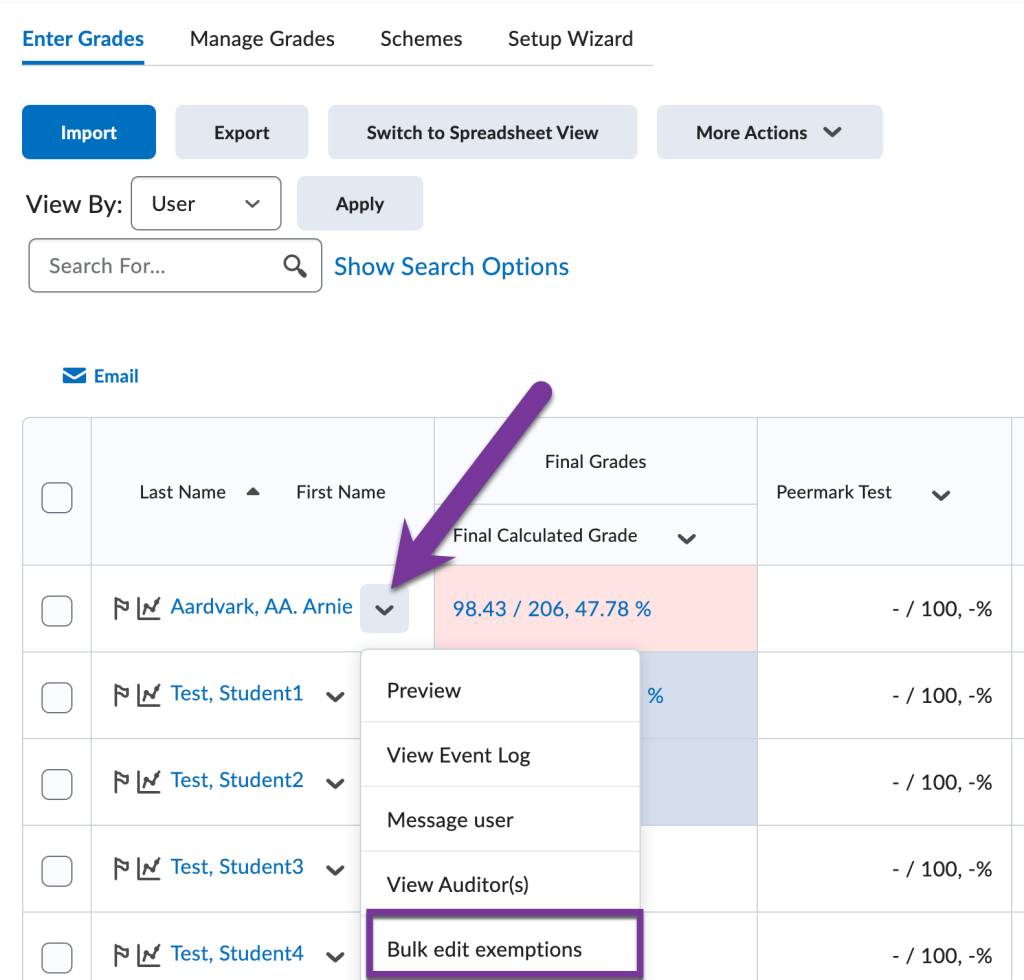
- Navigate to Grades from the top navigation bar of your course.
- Click the down arrow beside a student’s name and click Bulk edit exemptions.
- On the Edit Grade Exemptions page, for the column that says Exempt, click the checkbox for the graded assessment whose grade you want to drop. You can always return to this page and Exempt/Unexempt a student’s grade. Note: You can exempt or drop more than one grade item from this screen.

- Click Save and Close.
In the grade item’s column for that student, the assessment is noted as Exempt, and the grade for the assessment is dropped.


You must be logged in to post a comment.