
If your students are still seeing announcements that you thought were deleted, you may have used the Dismiss feature in D2L announcements instead of the Delete feature.
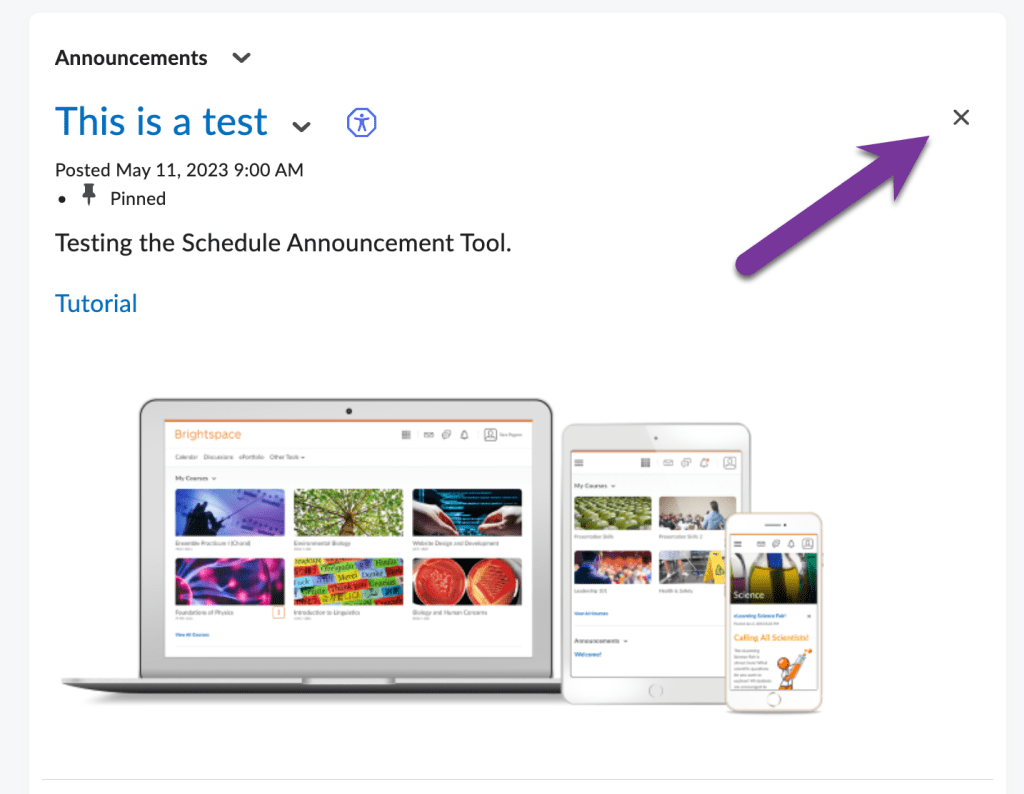
If you click the X icon next to any announcement, this will dismiss the announcement and remove it from your course home page. However, this will dismiss the announcement for your account only, not any other students, instructors, or department chairs.
Delete an Announcement #
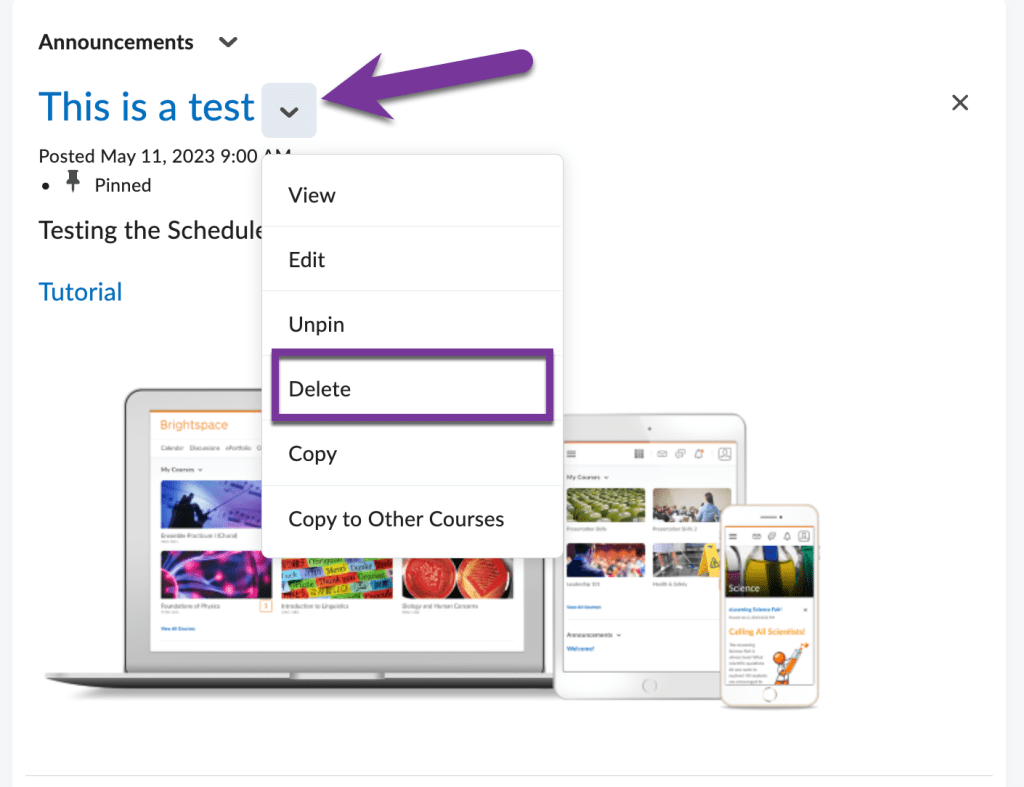
To delete an announcement, you must click the down arrow next to the title and select “Delete.” This will delete it from the course for all users.
Restore a Dismissed Announcement #
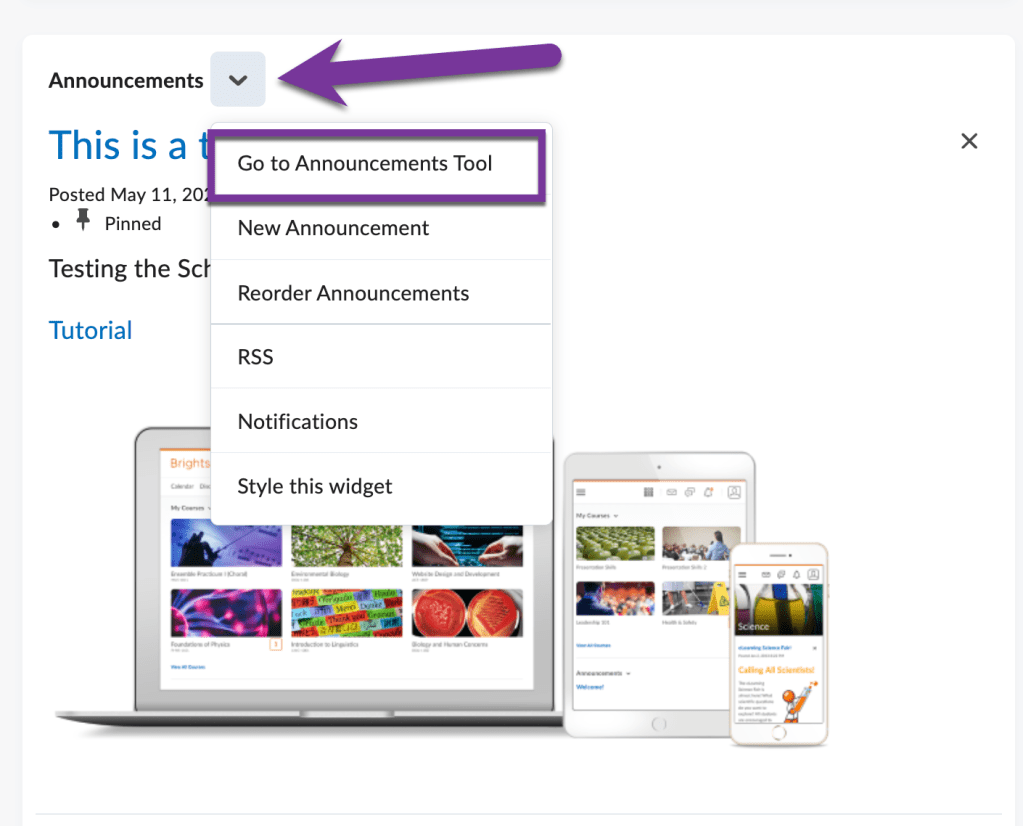
To restore a dismissed announcement, click on the down arrow next to “Announcements” and select “Go to Announcements Tool.”
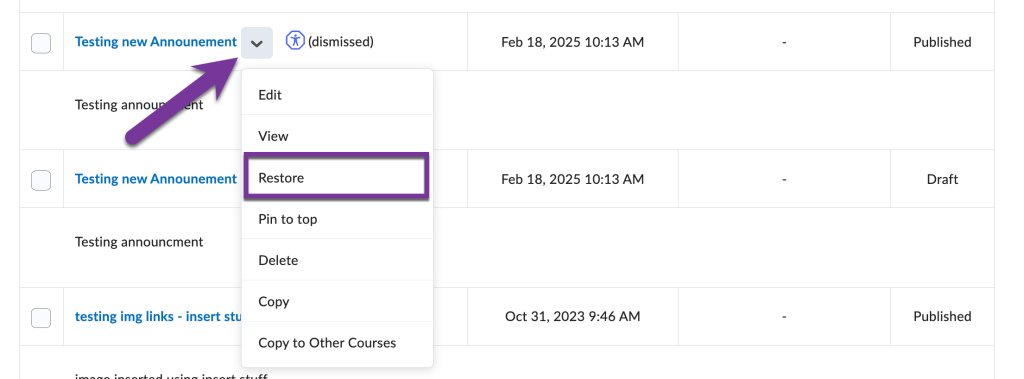
You will see the dismissed assignments have a message saying “(dismissed)” next to their title.

Click on the down arrow next to the title of the announcement and select “Restore.”
The announcement will now show up on your course homepage once again.


You must be logged in to post a comment.