
If a student has posted something concerning in a discussion thread, you can delete a student’s discussion post to hide it from other students. You will also have the ability to restore a student’s deleted discussion post if the issue is resolved.
Delete a Student’s Discussion Post #
To delete a student’s discussion post, first navigate to the Discussions area of your course and open the discussion Topic the student posted in.
Then, click the down arrow next to the title of the student’s post and click “Delete Thread”.

The student’s post will be removed from the discussion forum and other students will not be able to see the post.
View Deleted Discussion Posts #
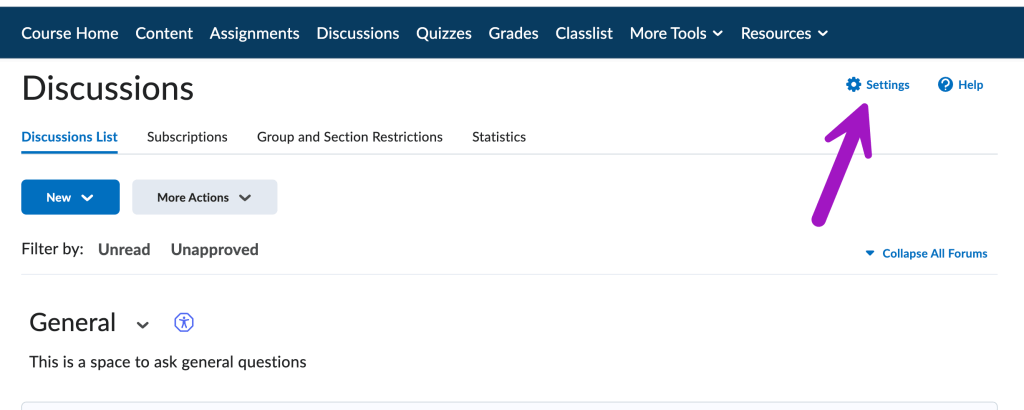
To be able to view deleted discussion posts, go to your Discussions area, then click on the link to settings in the upper right corner of your screen:
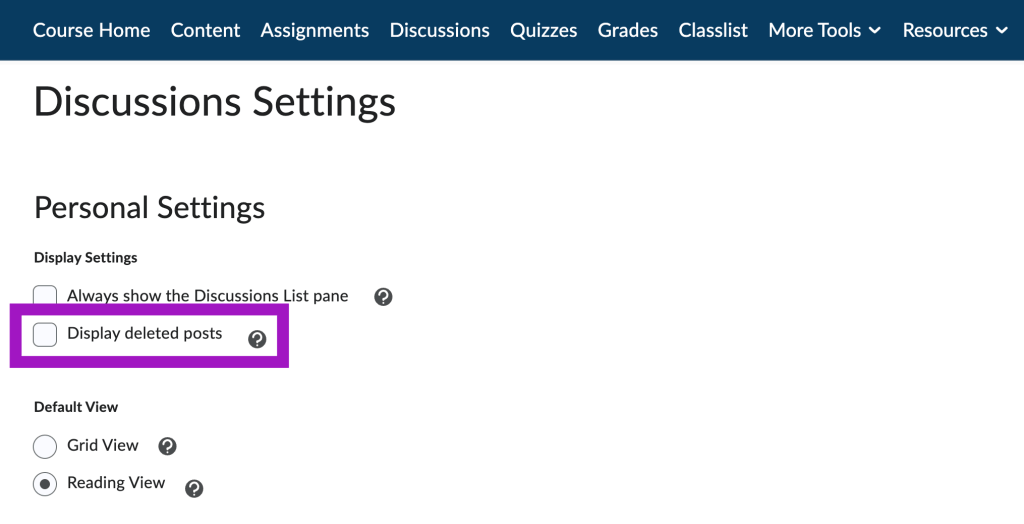
Then, under the Display Settings, check the box for “Display deleted posts”. Click the “Save” button at the bottom of the screen.
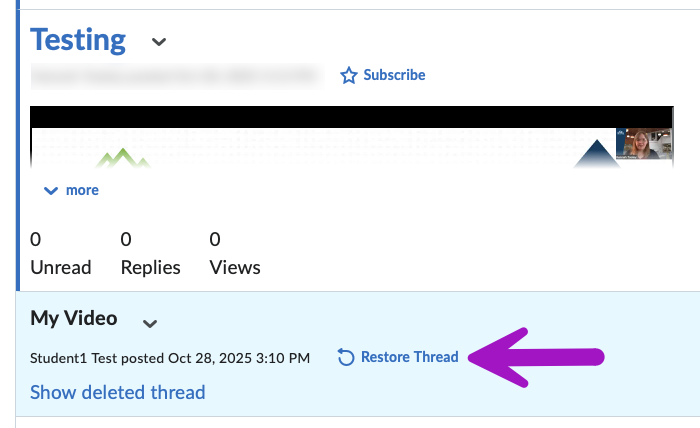
Now when you open up a discussion topic, deleted discussion posts will have a blue highlight. You can click “Show deleted thread” to see what the student had posted.

Restore a Student’s Deleted Discussion Post #
To restore a student’s deleted discussion post, you will first have to change your discussion settings to allow yourself to view deleted discussion posts (explained in the section above).
Then, navigate to the Discussion topic you need to restore a student’s post in. The student’s deleted post will be highlighted in blue. Click the link to “Restore Thread” to allow other classmates to view the student’s discussion post once again.


You must be logged in to post a comment.