
Groups are one of those topics that some faculty require in all of their classes, while others don’t use it at all. However, it’s one of those things you should know how to do. Groups can be helpful in discussions, assignments, and even in the gradebook. The video below will walk you through how to create groups. You can access the Groups tool by going into one of your D2L courses, click on More Tools, then select “Groups”.
Also, note the terminology at the beginning of the video. Categories have groups within them. Students go into the groups. It is recommended that you use the Category name as the name of the activity for which you’ve assigned groups.
Written Instructions:
Inside your D2L course, click on More Tools and select Groups to access the Groups tool.

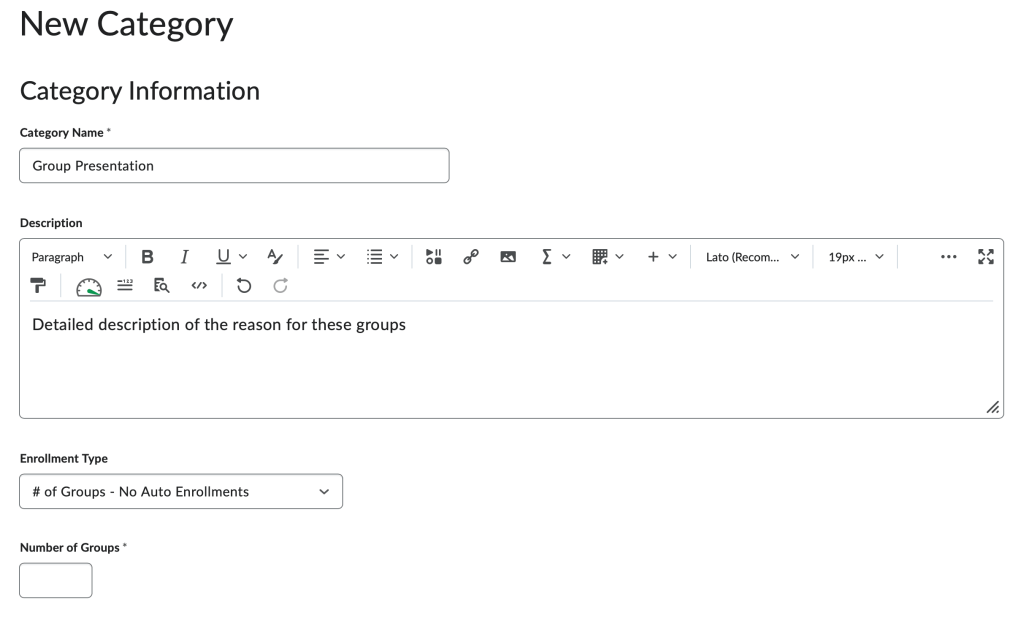
Then, you will need to click on “New Category”. Please note, this is not the group itself, but rather the reason you are creating the groups. We suggest naming this category after the assignment, discussion, etc. that you plan on having students complete in groups.

Once you have clicked on the “New Category”, you can name your category as well as a description of it. Then, select the type of enrollments for the group. You can create a number of groups, groups of a certain size and choose whether students can pick their own group. See this article from D2L if you want more detailed descriptions of each Enrollment Type. For this example, we’ll choose the “# of Groups – No Auto Enrollments” option, then later, we can choose which students to enroll in each group.
Lastly, directly from here, you can create one of three areas where your groups can interact. So, you might want a group of students to participate in a closed discussion area. Maybe, you want them to turn in an assignment, but want them to use the Locker to exchange files first. Any combination of the three you can set up. Of course, if you just want to create the groups and will determine how to use them later, you can leave all options unchecked if you wish.

One last note about creating groups, instructors have access to all groups. This means if you set up a group, you are still able to go into the group and participate as the instructor.
The next step is to enroll students in groups.


You must be logged in to post a comment.