
Consider using the bulk edit tool to modify features like the grade item name, maximum points, bonus status, and whether the item should be excluded from the final grade calculation if you need to make changes to several grade items (columns) at once.
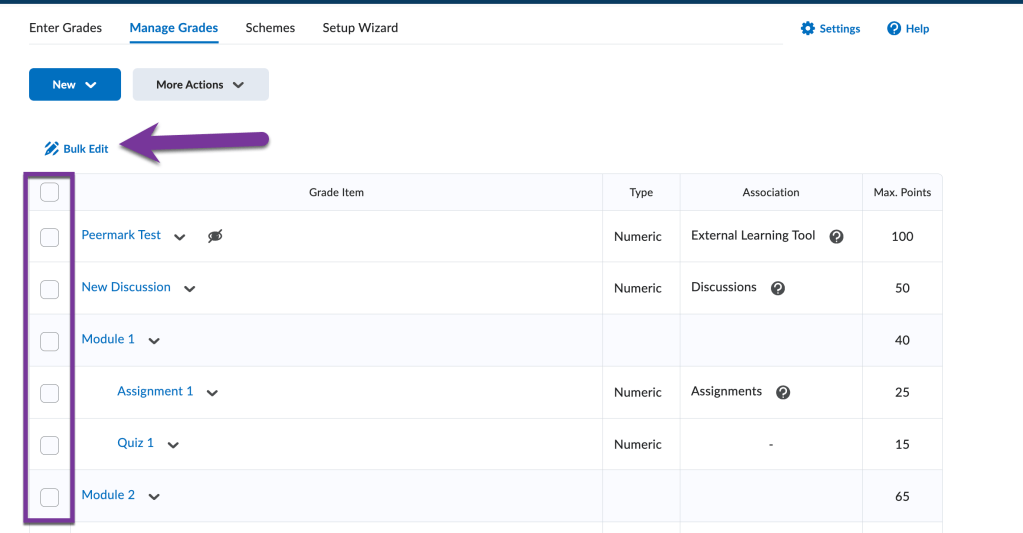
To begin, navigate to your course and click on Grades. Then, click on the Manage Grades tab.

Then, check the box next to the grade item you want to edit. You can check the first box from the list to select all your grade items at once. Then, click the Bulk Edit link.
On the next screen, you can make your changes to your grade items all one screen.

Name: Change the grade item’s name.
Short Name: If you want to have a nickname for your grade item in your grade book, you can enter in a short name.
Type: Lists the type of grade item (Numeric, Pass/Fail, Calculated). Note this cannot be changed from the bulk edit screen; you will need to create a new grade item if you would like to change the grade item type.
Max Points: Lists the maximum number of points that the student can earn on the assessment activity.
Bonus: Check the box for Bonus if you want to make the grade item extra credit.
Can Exceed: We recommend checking this box if the grade item or category contains extra credit grade items. This makes it so the student can earn over 100%.
Exclude from Final Grade Calculation: The grade item will not be included in the student’s final grade if this box is checked. This can be useful for items like External Learning Tools, where you want students to read or practice an activity and not be graded for it.
Grade Scheme: If you have set up multiple grade schemes in your course, you can select a different grade scheme from this column.
Category: Change the grade category the grade item belongs to.
Click “Save” at the bottom of the screen when you are finished making changes.


You must be logged in to post a comment.