
Add a password to your MyOpenMathExam #
Go to MyOpenMath (https://www.myopenmath.com) and log in with your instructor account. Select the course with the exam you would like to add proctoring to:
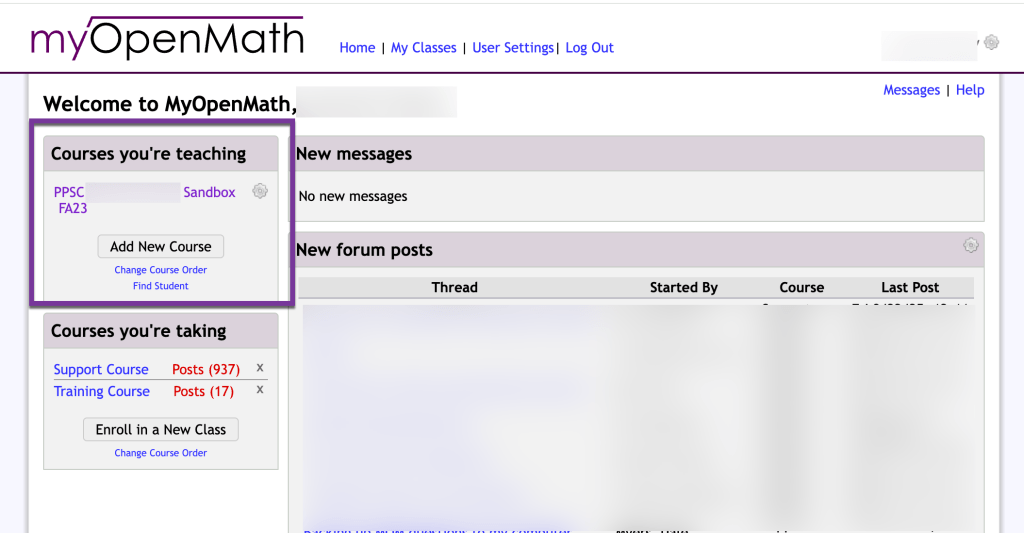
Navigate to the exam you would like to add proctoring to. Click the Gear Icon, then select Settings.

Scroll to the bottom of the exam to see the Assessment Options. Open the setting panel for “Time Limit and Access Control”. Then, enter in a password in the “Require Password” section. This password can be whatever you’d like. Be sure to save this password, as you will need to add it to Yuja Verity. Do not ever share this password with students.
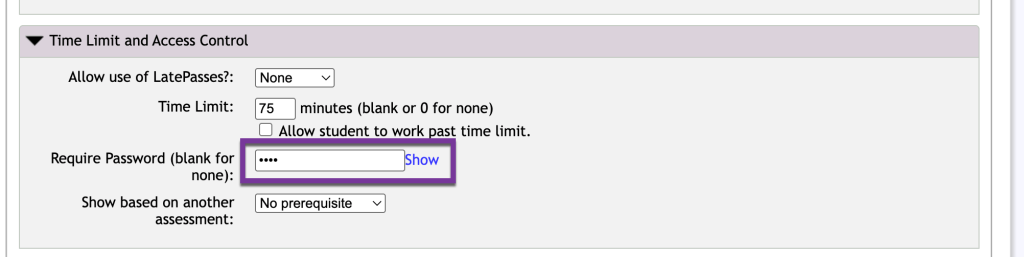
Click “Save Changes” at the bottom of the MyOpen Math Exam to save the changes.
Grab the Link to your MyOpenMath Exam in D2L. #
Open your D2L course. Navigate to where your MyOpenMath exam is linked in your Content.
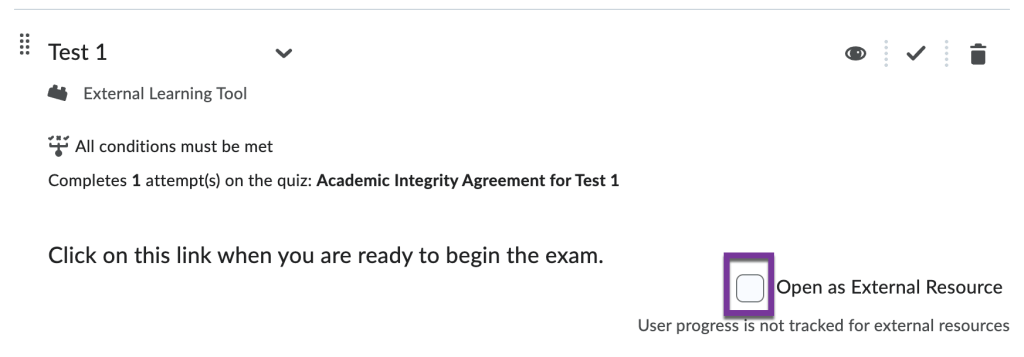
Click the down arrow next to the title of your MyOpen Math Exam. Click “Edit Properties in Place”.

Make sure the box is unchecked for “Open as External Resource”.
Refresh your browser window.
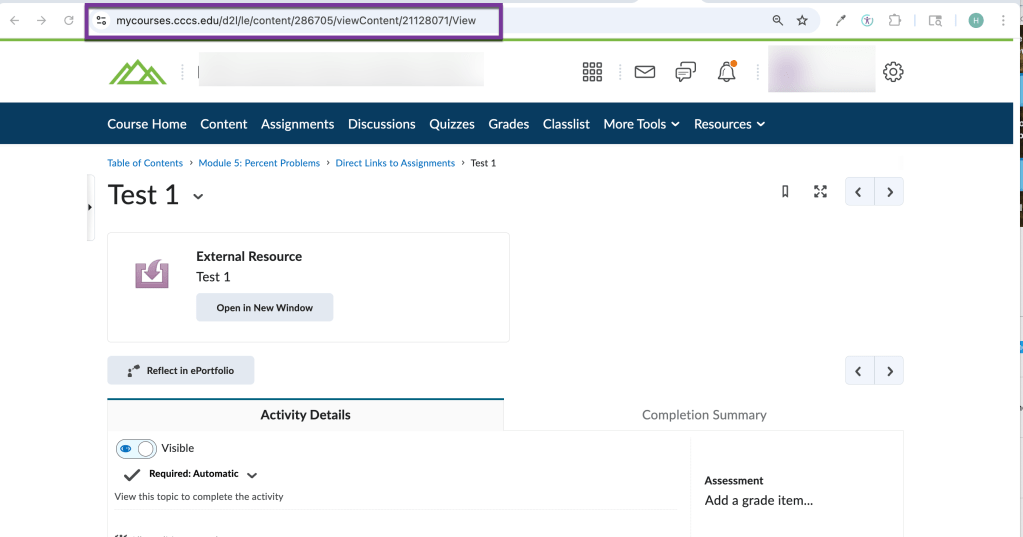
Click on the MyOpenMath assessment from D2L Content to open it. Then return to your tab with your D2L course (not the MyOpenMath Exam) Copy the URL to this page located at the very top of the screen (it should begin with https://mycourses.cccs.edu NOT https://myopenmath.com. You will need to enter this URL in Yuja Verity.
Add the Link to Yuja Verity in your D2L course #
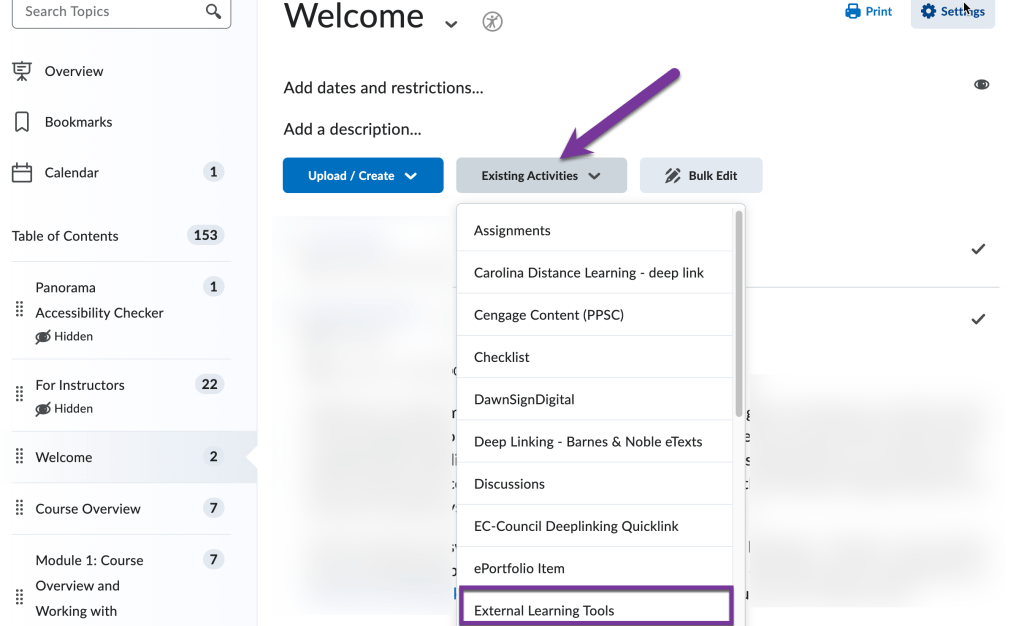
If you haven’t already added the link to Yuja Verity in your D2L course, navigate to a content module that both you and your students can access. Click on “Existing Activities”, then select “External Learning Tools”.
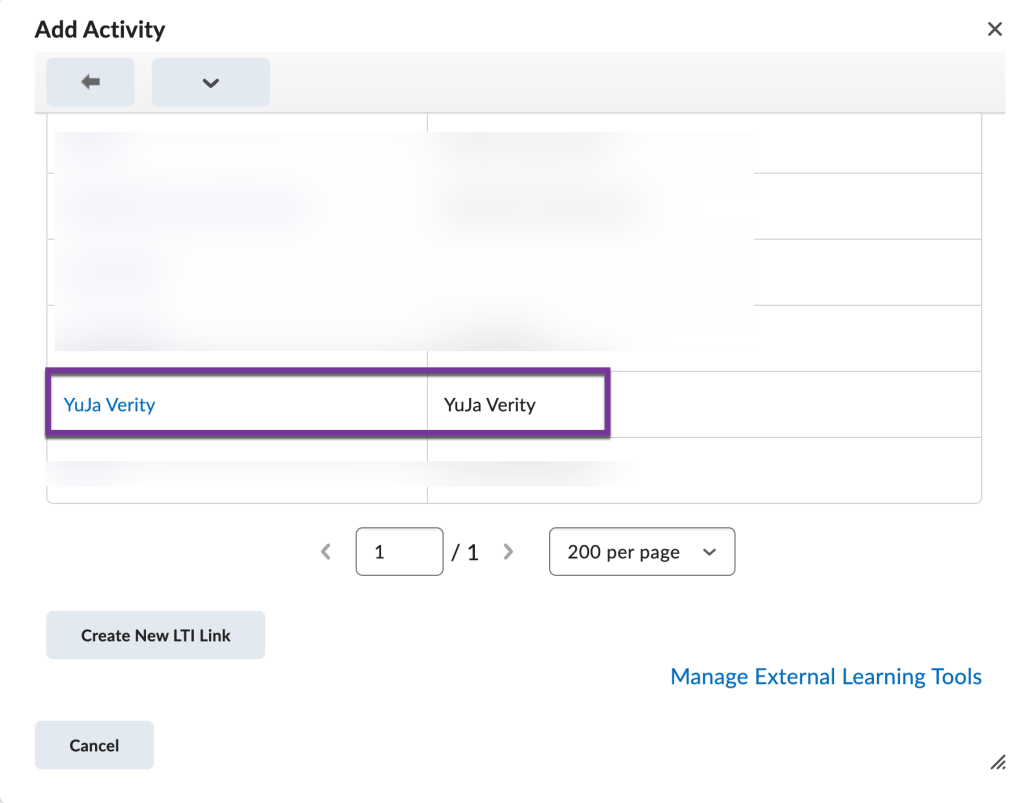
Click on Yuja Verity from the list that pops up. This will add the link to Yuja Verity that you will use to set up Yuja Verity Proctoring, and this link will be where students will access Yuja Verity Proctoring and their proctored exams.
Adding Yuja Verity to your MyLabMath Exam #
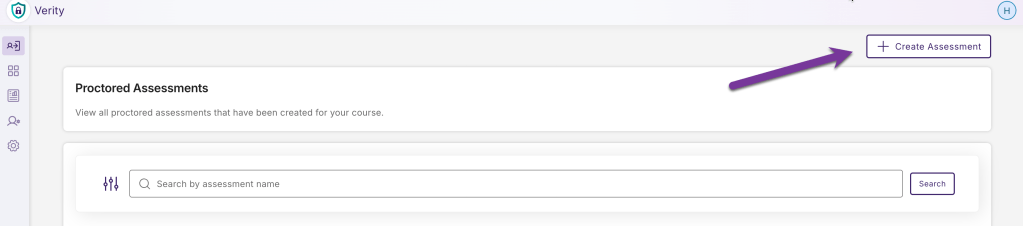
Click on the Yuja Verity link you created in Content. Then, click the “+ Create Assessment” button.
Click on “Create Third-Party Assessment”.

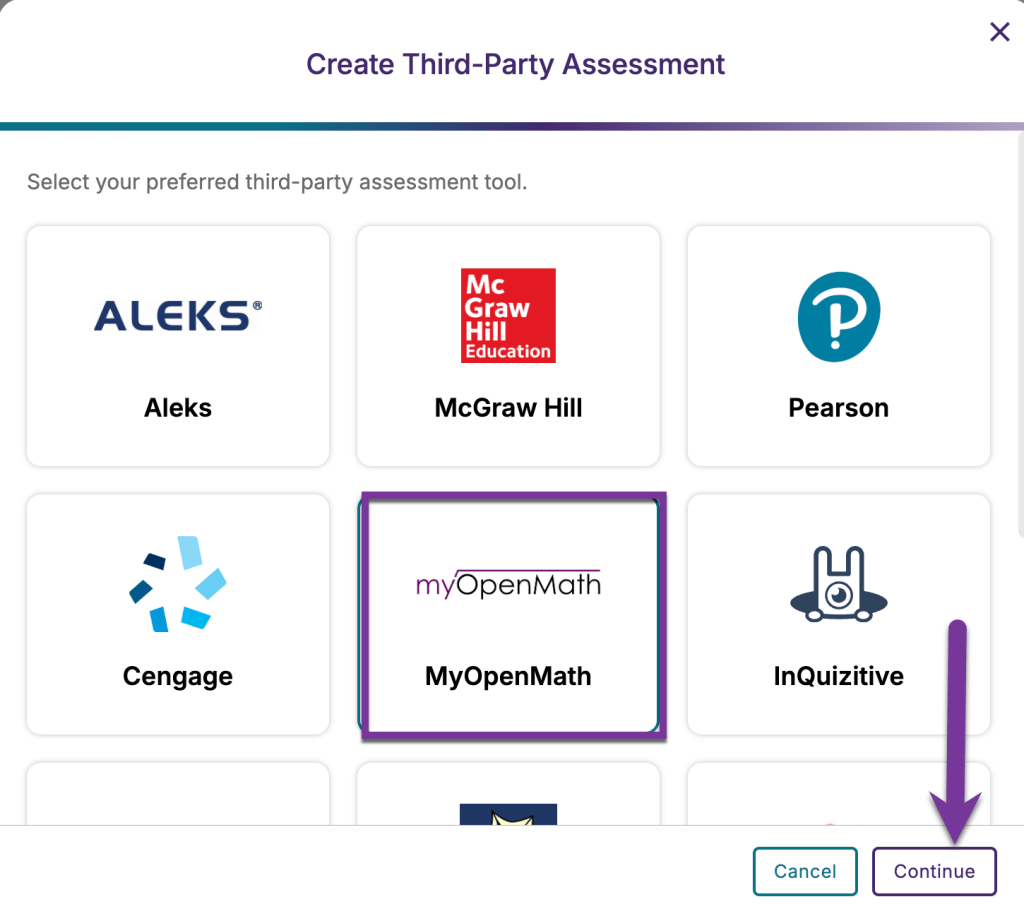
Select MyOpenMath from the grid that appears. Then, click Continue.
Then, enter a name for your assessment. Enter the URL you copied in step 10 into the “Assessment URL” field. Then, enter in the password you had on the MyOpenMath exam (step 4) in the “Assessment Password” field. Click “Create”.

Then, click “Next” to get to set up the rest of the proctoring settings.

Select the proctoring method you want and click Next.
- Live Check-In: Proctors can join and view a test-taker’s environment when issues are flagged. (Only available in STEM courses)
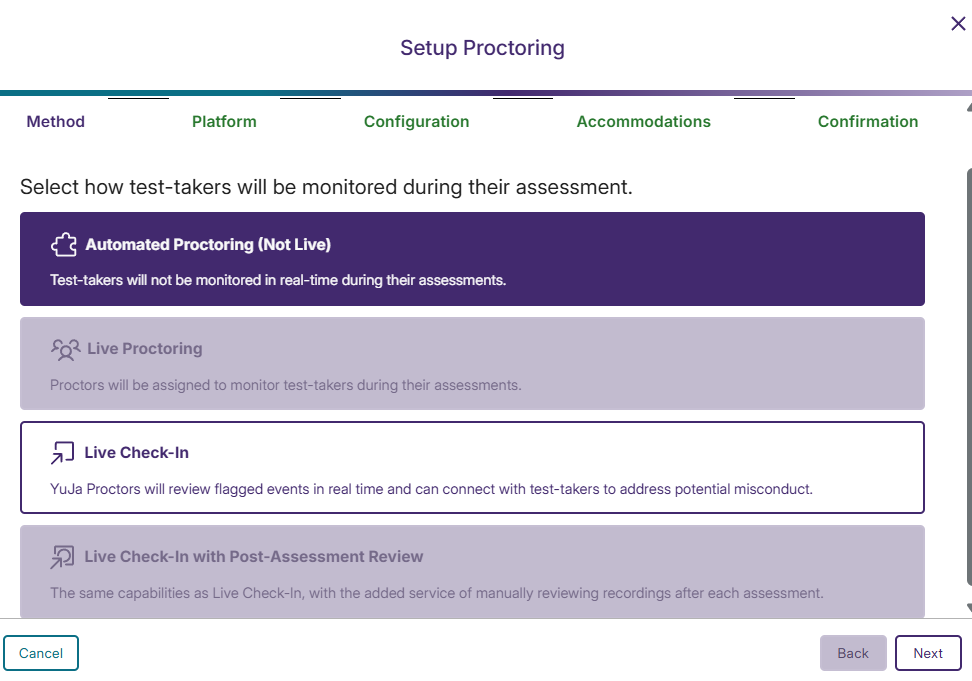
Select the platform you want to use and click Next.
- Lockdown App: Offers additional security proctoring features for assessments taken on the Verity Desktop Lockdown App.
- Include Mobile Lockdown App: Offers standard proctoring features for assessments taken on the Verity Mobile Lockdown App.
(Optional) If you have an existing Yuja Verity Proctoring profile set up, you can select an existing profile from this screen.

Select the configurations you want enabled and click Next.

Optional) Assign accommodations for individual test-takers.
- To allow individual test-takers to take the assessment without being proctored, select the check box next to their name, then click Accommodate, then Do Not Proctor and Save.
- To allow test-takers to take the assessment with a different set of proctoring configurations, select the check box next to their name, then click Accommodate, then Modify Proctoring. Select the profile you want, and click Save.


Click Next.

(Optional) To save these settings for future assessments, click Save as Profile, enter a Profile Name, and then click Save Profile.
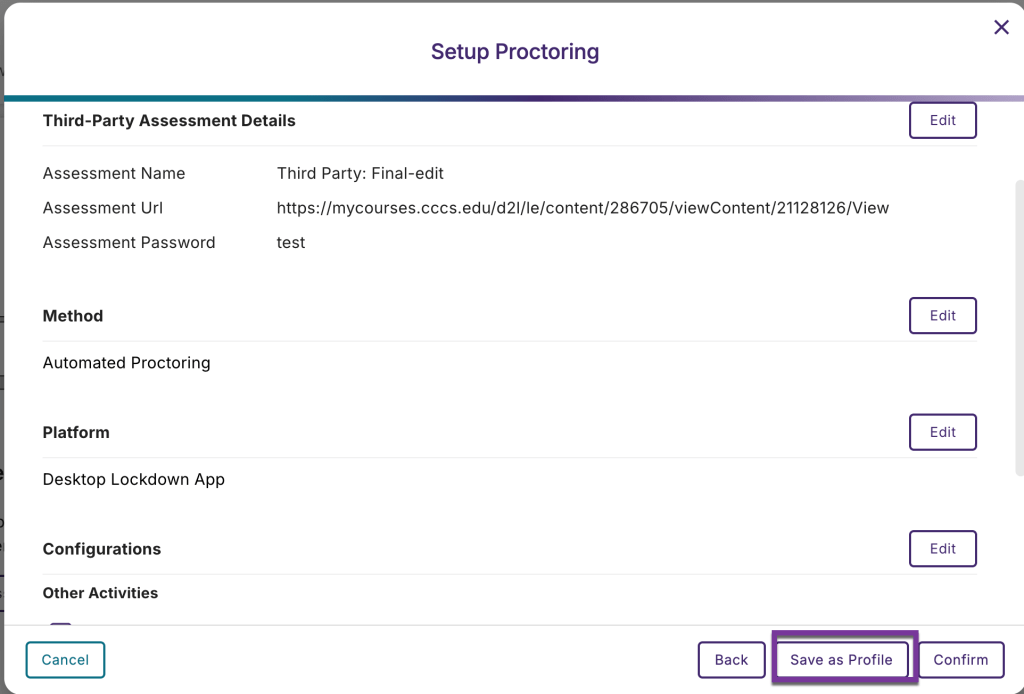
Click Confirm.
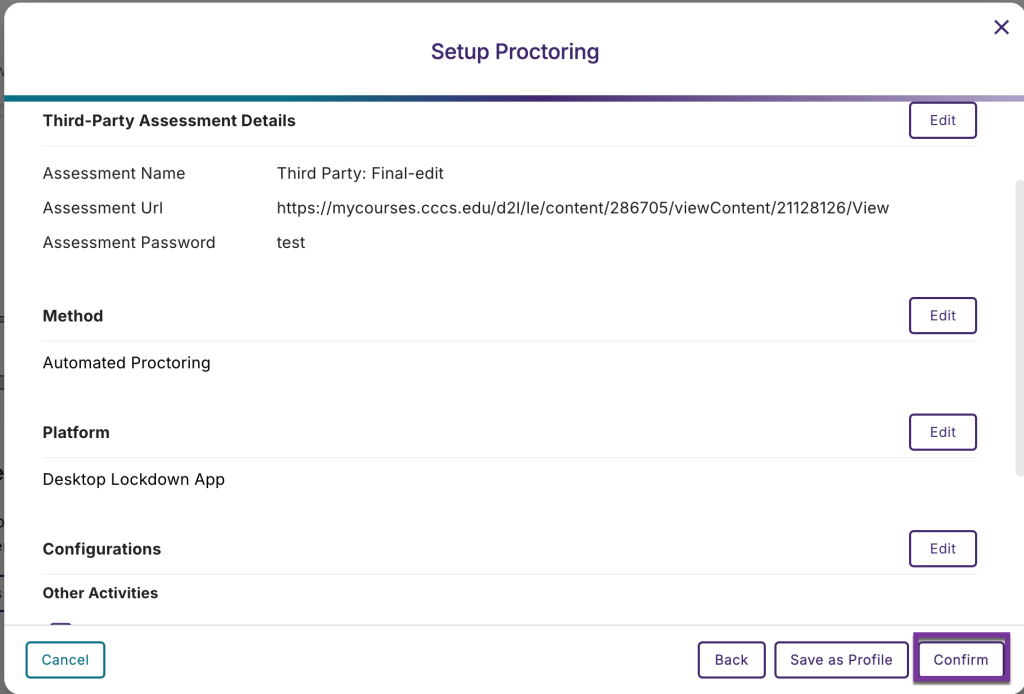
Your MyOpenMath exam is now set up with Yuja Verity proctoring.
Important Notes #
- You must have your MyOpenMath assessment password protected. The password entered in the MyOpenMath assessment should match what is entered when setting up Yuja Verity, or the exam will not work for students.
- The link to the MyOpenMath assessment in D2L Content must stay visible to students. As long as you don’t give students the password to MyOpenMath assessment, students will be unable to take the assessment without going through the Verity link. When students access the exam through Yuja Verity, it will auto-enter in this password for them without revealing it to students.
- You must set the MyOpen Math assessment to open in the same window in D2L.
- You must use the D2L content link as the Verity Assessment link. Do not copy the URL from MyOpenMath or students will not be able to access their assessment.
- You must keep the MyOpenMath Assessment link visible for student in D2L Content in order for students to take their proctored exams.


You must be logged in to post a comment.