Skip to content
PPSC eLearning Knowledge Base & Support
  • Knowledge Base
  • News
  • Submit a Support Ticket
  • Training
  • PPSC Healthy Course Checklist
  • eLearning Glossary
  • Contact Us
  • Knowledge Base
  • News
  • Submit a Support Ticket
  • Training
  • PPSC Healthy Course Checklist
  • eLearning Glossary
  • Contact Us

Accessibility

  • Accessible Headings in Word
  • Accessible Images in Microsoft Office
  • Accessible Links in Microsoft Office
  • Accessible Tables in Word and PowerPoint
  • Creating Transcripts for Audio Files
  • Finding Captioned Videos on YouTube
  • Fixing the Top Accessibility Issues with Yuja Panorama
  • How to Caption Videos
  • How to give a student special access
  • How to Print Homework/Quizzes/Tests in MyLab Math
  • Microsoft Excel Accessibility
  • Microsoft Word Accessibility Overview
  • PowerPoint Accessibility Overview
  • Print a D2L Quiz
  • Reading Order in PowerPoint
  • Structuring Your PowerPoint for Accessibility
  • The Accessibility Checker (Microsoft Office)
  • Video Accessibility: Captions
  • Yuja Panorama – Getting Started

Colorado Online @

  • Adding an eText to a Course (Barnes and Noble)
  • CO Online Course Materials and Teaching Resource Shells Guide
  • CO Online Pooled Section Student Resources
  • Colorado Online @ Important Resources
  • Colorado Online Handbook
  • Create a Sandbox Course (CO Online Only)
  • Crosslisting Pooled Sections in D2L
  • Department Chair Course Readiness Checklist
  • Digital Integrations for Colorado Online @ Courses
  • How to Enroll in the Common Course Framework
  • Instructional Calendars for CO Online and PPSC
  • Instructor Publisher / Third-Party Vendor Integration Help
  • No-Show Process for Colorado Online
  • Share Course Materials with Other Instructors (CO Online Only)
  • Submitting Grade Changes for CO Online Pooled Courses
  • Submitting Incompletes for CO Online Pooled Courses

D2L

  • Accreditation Requirements
    • Creating Measurable Module-Level Learning Objectives
    • What is Regular and Substantive Interaction (RSI)?
  • Announcements
    • Copy an Announcment to Other Courses
    • Create an Announcement
    • Dismissed Announcements: Why students are seeing deleted announcements
    • How to restore deleted assignments, discussions, quizzes, and more
  • Assignments
    • Adding HIPs Rubric to Assignment Folders
    • Assign (enroll) members to groups
    • Create an Assignment Submission Folder
    • Create an Extra Credit (Bonus) Grade Item
    • Create groups
    • Download All Assignment Submissions
    • Give a student special access to an Assignment submission folder
    • Give Students Feedback on their Assignment Submissions
    • Grading an Assignment submission folder with rubrics
    • How to give a student special access
    • How to restore deleted assignments, discussions, quizzes, and more
    • How to view grade item associations 
    • Link a rubric to an assignment submission folder
    • Link Grades to a Submission Folder in Assignments
    • Link Turnitin to Assignment Submission Folders
    • See the course from a student view (Impersonate Arnie Aardvark)
    • Turnitin Feedback Studio
  • Attendance
    • Attendance Overview
  • Calendar
    • Add an item to the calendar
  • Content
    • Add / Create a Module
    • Content Tools Overview
    • Create a new file in D2L (HTML Webpage)
    • Create an external link in your D2L course
    • Creating Transcripts for Audio Files
    • D2L Course Image Standards
    • Embed Video or Other Item with Code
    • Films on Demand
    • Finding and Uploading Videos To Use In Your Curriculum
    • Finding Captioned Videos on YouTube
    • Hide content from students
    • How to Caption Videos
    • How to restore deleted assignments, discussions, quizzes, and more
    • Import Course Materials into D2L
    • Link to other D2L content and activities
    • Move items in Content
    • Remove items or modules from the Content page
    • See the course from a student view (Impersonate Arnie Aardvark)
    • Upload a File to Content
  • Course Copy
    • Copy Course Components
    • Import Course Materials into D2L
  • Course Evaluations
    • Accessing Administrator (Department Chair) Course Evaluation Accounts
    • How to Access Course Evaluations
    • When do Course Evaluations open for Students?
  • Course Management
    • Copy an Announcment to Other Courses
    • Department Chair Course Readiness Checklist
    • Enroll Others in a Course Shell
    • Enroll yourself in training courses
    • How to give a student special access
    • How to restore deleted assignments, discussions, quizzes, and more
    • How to see a Withdrawn Student’s D2L Activity
    • Submit, Reopen, or Reset a Student’s Quiz Attempt
    • View Instructor Engagement in a Course
    • When are course shells made available?
    • When are Crosslist Requests made available?
  • Discussions
    • Add a new discussion forum
    • Add a new discussion topic
    • Assign (enroll) members to groups
    • Create an Extra Credit (Bonus) Grade Item
    • Create groups
    • Discussion Settings
    • Grading a discussion submission using a rubric
    • How to give a student special access
    • How to restore deleted assignments, discussions, quizzes, and more
    • How to view grade item associations 
    • Link Grades to a Discussion Topic
    • Reply to a discussion post
    • See the course from a student view (Impersonate Arnie Aardvark)
  • Email
    • Forwarding Emails from MyCourses Email to Your PPSC Email
    • Send a D2L Email to your students
    • Sending students emails outside of D2L
  • eText
    • Adding an eText to a Course (Barnes and Noble)
  • External Learning Tools
    • Activate and Use WebEx Collaborate
    • Adding an eText to a Course (Barnes and Noble)
    • Embed Video or Other Item with Code
    • Films on Demand
    • Finding and Uploading Videos To Use In Your Curriculum
    • Finding Captioned Videos on YouTube
    • Import Course Materials into D2L
    • Import Quiz Questions via a Test Bank File
    • Instructor Publisher / Third-Party Vendor Integration Help
    • Link Turnitin to Assignment Submission Folders
    • Respondus LockDown Browser and Monitor – Getting Started
    • Using Yuja Verity with MyOpenMath Exams
    • WebEx – Getting Started
    • WebEx – Sharing and Recording
    • Zoom in MyCourses – Getting Started
  • Grades
    • Adjust What My Students and I Can See Regarding Points, Percentages and Colors in Grades
    • Apply a Grade Scheme to a Grade Item
    • Bulk Edit Grade Items
    • Calculating Blank or Ungraded Items
    • Create a Custom Grade Scheme
    • Create an Extra Credit (Bonus) Grade Item
    • Create Grade Columns / Items
    • Delete a Grade Column / Item
    • Drop the Lowest Grade for a Student
    • Exclude Grade from Final Grade Calculation
    • Export Grades
    • Give Students Feedback on their Assignment Submissions
    • Grade Essay or Written Response Questions
    • Grading a discussion submission using a rubric
    • Grading an Assignment submission folder with rubrics
    • Hide Grade Items from Students
    • How to Enter Grades
    • How to restore deleted assignments, discussions, quizzes, and more
    • How to see a Withdrawn Student’s D2L Activity
    • How to view grade item associations 
    • Link Grades to a Discussion Topic
    • Link Grades to a Quiz
    • Link Grades to a Submission Folder in Assignments
    • Make Sure My Students Can See Their Final Grade
    • Put Grade Columns Into Categories
    • Reorder the Grade Columns
    • Restrictions on Grades
    • See a dropped or withdrawn student’s grades
    • See a student’s progress
    • See the course from a student view (Impersonate Arnie Aardvark)
  • Groups
    • Assign (enroll) members to groups
    • Create groups
  • Important Dates
    • Instructional Calendars for CO Online and PPSC
    • When are course shells made available?
    • When are Crosslist Requests made available?
    • When do Course Evaluations open for Students?
  • Locker
    • D2L Locker Tool Overview
  • Navigation
    • Course Homepages
    • D2L MyCourses Home Page
    • Daylight Overview
    • How to find Courses in MyCourses
    • MyCourses Homepage Showing a Different College
    • MyCourses references, information, and step-by-step help
    • Navigating D2L (MyCourses Home)
    • See the course from a student view (Impersonate Arnie Aardvark)
  • Quizzes
    • Add a Time Limit to a Quiz
    • Add Questions from the Question Library into a Quiz
    • Add Quiz Questions to the Question Library
    • Allow students to see the answers when they are done with a quiz
    • Converting Word Tests to D2L Quizzes
    • Create a quiz
    • Create a Randomized Question Pool
    • Create Quiz Questions
    • Find missing or “In-Progress” quizzes
    • Grade Essay or Written Response Questions
    • How Students can See Feedback for Quizzes in D2L
    • How to give a student special access
    • How to Print Homework/Quizzes/Tests in MyLab Math
    • How to restore deleted assignments, discussions, quizzes, and more
    • How to view grade item associations 
    • Import Quiz Questions via a Test Bank File
    • Link Grades to a Quiz
    • Make Quiz Question a Bonus Question
    • Print a D2L Quiz
    • Remove or Edit a Question after Students have Submitted Attempts
    • Respondus LockDown Browser and Monitor – Getting Started
    • See the course from a student view (Impersonate Arnie Aardvark)
    • Submit, Reopen, or Reset a Student’s Quiz Attempt
  • Rubrics
    • Adding HIPs Rubric to Assignment Folders
    • Create a Rubric
    • Grading a discussion submission using a rubric
    • Grading an Assignment submission folder with rubrics
    • Link a rubric to an assignment submission folder
  • Turnitin
    • Link Turnitin to Assignment Submission Folders
    • Turnitin Feedback Studio
  • Widgets
    • Edit the Instructor Information Widget

Department Chair Support

  • Accessing Administrator (Department Chair) Course Evaluation Accounts
  • Department Chair Course Readiness Checklist
  • Simple Syllabus: Guide for Department Chairs

Microsoft Office

  • Accessible Headings in Word
  • Accessible Images in Microsoft Office
  • Accessible Links in Microsoft Office
  • Accessible Tables in Word and PowerPoint
  • Converting Word Tests to D2L Quizzes
  • Microsoft Excel Accessibility
  • Microsoft Word Accessibility Overview
  • PowerPoint Accessibility Overview
  • Reading Order in PowerPoint
  • Structuring Your PowerPoint for Accessibility
  • The Accessibility Checker (Microsoft Office)

OERs

  • Films on Demand
  • Overview on Open Educational Resources

Respondus

  • Respondus FAQs
  • Respondus LockDown Browser and Monitor – Getting Started

Simple Syllabus

  • Add A New Component to Your Simple Syllabus
  • Add link to Simple Syllabus in Your D2L Course
  • Change the Access (Privacy) Settings on your Simple Syllabus
  • Copy a Simple Syllabus
  • Introduction to Simple Syllabus
  • Making a Simple Syllabus Component Public/Private and Visible/Invisible: 
  • See Which Students Read Your Simple Syllabus
  • Sending students emails outside of D2L
  • Sharing Your Simple Syllabus
  • Simple Syllabus FAQ
  • Simple Syllabus Training Recordings
  • Simple Syllabus: Guide for Department Chairs
  • Walkthrough of Editing / Publishing a Simple Syllabus

Student Resources

  • D2L Locker Tool Overview
  • Dismissed Announcements: Where Did My Announcements Go?
  • Enroll yourself in training courses
  • Forwarding Emails from MyCourses Email to Your PPSC Email
  • Getting Started with Yuja Verity (Students)
  • How Students can See Feedback for Quizzes in D2L
  • Reply to a discussion post
  • Student Publisher / Third-Party Vendor Help
  • Upload or Submit a Video to an Assignment, Discussion, or Quiz using Yuja Video

WebEx

  • Activate and Use WebEx Collaborate
  • WebEx – Getting Started
  • WebEx – Sharing and Recording

Yuja Panorama

  • Fixing the Top Accessibility Issues with Yuja Panorama
  • Yuja Panorama – Getting Started

Yuja Verity

  • Getting Started with Yuja Verity (Instructors)
  • Getting Started with Yuja Verity (Students)
  • Using Yuja Verity with MyOpenMath Exams
  • Yuja Verity Training

Yuja Video Platform

  • Add a Yuja Video to Your Course
  • Getting Started with the Yuja Video Platform
  • How to Create a Video Quiz with Yuja Video
  • Recording and Creating Videos with Yuja Video
  • Upload or Submit a Video to an Assignment, Discussion, or Quiz using Yuja Video
  • Yuja Video Training Resources

Zoom

  • Zoom in MyCourses – Getting Started
View Categories
  • Home
  • Docs
  • D2L
  • External Learning Tools
  • Respondus LockDown Browser and Monitor – Getting Started

Respondus LockDown Browser and Monitor – Getting Started

Overview and Tech Requirements #

Respondus has two tools used for D2L/Brightspace Quiz security: the LockDown Browser which prevents users from accessing resources outside of a Quiz, and Respondus Monitor which records the student as they take a quiz, thus deterring behaviors associated with cheating.  Here’s a video that explains each tool:

Tech Requirements #

Students must have the following to use LockDown Browser:

  • Windows: 11 and 10
  • Mac: macOS 10.15 to 14.0+
  • iOS: 12.0+ (iPad only).
  • Ability to install applications

Students must have the following to use Respondus Monitor:

  • Windows: 11 and 10
  • Mac: macOS 10.13 to 14.0+
  • iOS: 12.0+ (iPad only).
  • Web camera (internal or external) & microphone
  • A broadband internet connection

Quick Start Guides #

  • Student Quick Start Guide to LockDown Browser and Monitor
  • Instructor Quick Start Guide to LockDown Browser and Monitor

Create the Quiz in D2L #

To begin, create a quiz in D2L. Creating the quiz in D2L is identical whether you choose use LockDown Browser and/or Monitor or not.  Here’s some tutorials that can help you create a Quiz in D2L:

  • Create a Quiz
  • Add Quiz Questions

Turn on LockDown Browser and/or Monitor from Tab #

With your Quiz created, you can now turn on LockDown Browser and/or Monitor.

  1. To get started, go to the Quizzes area of your course, and then select the tab called LockDown Browser.
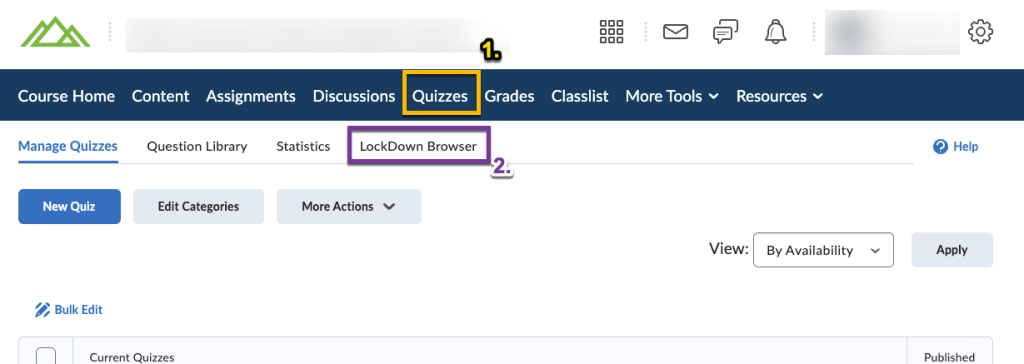
    screenshot of quizzes link and lockdown browser tab
  2. You should see the Respondus LockDown Browser Dashboard. The dashboard allows you to see and edit the LockDown Browser/Monitor settings for any quiz in your course.
    Screenshot of the LockDown Browser Dashboard
  3. To edit the settings for a quiz, click on the down arrow next to a quiz and select ‘Settings‘.
    settings link for a quiz
  4. The LockDown Browser and Monitor settings for the quiz will expand. To require LockDown Browser and/or Monitor for a quiz, simply click on the option titled, ‘Require Respondus LockDown Browser for this exam‘ or ‘Require Respondus Monitor for this exam‘. Note that you will have to first enable the LockDown Browser in order to require Respondus Monitor. Respondus Monitor also has an option for live proctoring via Zoom or Teams if you have students take their exams during a specific time window.

    If you click on the green “Questions?” button, you can schedule a 15-minute session with a Respondus trainer to get help setting up any of their products.
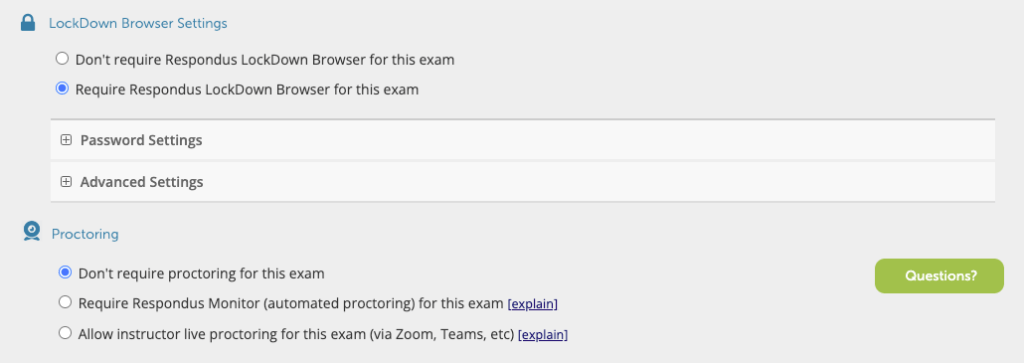
    screenshot of lockdown browser, Respondus monitor, and Respondus live proctoring options
  5. When turning on Respondus LockDown Browser and/or Monitor for a quiz, you will be presented with a wealth of various options which will be covered in detail below. Once you are done configuring the settings for your quiz, click on Save and Close to finish.
    Save and Close button

Settings for Respondus LockDown Browser #

Click on Advanced Settings to expand the menu. You can also click on the explain link next to each setting to get a description of what each one does.

Password Settings #

  • Password to access exam – This setting would require the student to type in a password to access the exam. eLearning recommends only using this feature in a face-to-face proctored setting.

Advanced Settings #

  • Require LockDown Browser to view post-exam feedback and results – If feedback and results are displayed after the exam, this option will require students to use the LockDown Browser to view them. If you also use Respondus monitor, the video recording will end when students submit the exam but will not record them when reviewing results or feedback.
  • Lock students into the browser until exam is completed – eLearning doesn’t recommend using this setting, as it requires students to type in a password to exit the exam. This setting would only work in a proctored environment.
  • Allow students to take this exam with an iPad – This option allows students to use the ‘LockDown Browser app‘ from the Apple appstore to take the exam.
  • Allow access to specific external web domains – This option allows you to add any URLs of sites that students could visit to assist with their exam, i.e., you could place a link to an article that students would need to analyze during a written exam.
  • Enable Calculator on the Toolbar – You can allow a standard or scientific calculator to be available to students within the LockDown Browser.
  • Enable Printing from the Toolbar – This enables printing during the exam; keep in mind that this could allow students the ability to print the exam.

Settings for Respondus Monitor #

Startup Sequence #

You can choose which parts of the Startup Sequence to include in the first section of the Respondus Monitor settings. For example, you could require students to show an ID to verify their identity. In addition, some sections, such as Additional Instructions, allow you to customize the text that appears to students.

You can always click the Preview link next to any option to see how it would appear to students.

Facial Detection Options #

  • Prevent students from starting the exam if face cannot be detected during Startup Sequence – This setting will prevent the student from starting an exam, unless their face can be detected.
  • Notify students during the exam if face cannot be detected (prompt for a fix) – If a student’s face is no longer detected during an exam (I.E. they moved off camera), then the exam cannot be continued until their face is detected again.

Recording Options #

  • Record the screen while the student is taking this exam – If you want to record the student’s screen while they’re taking the exam, you can enable this option. Note that students will already be limited to the LockDown browser and any URL’s specified in the “Allow external domains” setting. Student’s taking the exam on an iPad will not have their screens recorded.

Advanced Settings #

  • Allow this exam to additionally be delivered in a proctored lab – use this setting if you will be proctoring this exam live, or if the Testing center will be proctoring the exam. The exam will require students to enter in a password to take the exam. They will be required to use the LockDown Browser, but their webcam will not be recorded. You will need to provide the password to the proctor.
  • Enable “Show Your Work” step at end of exam – This option will prompt students to take pictures of any notes taken during the exam after the exam is submitted.
  • Allow another application to use the microphone during this exam – If a question in your exam requires students to respond by recording audio, select this option.

When making any changes to the Respondus settings, be sure to click on the “Save and Close” button before exiting.

Taking the Quiz #

Students will take the Quiz through the Quizzes tab, or if you’ve linked the Quiz in your Content tab. When students open the Quiz, they will have the option to “Download and install the latest version of LockDown Browser” if they’ve never downloaded the LockDown Browser before, or they can “Launch LockDown Browser” to begin the exam.
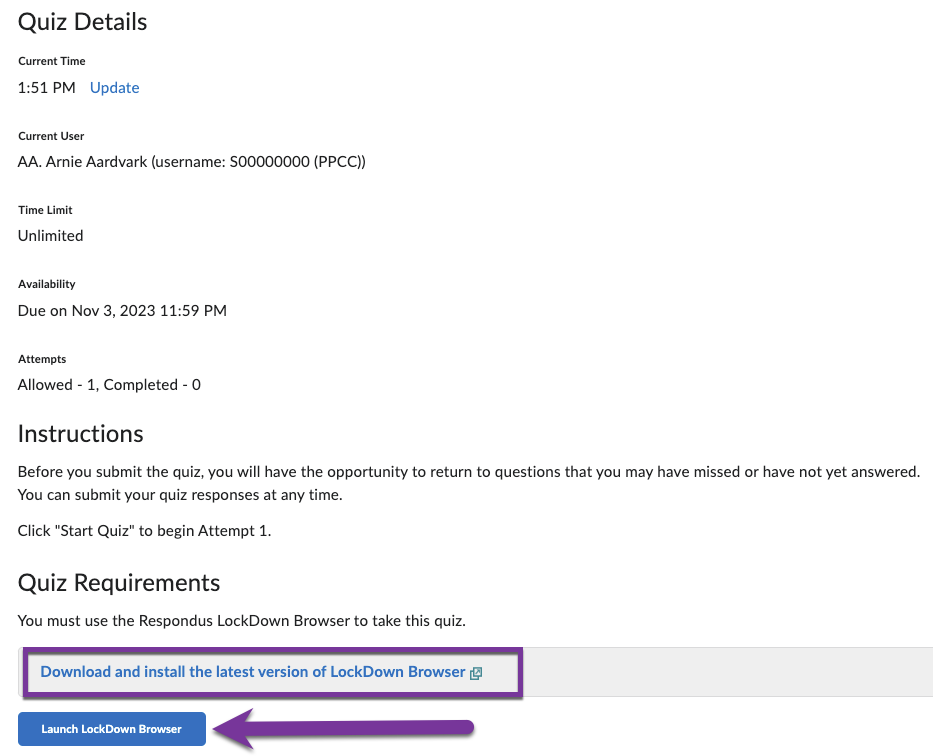
screenshot of take quiz screen. Launch lockdown browser is highlighted

Review Results #

Once your students have completed the quiz, it’s now time for you to review the results.  Go to the Quizzes tool and click on the LockDown Browser tab:
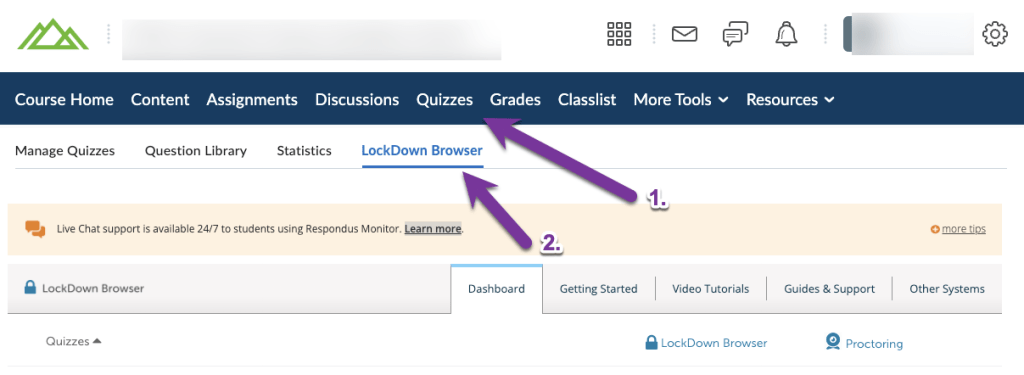
screenshot of quizzes link and lockdown browser tab

From here, you can click the drop down next to any quiz to see the results.

Drop down menu next to a Quiz in LockDown Browser area of Quizzes

Settings allows you to adjust the requirements you set up earlier.

Class Results allows you to view how the class did and review for any Priority viewings.  By clicking the plus “+” next to a student’s name, you can see details along with a video of the student taking the exam. Exams will automatically be sorted from those with Highest Review Priority, to least review priority. Highest Review Priority means that the webcam may not have been able to detect a student’s face for a period of time.

screenshot of student who had a high review priority video. student was flagged for low facial detection

Exam Stats shows details about how the class is taking the Quiz:

screenshot of Respondus statistics

Troubleshooting Issues #

If you run into any issues with Respondus, there are a variety of different resources out there to help.

  • Attend a Respondus Webinar to get an overview of how to set up LockDown Browser and Monitor and understand the student experience.
  • Submit a ticket to Respondus if you experience any technical issues.
  • Schedule a 15-minute meeting with a Respondus trainer to get personalized help setting up any Respondus features.
  • Student issues can be addressed via live chat with Respondus from within the LockDown Browser. They can also submit a ticket to Respondus at any time.
  • Reach out to us at elearning@pikespeak.edu and we’ll be happy to help!

Related #

Share This Article :

  • Facebook
  • X
  • LinkedIn
  • Pinterest
Still stuck? How can we help?

Still stuck? How can we help?

Updated on December 18, 2024
Link Turnitin to Assignment Submission FoldersSee the course from a student view (Impersonate Arnie Aardvark)
Table of Contents
  • Overview and Tech Requirements
    • Tech Requirements
    • Quick Start Guides
  • Create the Quiz in D2L
  • Turn on LockDown Browser and/or Monitor from Tab
    • Settings for Respondus LockDown Browser
      • Password Settings
      • Advanced Settings
    • Settings for Respondus Monitor
      • Startup Sequence
      • Facial Detection Options
      • Recording Options
      • Advanced Settings
  • Taking the Quiz
  • Review Results
  • Troubleshooting Issues
PPSC eLearning Knowledge Base & Support

All rights reserved


Loading Comments...
 

You must be logged in to post a comment.