
What is Respondus Lockdown Browser?
Respondus LockDown Browser is a specialized web browser designed to prevent cheating during online exams by restricting access to other applications, websites, and functions on a student’s computer while taking a test inside of MyCourses When using LockDown Browser, students are prevented from visiting unauthorized websites or applications or copying material from the test. You can learn more about Respondus LockDown Browser by visiting the Respondus LockDown Browser Resources page.
What is Respondus Monitor?
Instructors can choose to add Respondus Monitor to quizzes in addition to the Lockdown Browser. Respondus Monitor works inside of the Respondus LockDown Browser and requires students to use a webcam to record themselves while taking the quiz. Recordings are reviewed for abnormalities by artificial intelligence (such as disappearing from the frame). Reports of these abnormalities are provided to instructors.
How do I set up a Quiz to use Respondus Lockdown Browser and/or Monitor?
Please see our Getting Started with Respondus article for detailed information.
What is the student experience using Respondus Lockdown Browser and/or Monitor?
Please view this Respondus Introduction to LockDown Browser for Students video for more information.
Can I allow students to use a calculator in the Lockdown Browser?
Yes, it is possible to allow students to access a calculator in the exam settings. Please see this Respondus Technical Support guide for more information: Can Students use a Calculator during a test that requires LockDown Browser?
Can I allow students to visit an external website during a Lockdown Browser quiz?
Yes, it is possible to allow students to access specific websites. Instructors will need to add the allowed websites in the Respondus Dashboard settings. Please see this Respondus Technical Support guide for more information: Accessing external web domains in LockDown Browser.
Can I allow students to access their eBook during a Lockdown Browser quiz?
Yes, it is possible to allow students to access an eBook by adding the eBook URL to the allowed websites list in the exam settings. The link to the eBook can be added in the exam instruction and/or questions so students can access the eBook from directly within the test.
Can I ask students to work on a file outside of MyCourses and upload that file while taking a Lockdown Browser quiz?
Students are able to view a file that has been added to a quiz question or quiz description, but they are unable to download, work within it, save, or submit. There are currently no D2L quiz question types that allow students to submit a file, and no files can be created while a student is working within the Lockdown browser. The Respondus Lockdown Browser and/or Monitor can only be added to a D2L Quiz.
Can spreadsheets be used within the Lockdown Browser?
Yes, it is possible to allow students to access a spreadsheet in the quiz. Please see this Respondus Technical Support guide for more information: Can spreadsheets be used with LockDown Browser?
What information should I provide to students about the Respondus Lockdown Browser and/or Monitor?
You should plan to provide information about your proctored exams in multiple places throughout your course:
- Syllabus: Students should be notified that they will be required to use Respondus products to take exams in your class in the syllabus. Respondus has provided sample wording that you can copy into your syllabus and adjust as necessary on the following pages: Respondus LockDown Resources and Respondus Monitor Resources. Look for “Information to add to your syllabus.”. You can always link the Respondus Student Experience video and/or the Respondus Student Quick Start Guides.
- Exam Description: It will also be helpful to provide Respondus information within your exam description, so the necessary details will be available to students as they prepare to take the test. The same wording that you provide in the syllabus can be used in the exam description.
- Course Shell: Students should also be made aware of the requirement to use Respondus products within the course shell’s “Getting Started” or “Start Here” modules. Explaining how the Respondus product will be used, how students will access the tool, and how it will affect their test-taking experience can help students better understand what they will be asked to do.
Can students practice using Respondus Lockdown Browser and Monitor before taking an official quiz?
Yes! In fact, we highly recommend setting up an ungraded practice quiz within D2L that uses the same settings that will be required for the actual proctored exam to give students the opportunity to download the correct software, troubleshoot any issues, and practice the required process and tools. We recommend setting up this practice quiz with unlimited attempts so that students can access it as needed throughout the course (e.g., if they change devices from one test to the next).
How many quizzes using Respondus Lockdown Browser or Respondus Monitor can I offer in my classes?
There is no limit to the number of quizzes where you can enable Respondus Lockdown Browser and/or Monitor. The Respondus Lockdown Browser and Monitor features are available to all instructors and all students at PPSC. Note: If you are teaching a pooled section of a Colorado Online course, students from other colleges may not have Respondus Licenses, so alternative solutions may need to be explored for these courses.
Can I test out a Respondus Quiz using the Arnie Aardvark demo student?
Yes, you can always view a quiz from a student’s perspective by impersonating Arnie. You can also download and try out the Lockdown Browser yourself by impersonating Arnie and taking a quiz where you have enabled Respondus Lockdown Browser and Monitor. If you are working on a PPSC-issued device, you will need a PPSC ITSS administrator password in order to install the Lockdown Browser. Please reach out to ITSS in this case.
Can I verify a student’s identity when taking a quiz by using the Respondus Lockdown Browser?
You will need to enable both the Respondus Lockdown Browser AND Respondus Monitor in order for students to be able to upload pictures of their school or government IDs.
Can I use the Respondus Lockdown Browser with McGraw-Hill ALEKS quizzes?
Yes, please review the following Respondus Support Article for more information: Respondus + ALEKS. Note that you will want to choose the option to Link to your institution’s Respondus Monitor license, which will require a code from a McGraw Hill representative. The Respondus Lockdown Browser downloaded from the ALEKS site will be slightly different than the version that can be downloaded via D2L. Make sure that you and your students have downloaded and installed the ALEKS version of the Respondus Lockdown Browser, rather than the regular D2L version.
Can I use the Respondus Lockdown Browser with Pearson MyLabs quizzes?
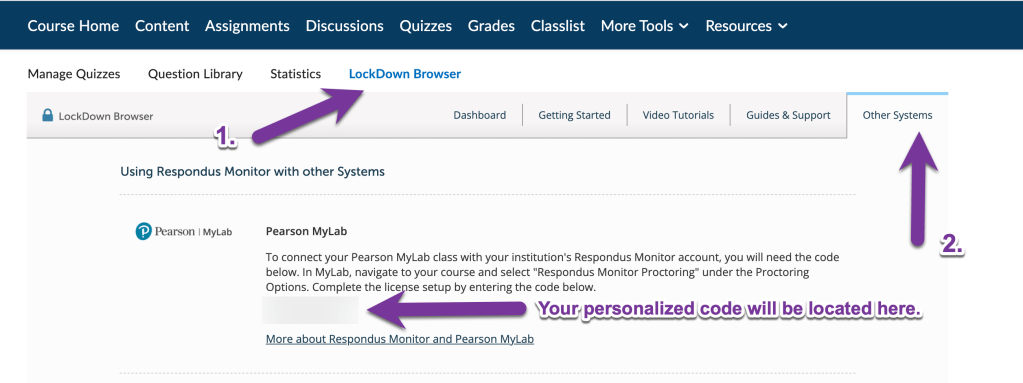
Yes, you can use the Respondus Lockdown Browser with Pearson MyLabs quizzes. See the following support article for more information: Respondus + Pearson MyLabs. Be sure to choose the option to Link to your institution’s existing Respondus Monitor license. You can find the code to set up this integration by going to your D2L course, clicking on Quizzes, and clicking on the Lockdown Browser tab. Then, click on the “Other Systems” tab, and your Pearson MyLab code will appear.
What training resources are available for Respondus products?
- Attend a Respondus Webinar to get an overview of how to set up LockDown Browser and Monitor and understand the student experience.
- Submit a ticket to Respondus if you experience any technical issues.
- Schedule a 15-minute meeting with a Respondus trainer to get personalized help setting up any Respondus features.
- Student issues can be addressed via live chat with Respondus from within the LockDown Browser. They can also submit a ticket to Respondus at any time.
- Reach out to us at elearning@pikespeak.edu and we’ll be happy to help!


You must be logged in to post a comment.