
If you need to download a copy of your Simple Syllabus to your desktop or would like to print a hard copy of your Simple Syllabus, follow the steps below.
In D2L #
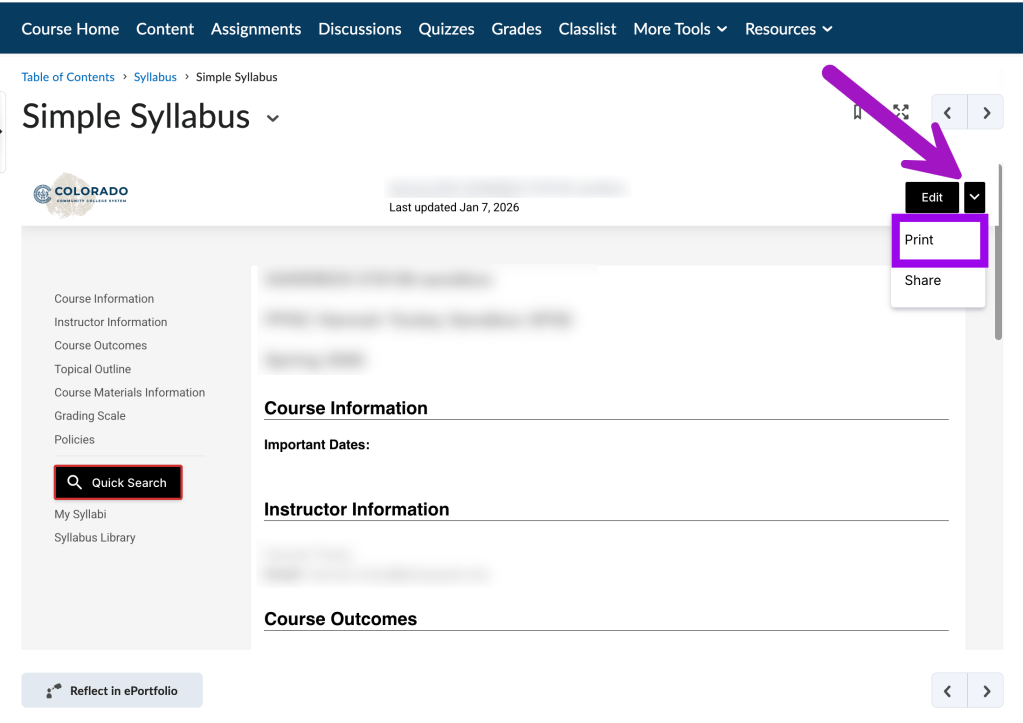
Once you have submitted your syllabus, navigate to your Simple Syllabus link in your course. Then, click the down arrow next to the “Edit” button, and select “Print.”
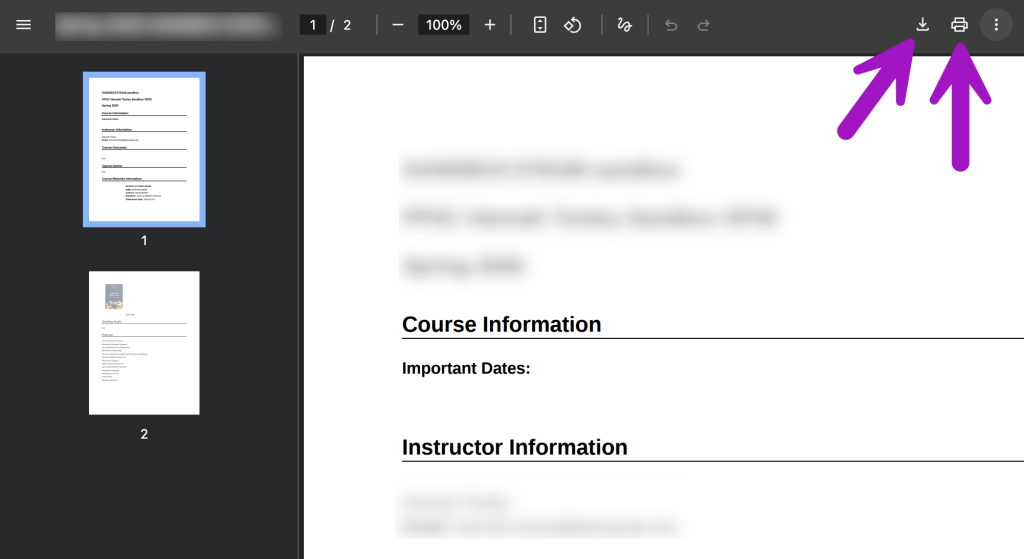
Then, a digital PDF version of your syllabus will appear. While the location may vary depending on your browser, you should see an icon that looks like a down arrow to download your syllabus to your computer. You should also have a printer icon if you would like to print your syllabus (you can also print to a PDF).
Once you have saved your syllabus on your computer, you can submit it to your division’s D2L shell. Please follow your division’s directions on the correct way to submit your syllabus.
From the Simple Syllabus Site #
If you are working from the Simple Syllabus Site, locate your syllabus in the Completed column of your dashboard. Then, click the Print button.

hen, a digital PDF version of your syllabus will appear. While the location may vary depending on your browser, you should see an icon that looks like a down arrow to download your syllabus to your computer. You should also have a printer icon if you would like to print your syllabus (you can also print to a PDF).
Once you have saved your syllabus on your computer, you can submit it to your division’s D2L shell. Please follow your division’s directions on the correct way to submit your syllabus.


You must be logged in to post a comment.