
Quizzes can be a wonderful feature in D2L. They can grade some question types automatically giving students feedback instantly. In this case, we aren’t going to look at the Grades link to a Quiz.
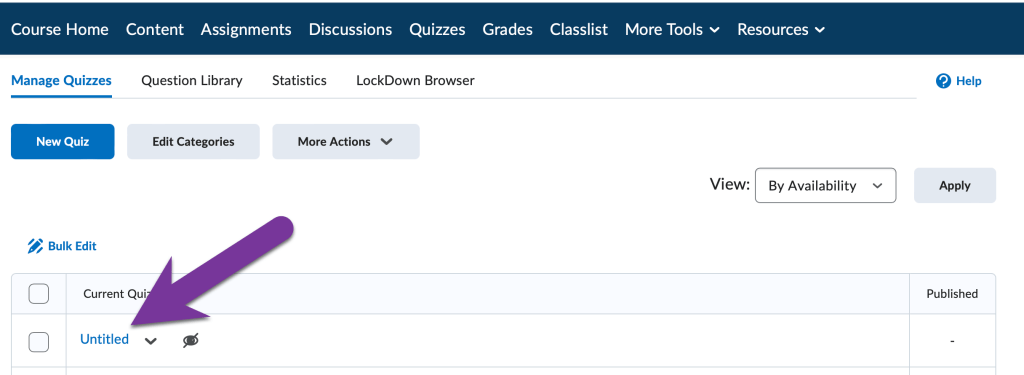
To start, let’s go to Quizzes and click on the title of the Quiz we want to link to Grades.
Next to the number of points to enter in for a discussion, you should see a dropdown menu that says “Not in Gradebook” if your discussion topic is not already in the grade book. Click on it, and you can choose to “Add to Gradebook” or “Link to Existing”, if you’ve already created a new Grade item in the grade book you’d like to link it to.
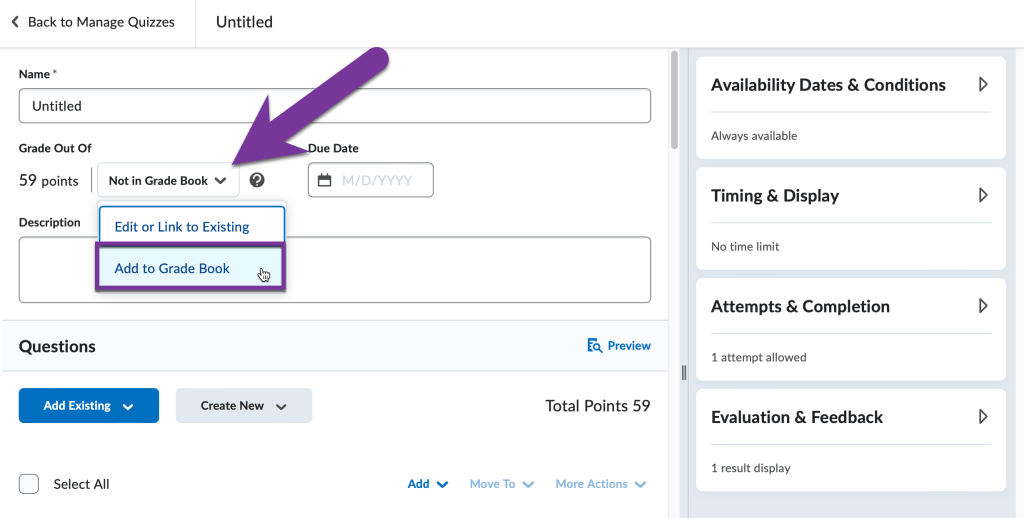
If you do choose to link to an existing grade item, make sure the Max points in the Discussion topic is the same as what’s in the gradebook and hit Save and Close. The Discussion Topic and Grade Item are now linked.
There are some additional settings you can add to you quiz based on whether or not you want the quiz to post student’s grades immediately. Inside the quiz, click the Evaluation & Feedback menu to open it.
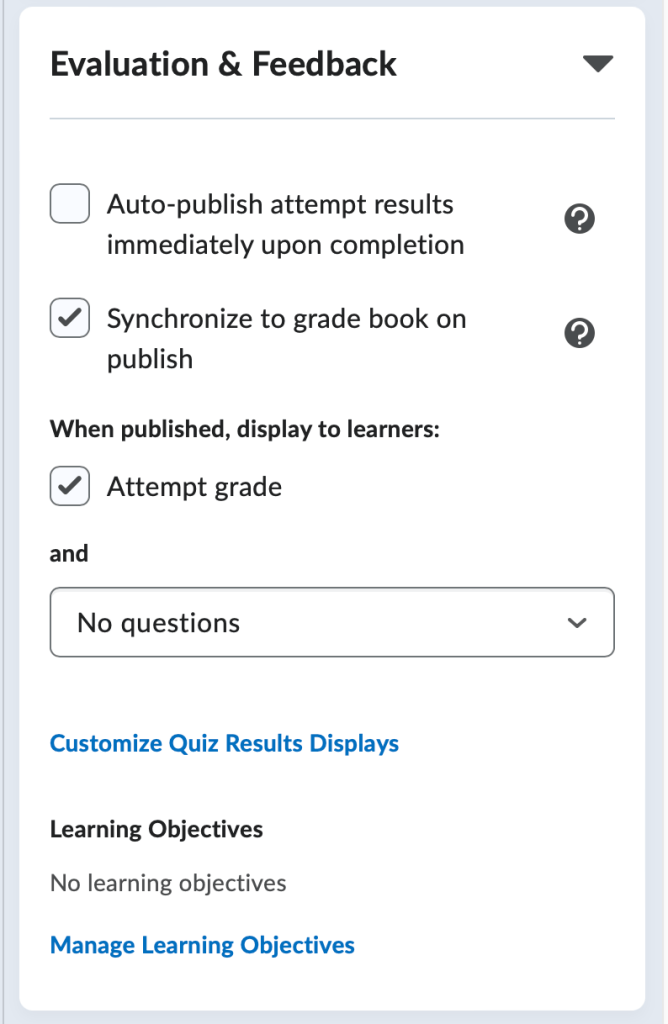
Auto-Publish attempt results immediately upon completion – With this feature turned on, the auto-evaluated attempt results will be published and appear to learners. If questions cannot be evaluated by the system (e.g. written response questions), those questions will be automatically scored with a zero until manual evaluation by the instructor.
Synchronize to grade book on publish – With this feature turned on, the learner’s grade will be automatically published to the grade book once it has been evaluated. The quiz must be linked to the gradebook in order for this feature to be enabled.
When published, display to learners – You can choose whether students can see their quiz attempt’s grade and if you’d like students to see the questions they responded to, with incorrect or correct answers included.
Click Save and Close to confirm your changes.


You must be logged in to post a comment.