
You can access the Yuja Video Platform in one of two ways: either within D2L or the CCCS Yuja website.
To Access Yuja from D2L #
Navigate to one of your courses, open the More Tools dropdown menu from the top navigation bar, and select YuJa.
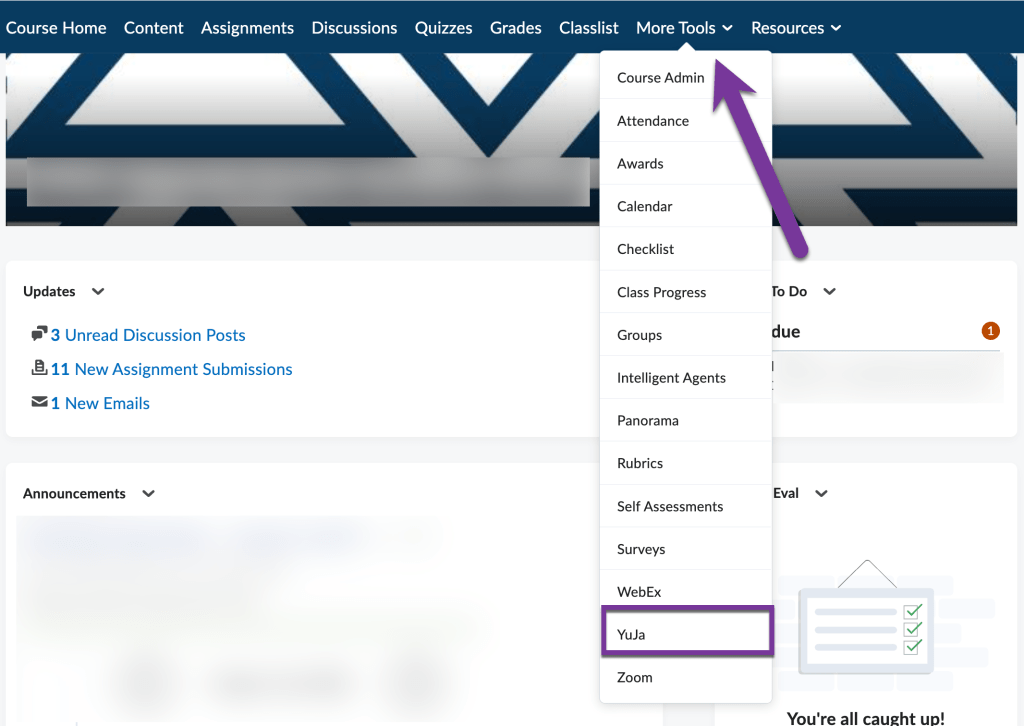
This will take you to the Yuja Dashboard.
Main Features of the Yuja Dashboard #
Let’s go over the main features you’ll see on this Dashboard.
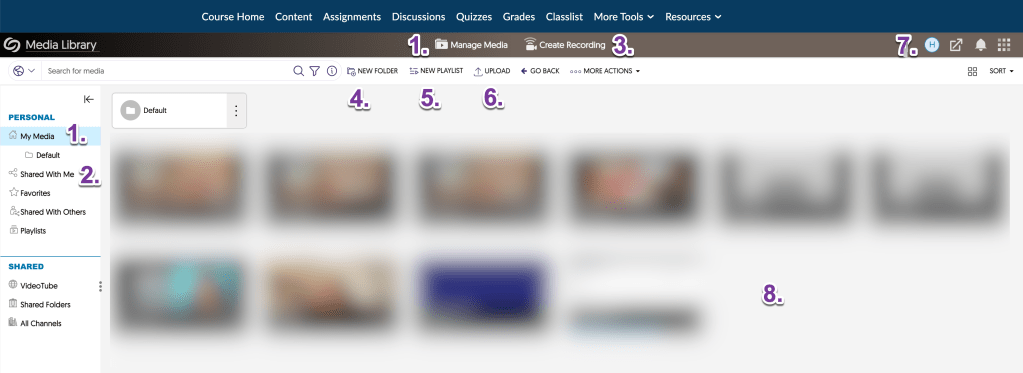
- My Media / Manage Media – You can always click on My Media from the left-side navigation bar, or click on Manage Media from the top of the screen to return to this Yuja Dashboard.
- Shared With Me – If you are collaborating on a video with another instructor or student, you can view any videos that have been shared with you in the left-hand navigation bar.
- Create Recording – When you are ready to create a video, you’ll click the Create Recording button at the top of your screen.
- New Folder – If you’d like to organize your video by subject or by course, for example, you can create a new folder that you can use to organize your videos, similar to how you create folders on your computer to organize files.
- New Playlist – If you are planning on making a series of videos that you’d like students to watch in one module or lesson, consider creating a New Playlist. These will work similarly to YouTube playlists if you have experience creating or watching those.
- Upload – If you’ve created a video in another program (or have recorded a lecture via Zoom or WebEx, for example), you can click this upload button and store the video inside of Yuja.
- Profile – Click the icon with your initials in the top right corner to view your account details, change your password, or contact Yuja Support directly.
- Video Grid – When you start creating or uploading videos, you will see your videos appear in a grid in the main window.


You must be logged in to post a comment.