
If you have submitted a Simple Syllabus before (either from a previous semester or the current semester), you can easily copy it over to another course’s Simple Syllabus.
First, you’ll need to edit the Simple Syllabus for the course you want to copy materials into. If you have added the link to Simple Syllabus in the D2L course shell, it should automatically load the editing screen when you click on the link. If you are working directly in Simple Syllabus from the Simple Syllabus Dashboard, you will need to search for your course and click the Edit button.

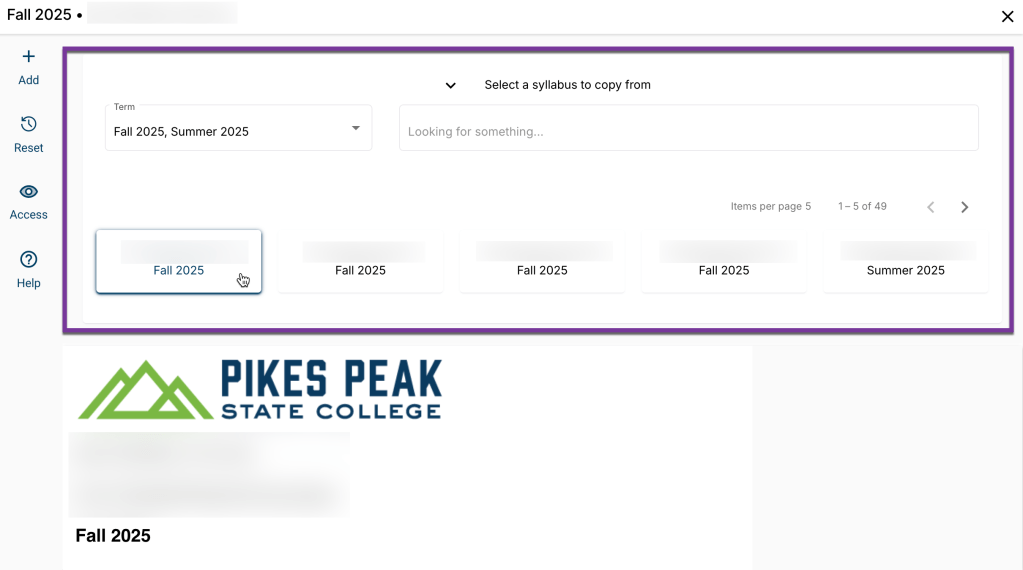
At the very top of the syllabus, you’ll see the option to “Select a syllabus to copy from.” You can now search for a Simple Syllabus using the term and search boxes. In this tool, you can only see completed syllabi for courses where you are assigned the instructor. Click the box for the syllabus you want to copy from the list of results.
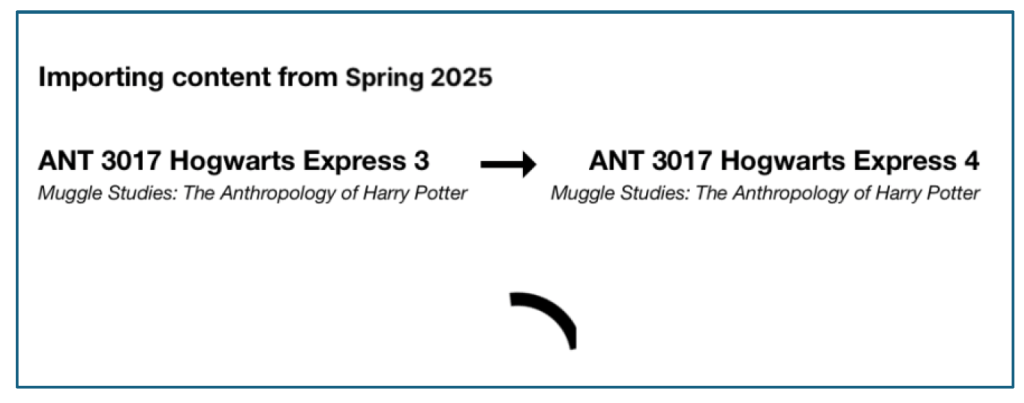
You should see a window pop up showing that the syllabus is being copied over.
After the copy is complete, be sure to look through the syllabus and update any pertinent dates or other information specific to the course.
Note: If you’ve already started working on a Simple Syllabus and would like to copy over a different one with this tool, be aware that copying a new syllabus will erase what is currently in your Simple Syllabus, and you won’t be able to get it back. If you want to save any sections you were working on, copy and paste them into a Word document or similar program before copying the new syllabus.
If you have entered content into your Simple Syllabus, instead of seeing a message with “Select a syllabus to copy from,” the message will say “Replace with a different syllabus?” Click the drop-down, and it will open up the syllabus search options.
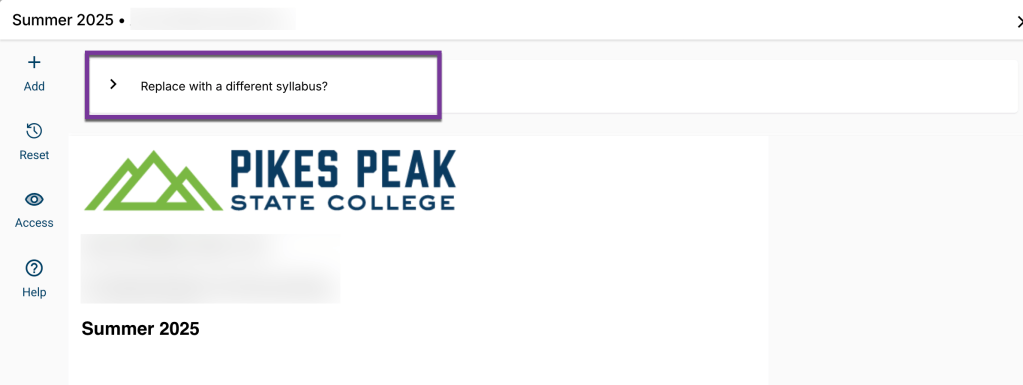
From there, you can click the box for the syllabus you would like to copy. Again, this will delete your current Simple Syllabus and replace it with the copied syllabus content.
Copy Part of a Simple Syllabus or Copy from Another Instructor’s Syllabi #
If you want to copy just a part of a Simple Syllabus, or if you would like to copy another instructor’s syllabus (say, your department chair’s syllabus), you can use the Import tool to copy over syllabus content.
To begin, edit your Simple Syllabus. You can edit your syllabus from a link in D2L, or by logging into Simple Syllabus’ website and clicking “Edit”.
Then, from the left sidebar navigation menu, click on the Import icon.
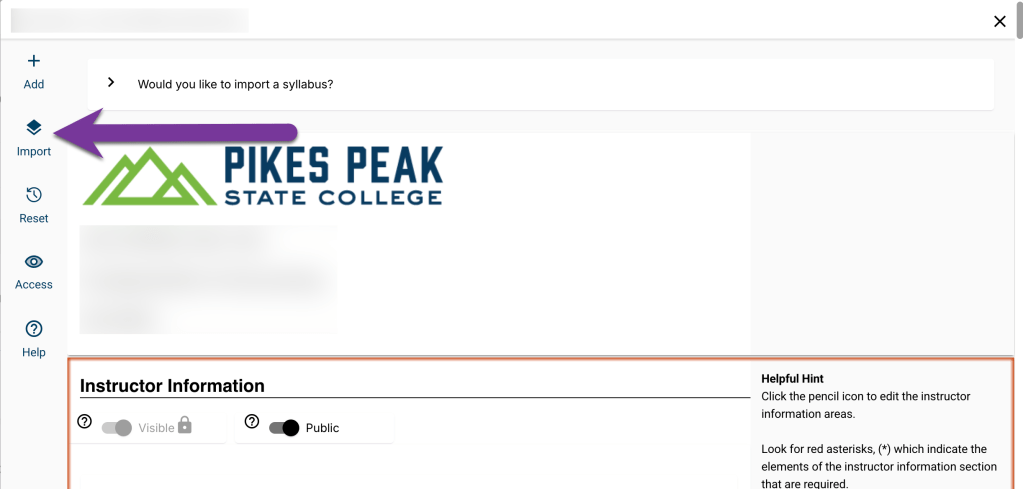
From the screen that pops up, you’ll be able to search for a particular syllabus by term, subject, course number, and instructor. Note that you will be able to search for any syllabi across the CCCS system, so be sure to double check what course you choose to copy a syllabus from.
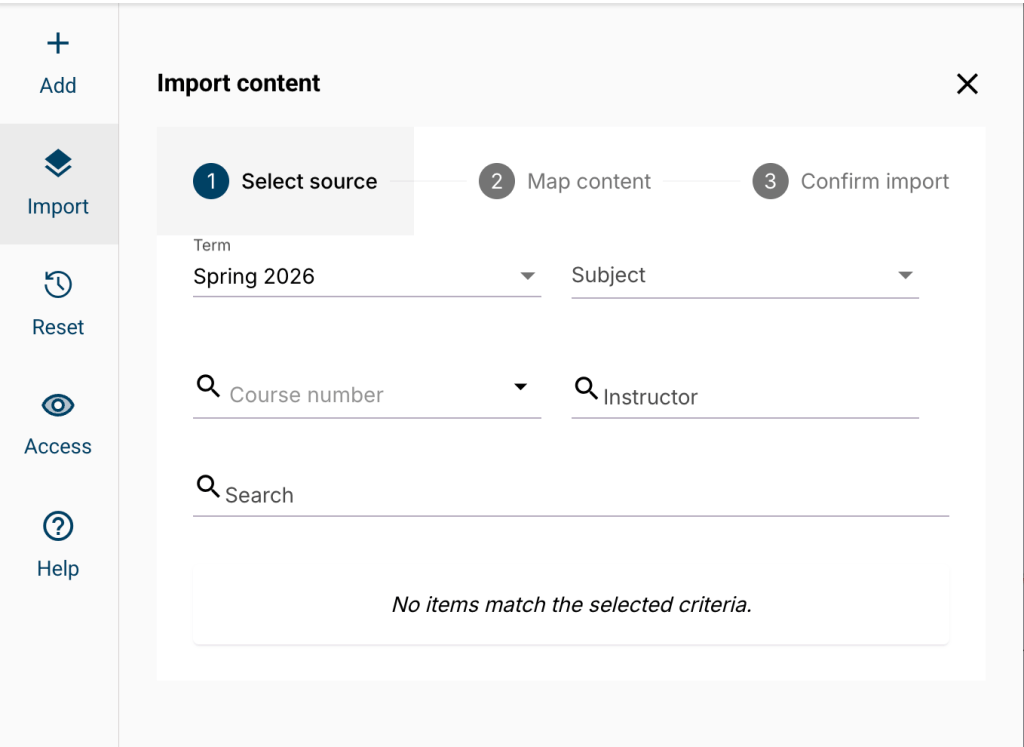
You will get a confirmation screen showing that the syllabus you selected will get copied over into your current syllabus. If you would like to only select a section of the syllabus, click on the toggle for “Advanced”.

If you click the toggle for Advanced, you will see all the sections in the syllabus you are copying from, and for each section, you can choose “Do not import,” “Create new component,” or select which component in your syllabus you would like the section to copy into.
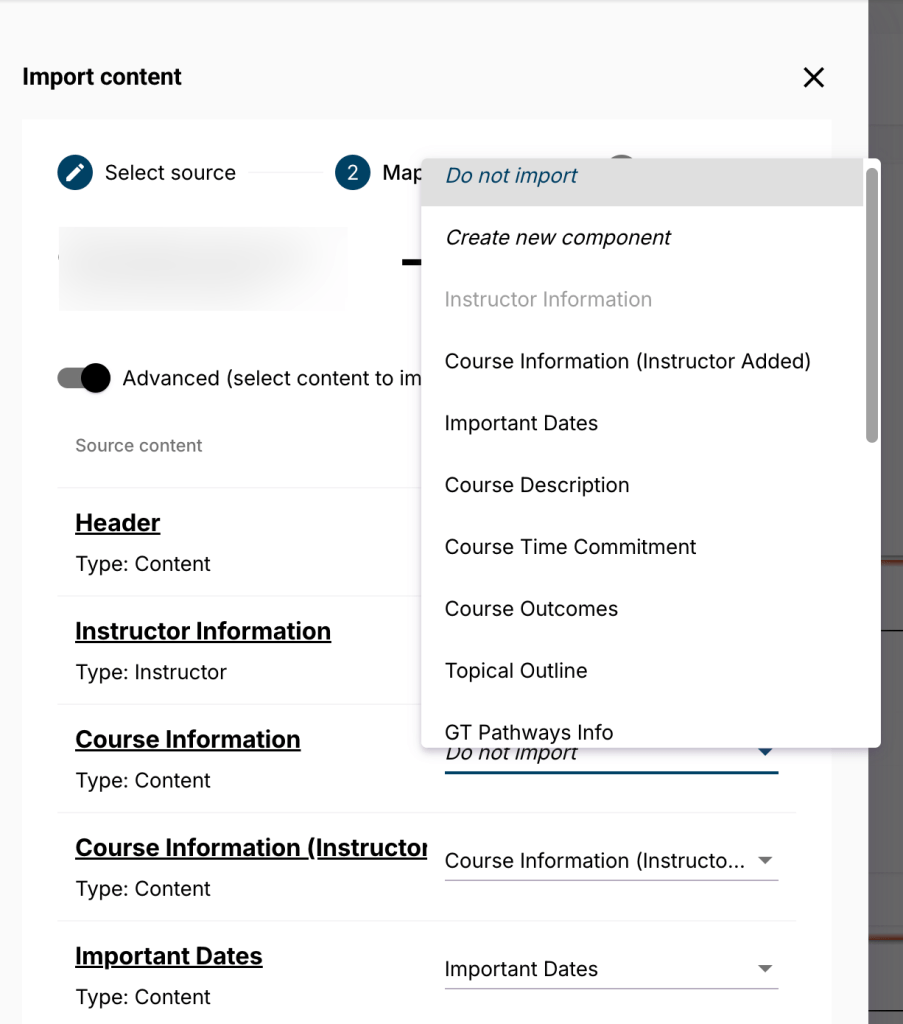
Click the “Finalize” button to move to the next step.

You will get a confirmation screen showing the list of elements coming from the copied syllabus and what section they will be copying into on your syllabus. Click “Start import of the following content” if you are ready to complete the copy.

When each section is finished copying over, you will see a check mark icon appear in the middle column. Click the “Close” button after all components have the check mark next to them.
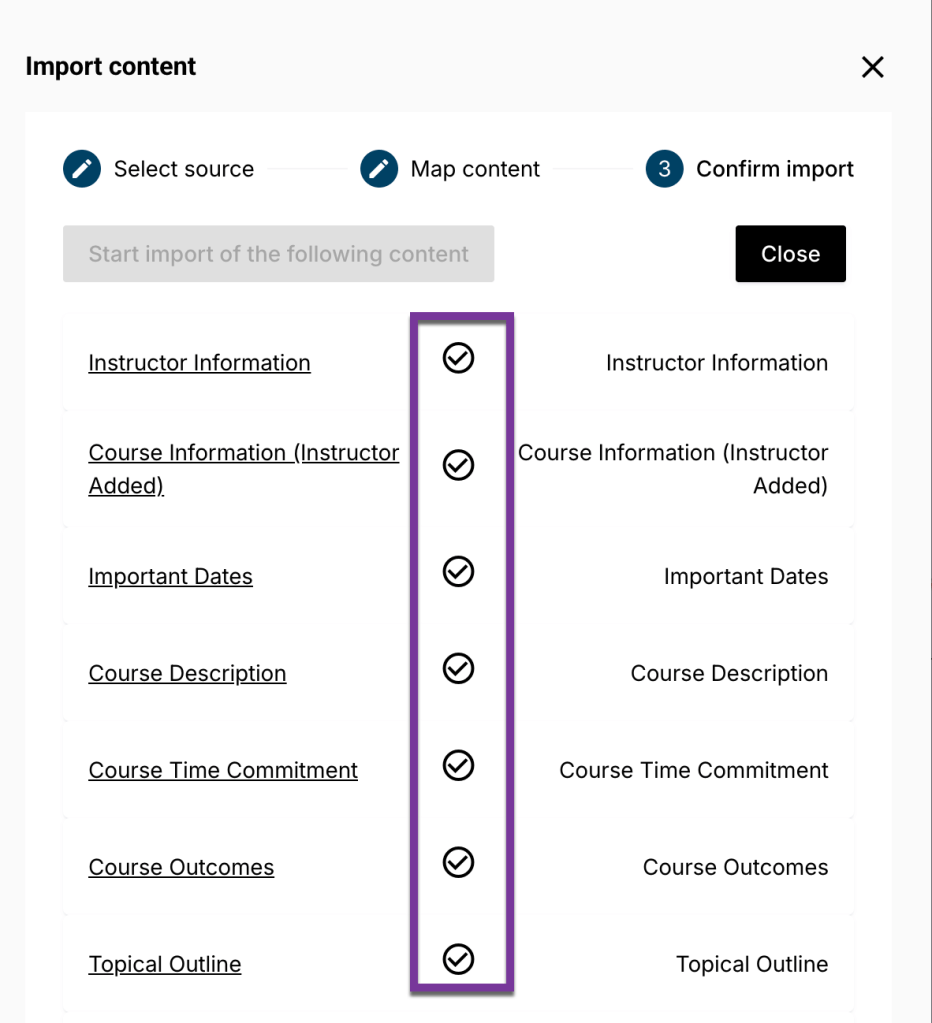
After the copy is complete, be sure to look through the syllabus and update any pertinent dates or other information specific to the course.


You must be logged in to post a comment.