
The D2L MyCourses home page is the first page you will see when logging into D2L. It has three parts: Organization Level Navigation, My Home Navigation and My Home widgets. Your home page should look like the screenshot below, however, if you work for multiple colleges across the Colorado Community College System, you may have a different institutions D2L home page. If you would like your home page changed to PPSC’s home page, please send us an email at elearning@pikespeak.edu
Organization Level Navigation #

Across the top of the home page, you will find the Organization-level navigation bar. This bar is available on almost every page within D2L. Clicking on the PPSC logo will return you to the Home page. As you look to the right, you will see the Course Selector, often referred to as the “waffle”. This tool is described below . To the right of the Course Selector are three icons. These will allow assess to Send Email (the envelope), to subscription alerts (the talk bubbles) and to other system notifications (the bell). When there are new items or alerts in these areas, they will display an orange dot. Next to these and furthest right on the page is the user menu. Within this menu you will find options to set your personal preferences (including adding a picture) and to log out of the system.
Course Selector (the “waffle”) #

In the top navigation bar, you will see a square of nine smaller squares. This is the course selector or what we refer to as the “waffle”. When you click on this icon, the dropdown menu will show currently available courses in which you are enrolled. Clicking on any course name will take you into that course. Click the Pin icon to pin a course to the top of the Course Selector list. Pinning courses will cause those courses to display on the first in the Course Dashboard.
My Home Navigation #
The My Home navigation is dependent on the role of the person accessing it. Only instructors will see Faculty Resources, while both instructors and students will see the Student Resources.

My Home Widgets #
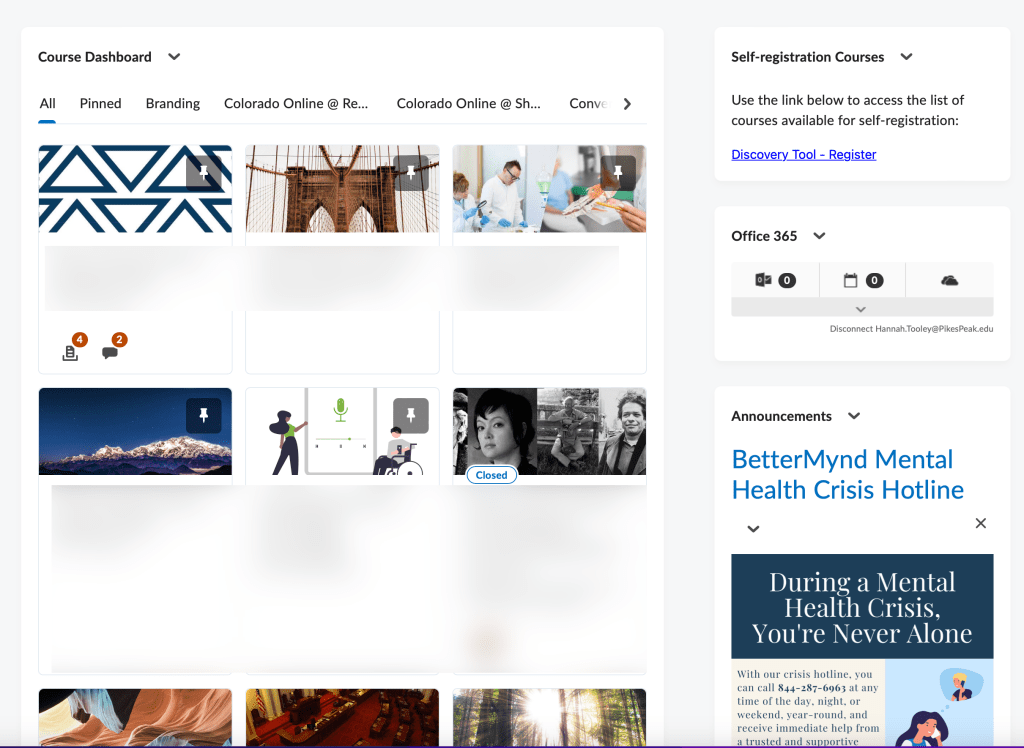
Widgets are the squares that make up most of the homepage. The widgets are (in order of appearance on mobile devices):
Course Dashboard #
Tiles to courses active or pinned. View All Courses link at the bottom to access searchable list of all courses. Note that there are different tabs for different semesters and other types of courses (such as department shells).
Self-registration Courses #
This will take you to a list of courses that you can self-enroll in. These include courses on D2L features, accessibility, course templates, and more.
Office 365 #
Access to Email, Office 365 Calendar and OneDrive
Announcements #
College-wide announcements from the eLearning Office.


You must be logged in to post a comment.