
Simple Syllabus Tips and Changes
- Instructors won’t have access to a Simple Syllabus for their class until they’re assigned to the course in D2L. It may take 24-36 hours for Simple Syllabus to give an instructor access after they’ve been added to the D2L shell.
- Course Outcomes & Topical Outline sections are now brought over via banner.
- Added text to the Instructor Policies section for clearer guidance on the policies that should be included in that section.
- Updated the “Standards, Institutional Requirements, Guidelines, Expectation” section for CO Online pooled courses. This section is now locked for editing.
D2L Updates
- New Automatic Zero for Missing Submissions D2L Grade Feature
- You can now turn on a gradebook setting to automatically give students a zero if they did not submit or complete an assessment before the due date passed. Previously, instructors had to manually input zeros. This setting is not on by default and must be turned on in the courses you would like to use it in. Instructions
- Rubric Icon
- A new Rubric icon appears next to an assignment, discussion, or quiz where a D2L rubric has been attached.
- Work to Do Widget no longer shows as overdue for completed content modules.
- Previously the Work-To-Do widget would show any Content Modules with Due or End Dates as Overdue for students. Now the content modules will be removed once all items in the module have been completed.
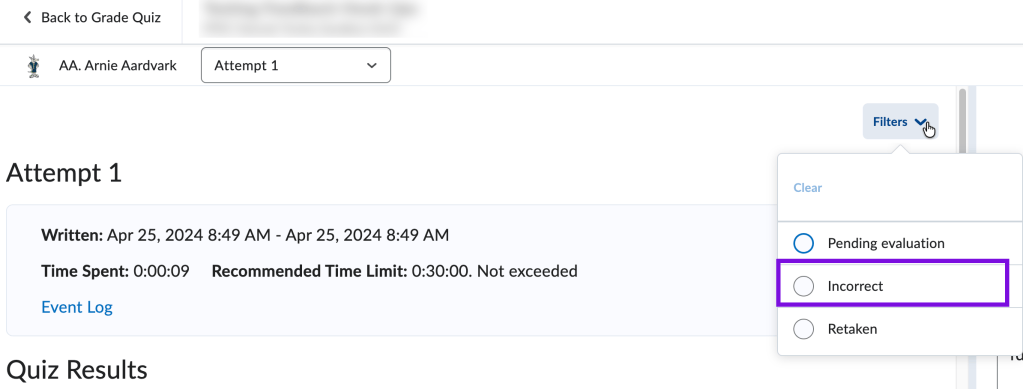
- Filter Quiz for Incorrect Questions
- When Grading a student’s Quiz attempt, you can now use the filters to narrow down only the questions a student got incorrect to speed up your grading workflow.
Pearson Integration
- Instructors using Pearson Courseware (MyLab, Mastering) will need to add their links by going to Existing Activities –> External Learning Tools –> Pearson Access Launch.
- If the instructor is teaching a pooled section, we recommend that the instructor uses the Teaching Resource Shell from the CO Online Course Materials Dashboard. There will be a file in the Instructor Notes module with a Pearson Template code they will need to get the links copied over on the Pearson side.
- For home sections, we recommend instructors schedule an appointment with Pearson to set up their course links.
- See the following article for more instructions and information: Pearson Link Migration – Pearson Seamless LTI 1.3
Yuja Panorama User Interface Changed
- Yuja Panorama has a new interface for finding and remediating accessibility issues. See the following Getting Started article for instructions.
- A stricter accessibility scoring model went into effect on May 12th. You may see your accessibility scores have dropped between your Spring and Fall classes. The number of accessibility issues should be similar, but the way they are graded may have resulted in a lower score. We would like to see all course files score at least 90% accessible or above.
Lab Kits
- In Fall 2026, all lab kits will be able to be ordered via course pop up in pooled and home sections.
- If they miss the pop up somehow, students can order their lab kit via the PPSC Information widget on the course homepage.
- See the following article for more information on lab kits.
Online Test Proctoring
- Respondus will be available for Home sections.
- We are still waiting to hear which pooled courses will be able to use Honorlock for proctoring in Pooled Courses. Using Honorlock for pooled courses will ensure that students from all 13 colleges will have equal access to the tool. We hope to have an update soon. See CCCS articles on using Honorlock.
MyCourses Roadmap – Your Digital Backpack Course
- Students enrolled in Fall 2026 courses will see a pop up on their course homepages to complete the MyCourses Roadmap – Your Digital Backpack Course. This course gives students an overview of the different features they will need to use in D2L.
- Students will continue to receive the pop up message until they score at least 80% on the final exam in the My Courses Roadmap course. We encourage all students to complete the course, but experienced students can skip straight to the final exam to stop seeing the pop-up message.
- Please review the Student FAQ for more information

Please send any questions to eLearning@pikespeak.edu.
You must be logged in to post a comment.